
Add Shapes to Image
Add shapes to image or screenshot online, free and with no signup. Drop your picture and the shape tool is already armed, so you drag to draw a circle, rectangle, square, triangle or star. Outlined to draw attention, filled to cover something up, in any colour. Nothing is uploaded. Up to 25 MB.
Drop your image to add a shape
Circles, rectangles and stars, outlined or filled. Drag to size it. Or press Ctrl + V to paste one straight from your clipboard. PNG, JPG or WebP, up to 25 MB. Edited in your browser, never uploaded.
Circle It.
Box It. Done.
Drawing a shape on a picture is either how you make someone look at one thing, or how you stop them seeing it. Both are ten second jobs that most tools turn into an account, an upload, and a shape you cannot resize once it lands.
Tools that pair well with this one
All free, all in your browser, no signup.

Why use Piknova?
Add shapes to an image without opening a design app. to get the job done.
What this shape tool does that a design suite or a screenshot app makes you pay or learn for.
Piknova
What you get- Add rectangles and circles to an image, no account
- Fill, outline, colour and thickness on every shape
- Stack shapes, move them, delete the wrong one
- Exports at the original resolution, no watermark
- The image never uploads
Other tools
What you put up with- A design app with a login and a learning curve
- Fixed presets, or the full toolbar
- Undo is the only way back
- A branded corner unless you upgrade
- Sent to a server to render
How to draw a shape on an image
Three steps, no account, 25 MB per image.
- 01
Drop your image
Drag a PNG, JPG or WebP onto the box, or press Ctrl+V to paste one from your clipboard.
- 02
Pick a shape and drag it out
The shape tool is already armed when the editor opens. Choose the shape from the toolbar, then drag on the image to size it. Set outlined or filled, and the colour.
- 03
Download it
PNG keeps the edges sharp and any transparency intact. JPG if you need it smaller. No watermark either way.
Circles
Add a circle to an image, or draw one around something
Circling something is the most-used shape annotation there is, because it says "this, here" without covering what it points at.
Pick the circle, then drag on the image to size it. Drag out from just outside the thing you want to highlight rather than from its centre, and you get a ring around it in one gesture instead of two attempts.
- Use an outline, not a fill: The whole point is that the thing inside stays visible. A filled circle hides what you are highlighting.
- Go thicker than feels right: A one-pixel ring disappears at thumbnail size. If the image will be seen small, the outline needs to be heavier than it looks on your screen.
- Pick a colour the image is not using: Red on a red error state is invisible. Type a hex code if the defaults are fighting the picture.
- Ellipse or perfect circle: Free-drag gives you an ellipse, which is usually what you want around a word or a button. Hold to keep it a true circle.
Circle landed slightly off? Select it and drag a handle. It is still a shape, not pixels, so a near miss is a nudge rather than an undo.
Boxes
Draw a box around an object, or over it
A rectangle does the two most useful things on this page, and they are opposites. Which one you get depends entirely on whether you fill it.
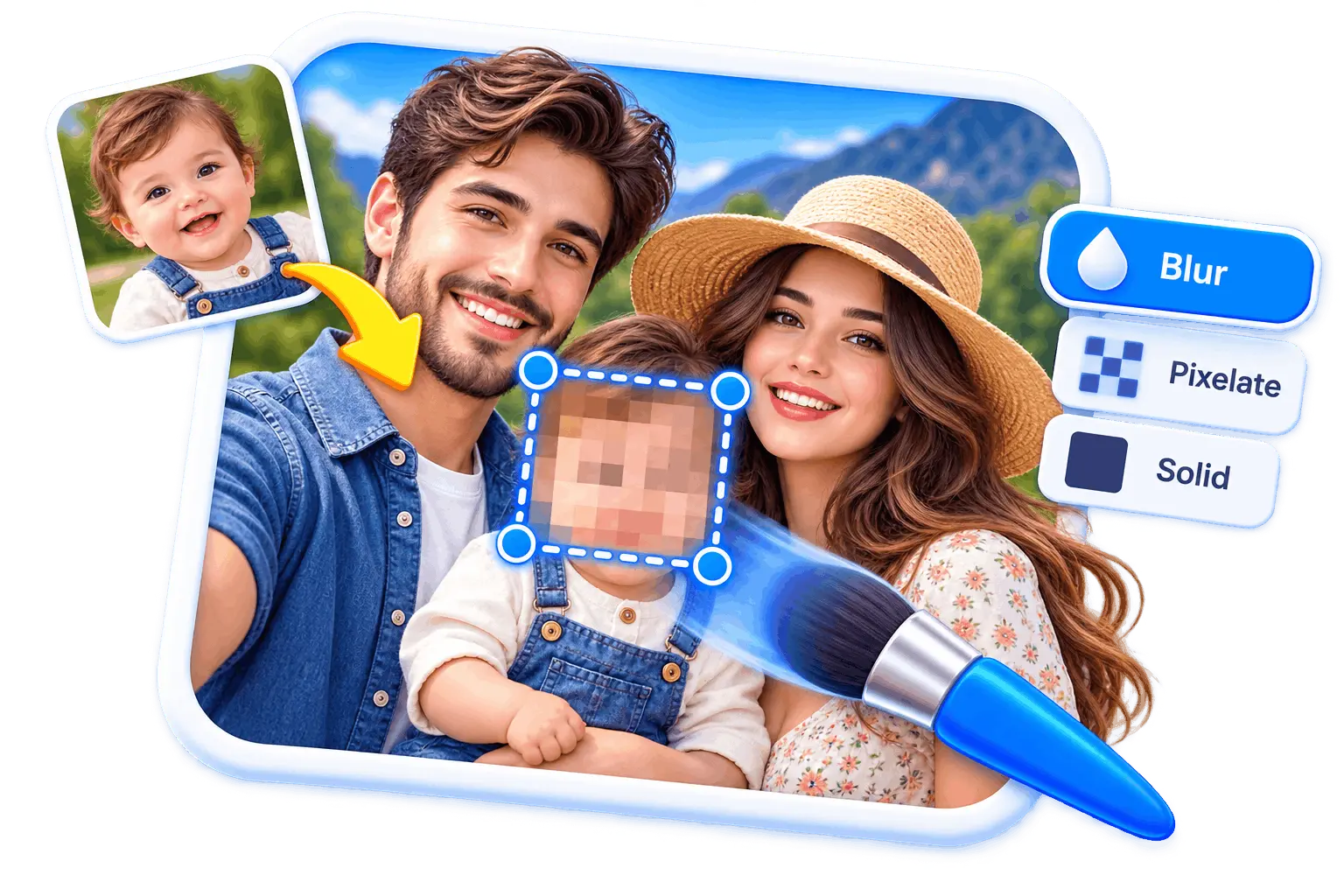
An outlined box frames a region: a section of a dashboard, a paragraph of text, an object in a photo. A filled box removes a region: a card number, an email address, a face, a name badge. Same shape, same three seconds, completely different intent.
If you are covering something sensitive, a filled box is the right tool and it is safer than a blur. The export is flattened pixels, so there is nothing underneath the box for anyone to recover. A weak blur, by contrast, is a transformation of the original pixels and can sometimes be partially reversed.
- Rounded corners: A rounded rectangle reads as a deliberate highlight; a hard-cornered one reads as a crop mark. Both are in the shape list.
- Squares: Hold while dragging to lock it square, for grids and icon-sized regions.
- Semi-transparent fill: Somewhere around 30% opacity gives you a highlighter effect: the region is tinted and still readable.
Other ways to mark a region
Markup
Annotating an image with several shapes
One shape is a highlight. Four shapes is a diagram, and it needs a little more thought than four drags.
Each shape lands selected, with its handles on, so you can resize, move or recolour it before you go on. When it is right, press the shape tool again, or its key, to draw the next one.
- Keep one visual language: Outlined shapes for things to look at, filled shapes for things to hide. Mixing the two arbitrarily makes the reader work out your system before they can read your point.
- Reorder rather than redraw: Every shape is its own layer. Send one behind another from the layers panel, which opens from the layer count in the status bar.
- Fade the secondary ones: If everything is at full strength then nothing is emphasised. Drop the opacity on the supporting shapes.
Screenshots
Circling something in a screenshot
This is the single most common use for shapes on an image: a bug report with the broken field boxed, a tutorial with the button circled, a design review with a region flagged.
It works identically here. But a screenshot markup job is normally shapes plus arrows plus labels together, and it normally starts with something already on your clipboard rather than a file on disk. The annotation page is built for that: paste straight in, and the whole markup kit is on the rail.
Frequently asked questions
How the shape tool works, and where it stops.
Drop your image on the box above, or press Ctrl+V to paste one. The editor opens with the shape tool already armed.
Pick the shape you want from the toolbar above the image, then drag on the picture to size it. Choose outlined or filled, set the colour, and press Download.
Rectangles, rounded rectangles, circles and ellipses, triangles, pentagons, hexagons and stars. Each can be outlined or filled, in any colour and at any opacity. There are no speech bubbles or callout shapes, which is worth saying because a lot of pages imply them.
Pick the circle, set it to outlined rather than filled, then drag from just outside the thing you want to highlight. Free-dragging gives you an ellipse, which is usually the right shape around a word or a button; hold while dragging for a perfect circle. Go thicker with the outline than feels right if the image will be viewed small.
Draw a rectangle over it and set it to filled. That is safer than blurring: the exported image is flattened pixels, so there is nothing under the box for anyone to peel off, whereas a light blur is sometimes partially reversible. And because nothing is uploaded, the version with the details still visible never leaves your machine.
Yes, stars are in the shape list, along with triangles, pentagons and hexagons. Drag to size, and they can be outlined or filled like everything else.
Yes. Switch to the select tool, click the shape, and drag a handle. You can also rotate it, recolour it, change the corner rounding, fade it, or send it behind another layer. Nothing is baked into the picture until you export.
As many as you need. Each one lands selected so you can adjust it right away, then press the shape tool again for the next. Each one is its own layer with its own colour, opacity and position.
Yes. No signup, no export limit, no logo in the corner. The work happens in your browser rather than on our servers, so there is no per-image cost for us to pass on.
No. Your browser opens the file and draws on it locally. Nothing is sent to a server, which is why it is instant on a large image and why nobody here can see what you were covering up.
Draw your shape now
Drop the image, drag a circle or a box onto it, download it. Nothing gets uploaded and nothing gets watermarked.