
Pixelate Image Online
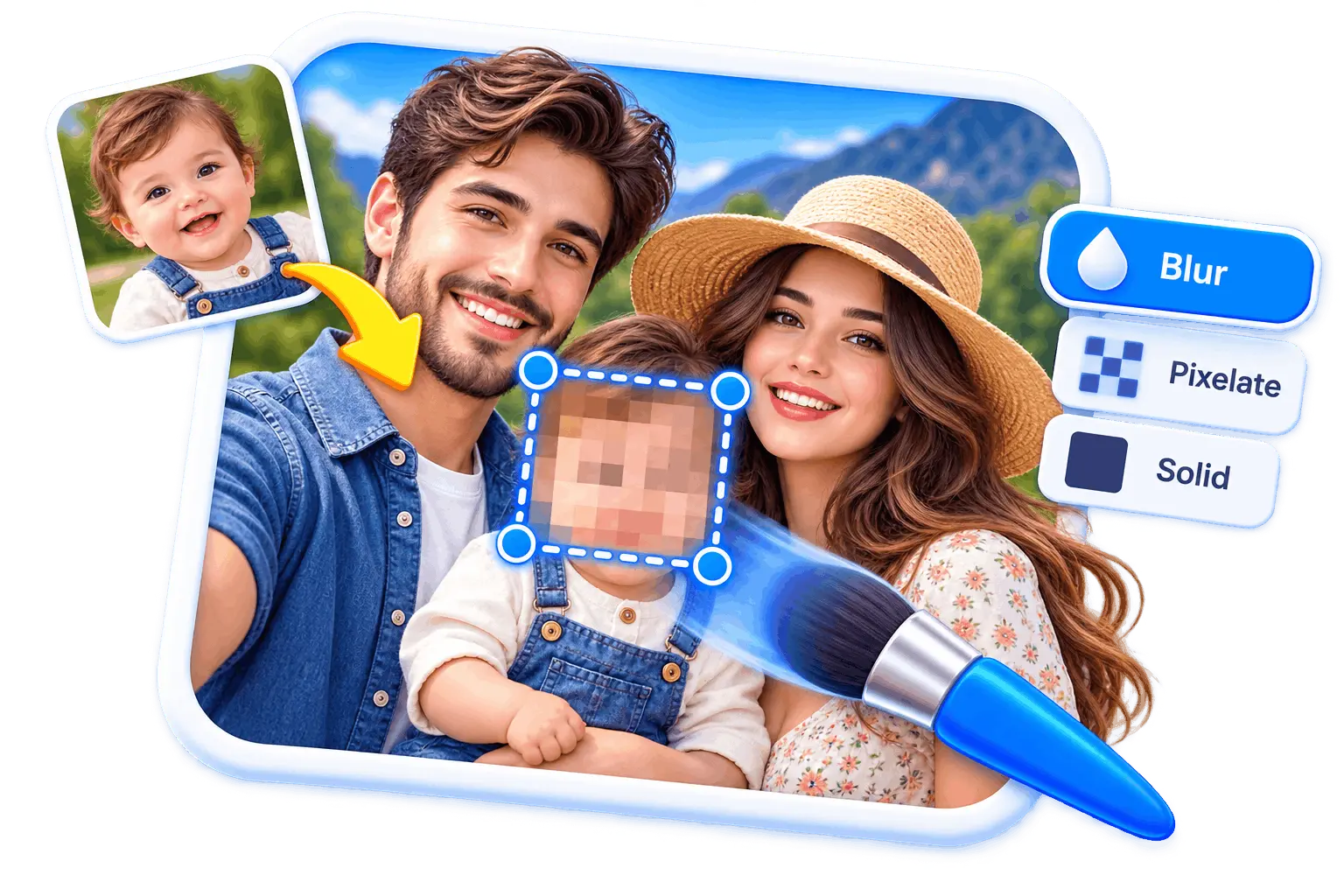
Pixelate image online free, with no signup. Drop your picture and the mosaic is already the armed style with the block size ready, so your first drag either covers one thing you want hidden or the whole frame if you are after the retro look. Both are proper uses of this page and it treats them as two different jobs. Nothing is uploaded. PNG, JPG or WebP up to 25 MB.
Drop an image to pixelate it
Opens on the mosaic with the block size ready, for one region or for the whole frame. Or press Ctrl + V to paste one straight from your clipboard. PNG, JPG or WebP, up to 25 MB. Edited in your browser, never uploaded.
Two Reasons to Pixelate
And They Want Opposite Things
Half the people here are hiding something and want the blocks big enough to destroy it. The other half want the 8-bit look and are choosing the block size by eye. Most tools pick one of those and quietly serve the other one badly.
Tools that pair well with this one
All free, all in your browser, no signup.


Why use Piknova?
Pixelate an image so the detail is really gone. to get the job done.
What this pixelate tool does that a filter in a photo app or an upload site makes harder.
Piknova
What you get- Pixelate an image in the browser, no account
- Pixelate the whole image or just the region you draw
- Set the block size and see it before you export
- Exports at the original resolution, no watermark
- The image never leaves your device
Other tools
What you put up with- A signup before the download
- Whole-image only, regions in the paid tier
- One block size, take it or leave it
- A watermark, or a smaller copy
- Uploaded to a server to process
How to pixelate an image
Three steps, no account, 25 MB per image.
- 01
Drop or paste your image
Drag a PNG, JPG or WebP onto the box, or press Ctrl+V to paste a screenshot. Nothing uploads.
- 02
Drag over a region, or the whole frame
The mosaic is already armed. Drag over one thing to hide it, or from corner to corner to pixelate the entire picture.
- 03
Set the block size, then download
Push the strength slider until the blocks are the size you want, whether that is unreadable or just chunky. Export at full resolution, flattened, no watermark.
Two different jobs
Pixelating one region versus the whole picture
These are not two settings of one task. They are two tasks that happen to share a control, and knowing which one you are doing decides everything else.
Region pixelation is a privacy job. You have a sharp picture and you want one thing gone from it: a face, a plate, a number, a name on a badge. Everything outside the region has to stay exactly as it was, because the rest of the picture is the reason you are posting it. Drag over the one thing, push the blocks up until it is unreadable, and leave the rest alone.
Whole-image pixelation is a style job. You want the picture to look like a low-resolution rendering of itself, and there is nothing to protect. Drag one region from corner to corner and the entire frame gets the treatment. Here the block size is an aesthetic decision made by eye, and the right answer is whatever looks right rather than whatever is safest.
The reason this page bothers to separate them: they pull the block size in opposite directions. Privacy wants the largest blocks you can stand, because the failure mode is something staying readable. Style wants the smallest blocks that still read as pixel art, because the failure mode is a picture nobody can tell what it is. Same slider, opposite ends.
The one control
Choosing a block size that does what you meant
The strength slider here sets the block size, and it is scaled to the region rather than to the image. That one design decision is what makes the following advice usable.
A fixed block size means something different on every region. Twelve pixels annihilates a forty-pixel account number and is barely visible on a nine-hundred-pixel face, so a slider position would mean one thing on one region and something else on the next, and you would quickly learn not to trust it. Scaling the blocks to the shorter side of the region means a given position hides the same proportion everywhere.
- For hiding text: Push it until you cannot tell where one word ends and the next begins. If word shapes are still visible, the layout is still carrying information, and layout plus a known font is most of what a reconstruction needs. Honestly, for text you want the solid block rather than this.
- For hiding a face: Push it until you cannot locate the eyes. A mosaic that still shows two dark patches where eyes go is still showing the geometry of the face, which is the part that identifies someone.
- For the retro look: Much lower than you would expect. The trick is that the picture has to stay legible as a picture: you want to see that it is a person on a beach, drawn in blocks. If it reads as coloured noise, drop the slider until the subject comes back.
- For a whole frame: Remember the blocks scale to the region, and the region is now the entire image. The same slider position that pulverised a small number produces a comparatively subtle effect across a big photo, so expect to push further than you did last time.
Nothing is applied until you export, so the slider is a live decision rather than a commitment. Place the region, move the slider until it looks right, then move on. If you change your mind about the method entirely, the style is a setting on the region rather than a different tool, so switching to a blur or a solid block does not mean re-aiming.
The aesthetic half
Using the pixel effect for style rather than privacy
Half of this page's visitors are not hiding anything, and this section is written for them without pretending they are a special case.
The look people mean by 8-bit or 16-bit is really two things at once: large square blocks, and a small number of colours. This tool does the first one honestly and does not do the second, so it is worth saying plainly. A mosaic here averages the pixels in each block and keeps the full colour range, which gives you a genuine low-resolution rendering of the photo. It does not quantize to a sixteen-colour console palette, and any page telling you a mosaic filter alone produces authentic pixel art is selling you the easy half.
- Start with a simple subject: A face against a plain background pixelates into something recognisable. A busy street scene turns into mush at any block size, because there was never a dominant shape for the blocks to average towards.
- High contrast survives, fine detail does not: Strong silhouettes, bold colour blocks and clear edges are what read at low resolution. Textures, small text and thin lines are the first things to disappear.
- Mosaic a region for emphasis: Pixelating the background and leaving the subject sharp is the same gesture used the other way round, and it is a genuinely nice effect that most people never think to try here.
- Export as PNG: Hard block edges are exactly what JPG compression handles worst, and it will put visible fuzz around every block boundary. PNG keeps the edges clean.
The two halves also meet in one place worth knowing about: if you are pixelating for looks and there happens to be a face, a plate or an address in the frame, the aesthetic block size is almost certainly not big enough to hide it. A stylish mosaic and a safe one are different sizes, and only one of them was chosen for privacy.
The correction
A mosaic is not safer than a blur, and here is why
This is the thing most people arrive here believing, and it is backwards. It matters enough to be its own section on the page that is named after the method.
Pixelation feels safe because it looks the most censored. It is the television convention, the courtroom convention and the news convention, so it carries an air of officialdom. But mechanically it is the weakest of the three common options, and by a clear margin against text.
A mosaic is a deterministic function. Each block is the average of the pixels underneath it, so the same input always gives the same block. If an attacker knows roughly what they are looking for, a number, a name, text in a familiar interface font, they can render candidate strings, pixelate them the same way, and compare until the block values match. The search space is small because the alphabet is small. Public tooling that automates exactly this against pixelated screenshots has existed since 2020.
Against a face it is a much better bet, because a face has no finite alphabet to enumerate and no known font to render. A heavy mosaic over a face genuinely destroys the geometry. It is text where pixelation is worst, and text is unfortunately most of what people pixelate.
The honest ranking, for anything that would actually hurt you: a solid block is the only one with nothing underneath it, a heavy blur is a reasonable second, and a mosaic is the one that looks the safest and is not. Use this page when the mosaic is the effect you want. When the point is that the thing must stay hidden, use the block.
Frequently asked questions
Block sizes, regions, the retro look, and whether a mosaic can be undone.
Drag over that part and nothing else. The mosaic is already the armed style when the editor opens, so the first thing you drag becomes a pixelated region and everything outside it stays at full sharpness. Add a second region and a third if there is more than one thing, and each stays independently editable.
For privacy, large enough that you cannot locate the features you are hiding: no eyes in a face, no word boundaries in a line of text. If you can see where the words break, it is not big enough.
For the retro look, much smaller. You want the picture to still read as a picture, drawn in blocks. The slider scales the blocks to the size of the region, so covering a whole photo needs a higher position than covering one small number did.
For text, effectively yes, and this surprises people. Because each block is a simple average, someone who knows what kind of string they are looking for can render candidates, pixelate them identically and compare until it matches. For a face it is far harder, since there is no finite set of candidates to test. If the thing underneath would genuinely hurt you if it came out, use a solid block, which has nothing underneath it at all.
Drag one region from corner to corner so the whole frame is covered, then bring the block size down until the subject is still recognisable. Start with a simple, high-contrast picture, because busy scenes turn to mush at any setting. Note that this gives you big blocks and the original colours: it does not reduce the picture to a sixteen-colour console palette, which is the other half of what people mean by 8-bit.
Yes. Drag a single region from one corner of the picture to the other and the entire frame is treated. This is the only page in this group where that is the normal thing to do rather than an edge case, which is most of why it exists separately.
PNG. A mosaic is nothing but hard edges between flat blocks, which is exactly what JPG compression handles worst, so a pixelated JPG comes back with visible fuzz around every block boundary. PNG keeps the edges crisp. If the file needs to be smaller afterwards, compress it as a separate step.
No. Your browser opens the file and builds the mosaic locally. Nothing is sent to a server, nothing is stored, and the export is re-encoded from raw pixels, so the GPS coordinates and device details in the original do not carry through either.
Free, unlimited, no account, no watermark and no export cap. The work happens on your computer rather than ours, so there is no per-image cost for us to pass on to you.
Pick your half and drag
One region to hide something, or the whole frame for the look. Set the block size, download at full resolution, nothing uploaded.