
Image Compressor to 25 KB, 50 KB or 100 KB
This free image compressor takes a JPG, PNG or WebP down to 25 KB, 50 KB, 100 KB or any size you type, right in your browser. Pick a file up to 25 MB, choose your size, download it.
Drop your images here to compress them
JPG, PNG or WebP, up to 25 MB. Up to 50 at a time, compressed in your browser, never uploaded.
Name the File Size.
We Hit It.
Most compressors give you a quality slider and let you guess. That is fine until a form tells you the photo has to be under 100 KB and you are on your fifth attempt. Type the number instead. We search for the highest quality that still fits under it, and we do the whole thing on your own machine.
Compress to an exact size
Each of these opens this same compressor with its target already set, so there is nothing to configure.
Tools that pair well with this one
All free, all in your browser, no signup.


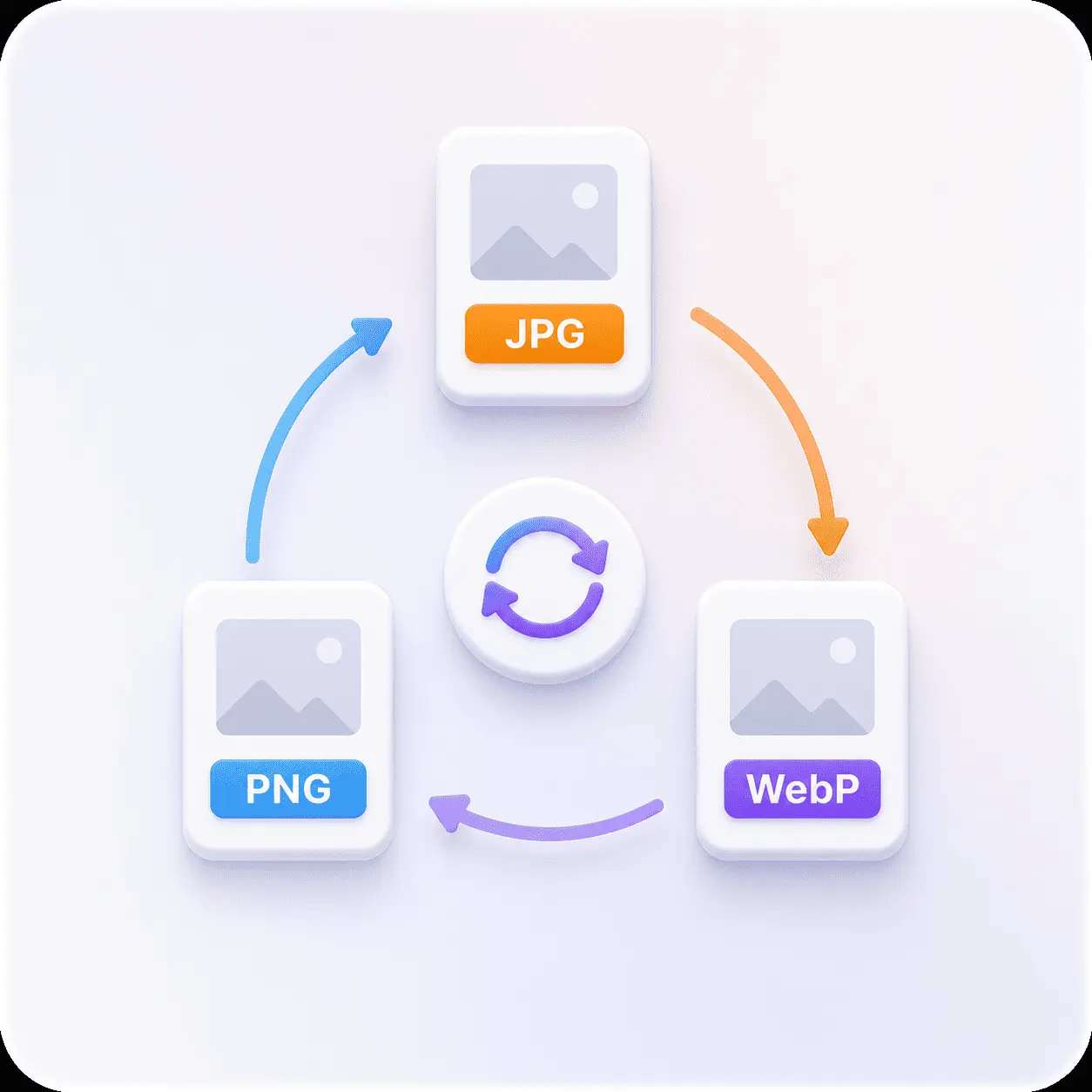
Why use Piknova?
Compress an image to the size you were asked for. to get the job done.
What this image compressor does that a percentage slider on another site cannot promise.
Piknova
What you get- Compress an image to 25 KB, 50 KB or 100 KB, on purpose
- Runs in your browser, the image never uploads
- No signup, no daily cap
- Keeps the format you dropped in
- Full resolution, no watermark
Other tools
What you put up with- A quality slider, then check the size yourself
- Upload, wait, download
- A signup, or a few files a day
- Silently converts your PNG to JPG
- A smaller copy, or a branded corner
How to compress an image to 25 KB
Three steps, no account, 25 MB per file.
- 01
Select your image
Click the button or drop a JPG, PNG or WebP onto the box. It stays on your device.
- 02
Choose your size
Type a target in KB, or pick a compression level and watch the projected size update.
- 03
Compress and download
Check the before and after, then save it. No watermark, no waiting, no signup.
The whole point
Compress an image to an exact size in KB
Switch the tool to 'By file size' and type the number. It does not have to be one of the presets, and it does not have to be round. Here is what each of the common targets is usually for.
| Target size | What it is usually for | What to expect |
|---|---|---|
| 20 KB | Government and exam portals with brutal upload caps | Reaches it on almost any photo, though large images get resized as well as compressed |
| 25 KB | ID photos, signature uploads, older job application forms | Comfortable for a headshot or a document scan at full size |
| 50 KB | Profile pictures, forum avatars, form attachments | Most phone photos land here with their dimensions intact |
| 60 KB | Email signatures and lightweight email attachments | Easy target, quality stays good |
| 90 KB | Blog thumbnails and listing images | Effectively free. You will not see the difference |
| 100 KB | The most common web upload limit there is | A full-size photo under 100 KB with no visible loss on most images |
| 200 KB | Hero images and anything that has to stay sharp | Generous. Expect near-original quality |
When quality alone cannot reach your number, we shrink the dimensions too and say so on the result. That is the only honest way to get a 12 megapixel photo under 25 KB, and a tool that does it silently is a tool that hands you a thumbnail without mentioning it.
Your file comes back as the format you uploaded
Compress a JPG and you get a JPG. Compress a PNG and you get a PNG, with its transparency intact. A compressor's job is to change a file's size, not its type.
This is worth saying out loud because most free compressors do not do it. Converting a PNG to JPG is the easy way to post a big percentage on the results screen, and it works by throwing away your alpha channel and painting a white background behind whatever was transparent. You find out when you drop your logo onto a coloured header and it arrives in a white box.
- JPG in, JPG out: The encoder's own quality setting does the work. This is the format compression was designed for, and where the savings are largest.
- PNG in, PNG out: PNG has no quality dial, so we reduce the number of distinct colours instead. Fewer colours means longer runs of identical bytes, and PNG's compression feeds on exactly that. Transparency is preserved, including partial transparency on antialiased edges.
- WebP in, WebP out: WebP has both a lossy mode and an alpha channel, so it compresses well and keeps its transparency at the same time.
The honest trade: PNG will not shrink as far as JPG does. A photograph saved as a PNG is a photograph in the wrong format, and no amount of compression fixes that. If you actually want it as a JPG, use the converter, where changing the format is the thing you asked for rather than a side effect.
Reducing a photo from MB to KB
A 6 MB phone photo to 100 KB is a 98% reduction, and it sounds impossible until you know where the weight actually is.
Camera photos are enormous because the encoder was told to preserve detail nobody is going to look at: sensor noise in the shadows, imperceptible variation across a patch of sky, texture at a scale that vanishes the moment the image is displayed at anything less than full size. Compression spends its effort there first, which is why the first 80% of the file can go before anything you would notice does.
That is also why the last stretch is the expensive one. Getting from 6 MB to 500 KB is nearly free. Getting from 500 KB to 25 KB starts costing you edges and gradients, and at some point the only remaining move is fewer pixels.
Rule of thumb: if your target is under about 2% of the original, expect to lose dimensions as well as detail. The tool will tell you when that happens rather than leaving you to spot it.
Compression vs width and height: two different jobs
These get searched for interchangeably and they are not the same thing. Knowing which one you need saves you a round trip.
- Compression: Same width, same height, fewer bytes. The image still fills the same space on screen, it just stores less detail. This is what you want when a form caps the file size.
- Resizing: Fewer pixels. A 4000px photo becomes an 800px one. This is what you want when something needs specific dimensions, like a 1080×1080 post.
This tool compresses, and only touches dimensions when your target size leaves it no choice. If what you actually need is exact width and height, the image resizer has fields for both in pixels, cm, mm or inches. Resize there first, then compress the result here.
Why you do not need image compressor software for this
Desktop compressors made sense when browsers could not do this. That stopped being true years ago, and the download is now the slowest part of the job.
- Faster: No install, no upload, no download queue. The only time cost is the compression itself, which is milliseconds.
- Private by construction: There is no server to trust with your photo, because it never reaches one. That is a stronger guarantee than any privacy policy, including ours.
- Free to keep free: Your device does the work, so a hundred compressions cost us exactly what zero do. That is why there is no daily cap and no signup wall.
The honest limit: browsers run out of memory eventually. 25 MB per file is where we stop, because past that a full-resolution decode can take a phone's tab down with no useful error. Desktop software still wins on giant batches and on RAW.
Frequently asked questions
How the compressor works, and where it stops.
Select your image, switch to the 'By file size' tab, pick 25 KB or type it in, then press Compress. The result is guaranteed to be under 25 KB, not near it.
For a small image like a headshot or a scanned signature, 25 KB is reachable at full resolution. For a full-size camera photo it usually is not, so the tool shrinks the dimensions too and tells you on the result screen exactly what size it ended up.
Yes, and to anything in between. The presets are 20 KB, 25 KB, 50 KB, 100 KB, 200 KB, and the box next to them takes any number from 5 KB to 5000 KB, so 60 KB, 90 KB or 350 KB are all one keystroke away.
Every target is treated as a ceiling. We search for the highest quality that fits under it rather than aiming for it and hoping, which is what stops you from getting a 104 KB file back from a 100 KB request.
No. Compression happens in your browser using the canvas it already ships with. Your file is read from your device, compressed in memory, and handed back. Nothing is transmitted, so nothing can be stored, and closing the tab erases every trace.
25 MB per image, which covers full-resolution phone and DSLR photos. There is also a 50 megapixel ceiling, because a heavily compressed panorama can be a small file that still needs 200 MB of memory to decode.
Past either limit, a browser can run out of memory in a way that shows up as a blank tab rather than an error, so the tool declines the file instead of gambling with your work.
At the default level, no. Most photos lose more than half their weight before there is anything to see, and the before-and-after preview is there so you can check rather than take our word for it.
At 100%, or at a very aggressive size target, yes, and visibly. Skies and shadows band, fine texture smears. That is what maximum compression is, and we would rather say so than call it 'optimized'.
Yes to both. A PNG goes in and a PNG comes out, with its alpha channel intact, including the partial transparency along antialiased edges. Nothing is flattened onto a white background, because you never asked for a background.
PNG has no quality setting for us to turn down, so we compress it by reducing how many distinct colours it contains. PNG's compression works by finding repetition, and fewer colours means far more of it. At the lightest setting the change is invisible; push the level up and you will start to see banding in gradients, which is the honest cost of a smaller PNG.
One consequence worth knowing: a PNG that was already run through an optimizer can come back slightly larger, because a browser writes full-colour PNGs rather than the palette-indexed ones those tools produce. If that happens the tool shows you both sizes so you can keep whichever is smaller.
Not unless it has to. Compression keeps your dimensions exactly as they were. The one exception is a size target that no quality setting can reach at full resolution, where the alternative is missing the number you asked for.
When that happens the result panel says so and shows the new dimensions, so it is never something you find out later.
No daily cap, no account, no watermark. Your device does the work, so there is nothing for us to ration.
Fifty images at a time, in one run. Drop a batch here and you get the same queue, or start from the bulk image compressor, which is this same tool on a page written for a folder rather than a file.
Compress your image now
Pick a file, type the size you need in KB, download the result. Nothing gets uploaded.