
Blur Face in Photo Online
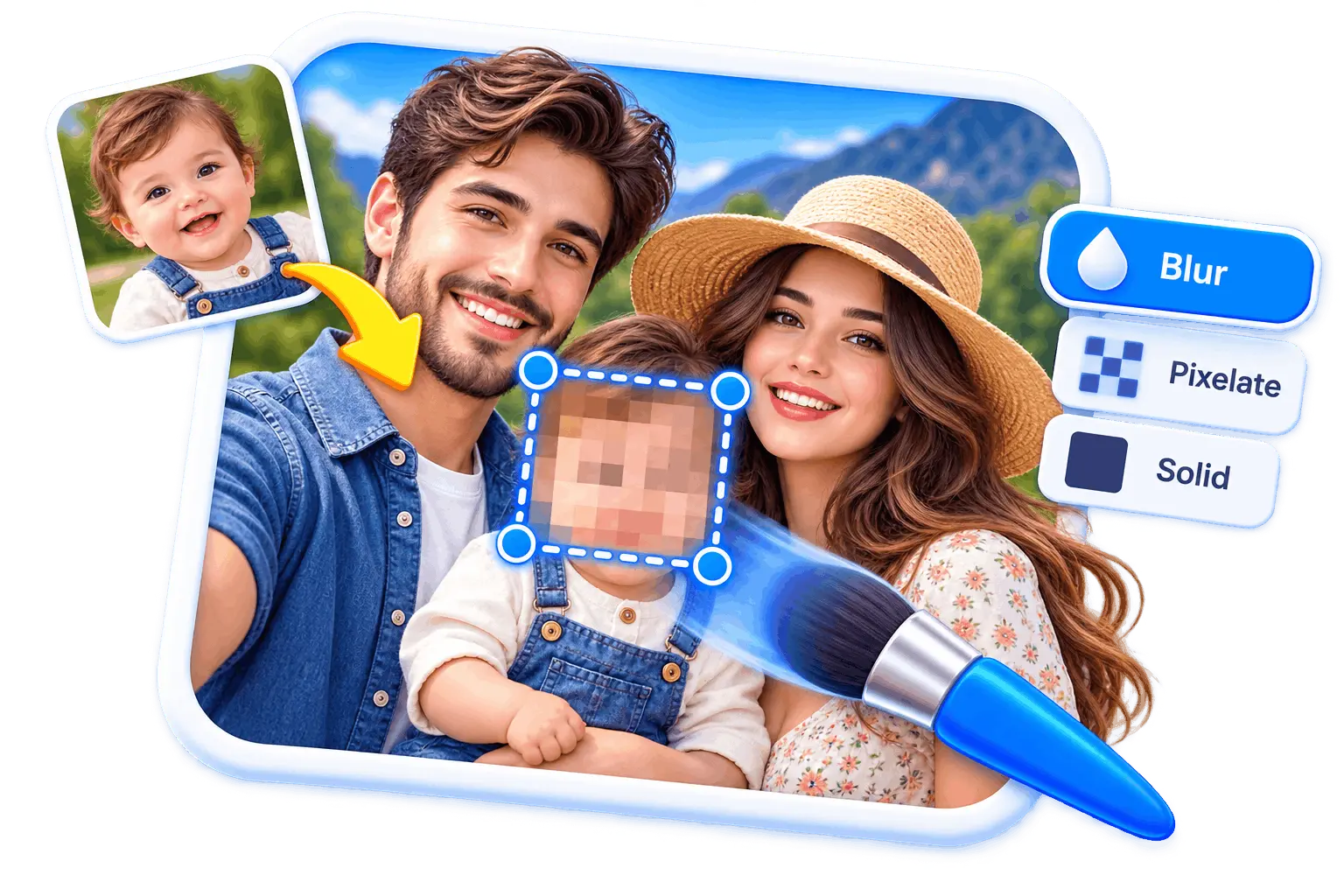
Blur face in photo online, free and with no signup. Drop your picture and the oval is already the armed shape at a heavy blur, so your first drag covers a face properly instead of leaving a soft patch you have to go back and fix. Blur one face or twelve, each its own layer. Nothing is uploaded, and the download carries no GPS coordinates. PNG, JPG or WebP up to 25 MB.
Drop the photo with the face in it
Opens with an ellipse and a heavy blur, so your first drag is already the right shape. Or press Ctrl + V to paste one straight from your clipboard. PNG, JPG or WebP, up to 25 MB. Edited in your browser, never uploaded.
A Blurred Face
Is Not an Anonymous Person
Every tool in this category sells you a blur and calls it privacy. The blur is the easy part. What identifies someone in a photo is usually still in the photo after the face is gone, and this page is going to tell you what to look for.
Same editor, other subjects
Each opens with the tool set up for what that page is about.
Tools that pair well with this one
All free, all in your browser, no signup.

Why use Piknova?
Blur a face in a photo without handing the photo over. to get the job done.
What this face blur tool does that an upload-and-wait blurring site makes you trust it with.
Piknova
What you get- Blur a face in a photo in the browser, no account
- Draw the blur where you want it, as strong as you want it
- Blur several faces in one pass
- Exports at the original resolution, no watermark
- The photo never leaves your device
Other tools
What you put up with- A signup, or an app, before the first blur
- An auto-detect you cannot correct
- One region per run on the free tier
- A watermark, or a smaller copy
- Uploaded to a server to detect faces
How to blur someone's face in a photo
Three steps, no account, 25 MB per image.
- 01
Drop or paste your photo
Drag a PNG, JPG or WebP onto the box, or press Ctrl+V to paste one. Nothing uploads.
- 02
Drag an oval over each face
The ellipse is already armed at a heavy blur. Cover from the hairline to the chin and out past the ears, then press the tool again for the next face. Your blur settings stay as they were.
- 03
Check the rest of the frame, then download
Name badges, a reflection in a window, a school logo on a jumper. Then export at full resolution, flattened, with no watermark and no metadata.
Group photos
Blurring more than one face in the same picture
Almost nobody blurs one face. The common case is a group photo where two people are fine with it and three did not agree to anything.
Drag an oval over the first face. It lands selected, so if it missed an ear you fix it right there, while you are still looking at that face. Then press the tool again, drag over the second, and keep going. There is no confirmation step and no limit on how many you place.
- Cover more than the face: Hairline to chin, and wide enough to include the ears. A blur that stops at the jaw leaves the hairline, the ear shape and the hair colour, which is a surprising amount of what makes someone recognisable to people who know them.
- Do the ones in the background too: The person at the next table who did not know they were in shot has the least say in this of anyone in the frame, and they are the one most often left sharp.
- Profiles and partial faces count: Someone turned away is still identifiable to anyone who knows them, and a profile is exactly the case automatic detection tends to miss. Placing them yourself means you decide, not a model.
- Check the layers panel before you export: It lists every region you placed. Counting eight entries against eight people in the photo takes two seconds and catches the one you skipped.
The failure that ruins all of this: blurring one photo out of a set of twenty where the same person is unblurred in the other nineteen. A face recovered from photo three identifies the blurred shape in photo one, and the effort you spent on photo one bought nothing. Check the whole set, not the file in front of you.
The honest part
Why a blurred face is not the same as anonymous
This is the section that argues against the tool on its own page, and it is the most useful thing here.
A blur removes one identifier from a picture. It does not remove the others, and there are usually more of them than people realise. Clothing, build and posture. A tattoo, a scar, a distinctive haircut, a wheelchair, a walking stick. The location, which is often recognisable to anyone local. The caption, which frequently names the event or the place. The other people in the frame who are not blurred. The account that posted it. The date.
Anyone who knows the person needs almost none of that. Recognising a friend from their posture at fifty metres is something people do without thinking, and a blurred face does not interfere with it at all. The blur protects against strangers and against automated matching on the face specifically. It does not protect against someone who already knows them.
Systems that match on more than faces are also not hypothetical. Body shape, gait, clothing across multiple images and the context around a photo are all used in practice, and a face is only one signal among several. Treat a blur as one useful step rather than as a switch that makes a photo safe.
The practical version: before you post, ask what is left in the frame that names the person. If the answer is a school uniform, a house number and a caption saying which town, the blur was the least important of the four things you needed to deal with.
The other things in the frame
Kids
Blurring children's faces before you post
A different searcher with a different worry, and the advice genuinely differs from the adult case.
The obvious difference is consent: a child cannot give it, and a parent giving it on their behalf is giving away something the child will have opinions about in fifteen years. The less obvious one is that photos of children come with more context attached than photos of adults. A school uniform, a team kit with a club name, a nursery logo on a bag, a house in the background, a caption naming a birthday. Every one of those narrows a stranger's search considerably.
- Blur or an emoji, whichever you prefer: A heavy blur keeps the photo looking like a photograph. An emoji sticker is playful and covers just as completely, since neither a sticker nor a solid fill reads the pixels underneath at all. Neither is safer than the other in the way that matters here.
- The uniform matters as much as the face: A crest, a logo, a shirt number, a printed name. These are often more identifying than the face, because they name a specific place and a specific time.
- Strip the location: Phone photos carry GPS coordinates in their metadata. Exports here are re-encoded from raw pixels, so that data does not survive, which matters more for a photo of a child at home than for almost anything else.
If the photo is going anywhere public, the shortest useful checklist is: cover every face, cover anything with a name or a crest on it, read the caption again, and confirm nothing in the background says where this is. The blur is one of four, and it is the one people do.
Honest scope
What this face blur does, and what it does not
The short version, so nobody spends five minutes finding out the hard way.
- It does not find the faces for you: This is the honest headline. Most tools ranking for this term detect faces automatically; here you drag an oval over each one. Automatic detection is being built and it will run in your browser like the rest of the tool. We would rather say that than put a Soon badge on a button that does nothing.
- It does not do video: Video needs a server, and the argument on this page is that nothing goes to one.
- It does not un-blur anything: People ask. If you have a blurred photo and you want it sharp, that is not what this is, and anything promising it is upscaling a guess.
- It cannot make a photo anonymous: It hides pixels. Everything in the section above is the reason that is not the same thing, and no tool anywhere fixes the difference for you.
What it does do: an ellipse or a traced outline over each face, a real Gaussian blur with strength scaled to the size of the region, four other styles if a blur is not the look you want, as many independent faces per photo as the photo contains, full undo, and a flattened full-resolution export in PNG, JPG or WebP with the metadata stripped.
Frequently asked questions
Detection, multiple faces, children, and what a blur does not protect against.
Not from the blurred face itself, if the blur is heavy. But identification does not depend on the face alone. Systems and people both match on body shape, clothing, posture, the location, the other people in the frame and the text around the image, and a blur touches none of that.
The practical risk is simpler than any of that: the same person unblurred in another photo from the same set, or in the account that posted it. That is how most blurred faces get identified, and it is not a technical attack at all.
One drag each. A region lands selected so you can adjust it, then pressing the tool again starts the next face with the same settings. Each face becomes its own layer, so you can adjust or delete one without touching the rest, and the layers panel gives you a count to check against the number of people in the photo.
Either works, and they cover equally well. An emoji sticker and a solid fill both paint over the region without reading it, so there is nothing underneath in the export. A heavy blur leaves the picture looking more like a photograph. Choose on how you want the photo to read, then spend the saved worry on the uniform crest and the house number in the background, which are usually the bigger problem.
Blurring does not, but exporting from here does. Blurring changes pixels, and the GPS coordinates, device model and timestamp live in the file's metadata rather than in the picture. The export is redrawn onto a canvas and re-encoded from raw pixels, so that metadata does not survive into the file you download.
Not yet, and that is the honest answer rather than a soft one. Several tools ranking for this term do detect faces for you. Here you place each region yourself, which is slower on a crowd and better on the cases detection misses: profiles, partial faces, someone at the edge of the frame, and anything that is not a face but still identifies a person. Detection is being built and will run in your browser like everything else.
Yes. Tap and drag to place the oval, then use its handles to size it. A larger screen makes precise placement easier, but the whole editor runs in a mobile browser, which is where most of the photos being blurred were taken.
No. Your browser opens the file and blurs it locally. Nothing is sent to a server, nothing is stored, and nothing is waiting somewhere to be deleted. On a page about photos of other people's children, that is the part worth checking on any tool, not just this one.
Free, unlimited, no account, no watermark and no export cap. The blurring happens on your device rather than ours, so there is no per-photo cost for us to pass on to you.
Cover the faces, then check the frame
Drop your photo, drag an oval over each face, and download. Nothing gets uploaded, and the file you get carries no GPS coordinates.