
Resize Image to 1200x630
Resize image to 1200x630 pixels for a link preview: drop a screenshot, a photo or a design and it comes out at the exact Open Graph size, cropped from the centre so the card is never squashed.
Drop your image here to resize it
JPG, PNG, WebP, AVIF or GIF, up to 25 MB. Resized in your browser.
The first thing people see
is not your page.
When a link is pasted into Slack, WhatsApp, LinkedIn or X, the card it unfurls into is the whole pitch, and a missing or squashed image gets scrolled past. This page opens set to 1200 by 630, so the preview image is one drop away.
Other sizes the resizer opens on
The same resizer, already set to a different job. Drop a file and it comes out at that size.
Tools that pair well with this one
All free, all in your browser, no signup.
Why use Piknova?
An OG image resizer that gets the card right first time
What makes a link preview look deliberate, next to what makes it look broken.
Piknova
What you get- Crops evenly to 1.91:1, so nothing in the card is stretched
- Hands you the og:image tags to paste, width and height included
- Says how to clear a stale preview after you swap the image
- Runs in your browser, the image stays on your device
- Free, no signup, no watermark in the preview
Other tools
What you put up with- Forces the image to 1200 x 630 and widens every face
- Leaves you guessing which tags the card needs
- Lets the old card keep showing for weeks
- Uploads your unreleased cover art to resize it
- Stamps its logo on the card everyone sees
How to resize an image for a link preview
Three steps in this browser tab, no account, 25 MB per image.
- 01
Pick the preview image
A landscape image at least 1200 pixels wide, with the title or subject near the middle.
- 02
Drop it on the page
It is already set to 1200 by 630 with Fill and crop. Set a target in KB if you want the file small.
- 03
Point your og:image at it
Upload the file to your site, put its full URL in the og:image tag, then re-scrape the link.
The spec
Open Graph image size: 1200 x 630 at 1.91:1
The og image size every major platform agrees on is 1200 by 630 pixels, a 1.91:1 rectangle. Facebook will still show a large card from 600 by 315, but anything smaller drops to a thumbnail.
| Image shape | Fill and crop keeps | Fit whole image gives |
|---|---|---|
| 16:9 (screenshots, video stills) | About 93% of its height, a thin trim | A picture 1120 px wide, slim bands either side |
| 4:3 (phone and camera photos) | About 70% of its height, from the middle | A picture 840 px wide, bands either side |
| 1:1 (square posts, logos) | About half its height | A 630 px square, wide bands either side |
| 9:16 (phone screenshots, stories) | Under a third of its height | A narrow strip about 354 px wide |
A widescreen screenshot is the easiest source there is, because 16:9 is already close to 1.91:1. A tall phone screenshot is the hardest, so give it Fit whole image or design a landscape card instead.
Facebook, LinkedIn, Slack
example.com
Your page title goes here
X large card (trims to 2:1)
Before you share
Check your link preview image before it goes out
Most broken previews come from the same few mistakes, and none of them are about the pixels.
- Use a full URL: og:image needs the whole address, starting with https. A relative path like /og.jpg shows no image at all.
- Match the numbers: the width and height tags should say 1200 and 630, the size this page downloads.
- Mind the edges: X shows the card at about 2:1, which trims a thin strip from top and bottom. Keep titles away from the very edge.
- Clear the old card: platforms cache previews. After you change the image, re-scrape the URL in Facebook's Sharing Debugger and LinkedIn's Post Inspector.
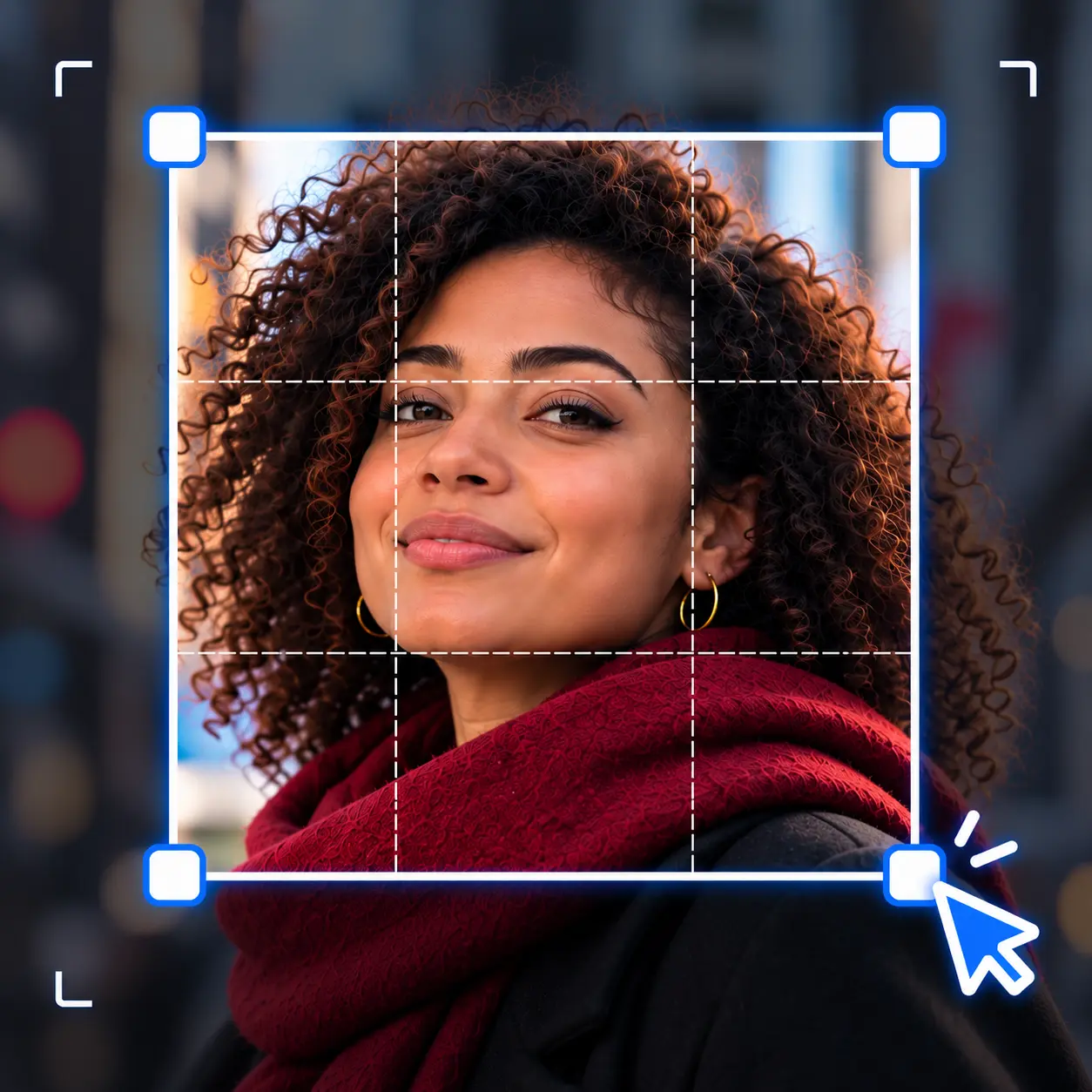
If the subject sits near the top or bottom of the original, crop a 1.91:1 area by hand first so the centred slice does not cut it off.
Resize image to 1200x630: common questions
What people ask when the link preview shows the wrong image, or none.
1200 by 630 pixels, a 1.91:1 shape. Facebook, LinkedIn and X all display it well, and it is large enough to stay sharp on high-density screens.
This page opens on exactly that size.
The usual causes are a relative og:image URL, an image the crawler cannot reach, or a cached card from before the tag existed. The image size is rarely the problem once it is over 600 by 315.
Use a full https URL and re-scrape the link in Facebook's Sharing Debugger or LinkedIn's Post Inspector.
Drop it here. The page is already set to 1200 by 630, which is 1.91:1, and Fill and crop trims the edges evenly to reach that shape.
For a different size at the same shape, type it into By size, for example 600 by 315.
X shows large image cards at about 2:1, slightly wider than 1.91:1, so a thin strip comes off the top and bottom.
Keep text and faces away from the top and bottom edges and the same file works on every platform.
JPG for photos and busy artwork, because it stays small. PNG for text-heavy cards and flat graphics, where JPG blurs the edges of letters.
WebP works on most platforms too, but JPG and PNG are the safe choice for every crawler.
Keep it well under a megabyte so crawlers fetch it quickly. Facebook accepts up to 8 MB, but a lighter file unfurls faster in chat apps.
Pick JPG or WebP and set a target in KB, such as 300, and the resizer keeps it at 1200 by 630 while it shrinks.
Give your link a card worth clicking
Drop an image, download a 1200 by 630 Open Graph preview. Free, no signup, no watermark.