Resize Image to 1584x396
Resize image to 1584x396 pixels for a LinkedIn banner: drop any photo and it comes out at the exact 4:1 background size, trimmed evenly top and bottom so nothing looks stretched.
Drop your image here to resize it
JPG, PNG, WebP, AVIF or GIF, up to 25 MB. Resized in your browser.
Four times wider
than it is tall.
A LinkedIn banner is a thin ribbon above your name, and the default grey one tells recruiters you have not opened your profile in a while. This page is already set to 1584 by 396, so a photo becomes a banner in one drop.
Other sizes the resizer opens on
The same resizer, already set to a different job. Drop a file and it comes out at that size.
Tools that pair well with this one
All free, all in your browser, no signup.
Why use Piknova?
A LinkedIn banner resizer that knows where your photo sits
The banner gets covered and trimmed in predictable places. Here is the difference that makes.
Piknova
What you get- Trims evenly to 4:1, so faces and lines keep their shape
- Tells you the lower left sits under your profile photo
- Gives the company page size too, 4200 x 700
- Resizes in your browser, the photo stays on your device
- Free, no signup, no watermark on your profile
Other tools
What you put up with- Stretches the photo to 1584 x 396 and calls it done
- Lets your headline vanish behind your own face
- Uses the personal size for a company page and blurs it
- Sends your profile art to a server before you download it
- Watermarks the banner every recruiter sees first
How to resize a LinkedIn banner
Three steps in this browser tab, no account, 25 MB per image.
- 01
Choose a wide shot
A landscape at least 1584 pixels wide with the subject in the middle. Only the centre band of a normal photo survives a 4:1 crop.
- 02
Drop it on the page
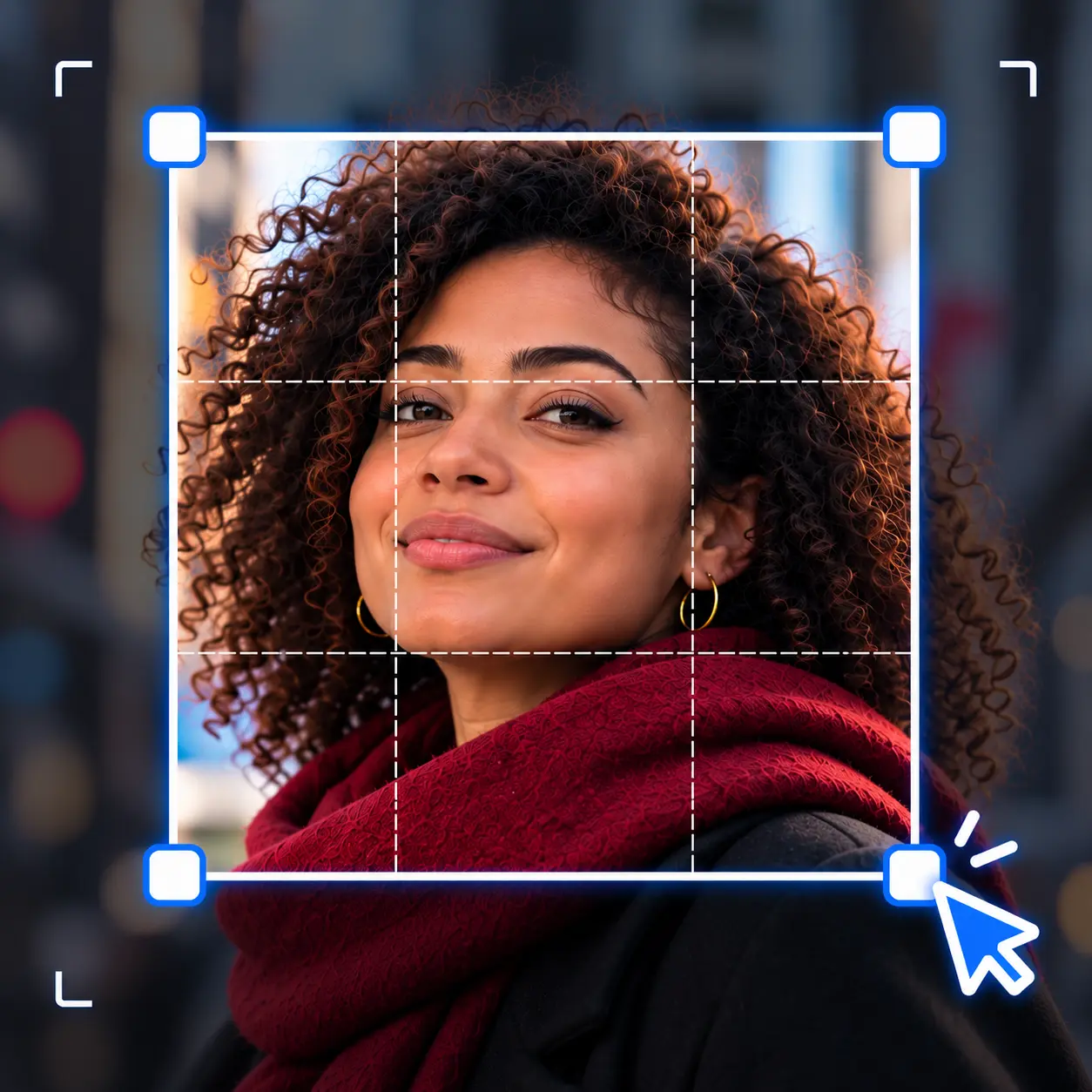
It is already set to 1584 by 396 with Fill and crop. Pick Fit whole image instead if a logo or slide must stay whole.
- 03
Set it on LinkedIn
Download the file, open your profile, tap the pencil on the background and upload it.
Safe area
The LinkedIn banner safe area: where your profile photo lands
Your round profile photo sits on top of the banner, and the banner is trimmed differently on desktop and on phones. Plan for both.
- Desktop: the profile photo covers a chunk of the lower left. Nothing you want read should sit in the left third, bottom half.
- Phone app: the profile photo moves towards the centre and the banner shows shorter, so the top and bottom edges get trimmed.
- The safe bet: keep text, logos and faces in the centre-right, away from every edge. That spot survives both layouts.
Same image, two banner shapes
Personal profile, 1584 x 396 (4:1)
Company page, 4200 x 700 (6:1)
LinkedIn does not publish a pixel-exact safe zone, and its layout shifts between app versions. Treat the centre-right as a habit, not a guarantee.
Personal or company
Personal banner vs company page cover: two different sizes
This page opens on the personal profile size. A company page uses a wider cover, and uploading the wrong one leaves LinkedIn to crop or blur it.
| Where it goes | Size | Shape |
|---|---|---|
| Personal profile background | 1584 x 396 | 4:1 |
| Company page cover | 4200 x 700 | 6:1 |
For a company cover, type 4200 and 700 into By size; Fill and crop stays on. A 6:1 strip is even thinner, so start from a true panorama or a designed graphic.
If your subject is near the top or bottom of the photo, crop the strip by hand first so the centred slice does not miss it.
Resize image to 1584x396: common questions
The things people ask once the banner is up and something looks off.
1584 by 396 pixels for a personal profile, a 4:1 shape, as JPG or PNG under 8 MB. Company pages use a separate cover size, 4200 by 700.
This page opens on the personal size, so the download is ready to upload.
Usually the source was smaller than 1584 pixels wide and had to be enlarged, or it was a heavily compressed screenshot. Enlarging can only spread existing detail thinner.
Start from the largest original you have, and pick PNG if the banner is mostly text or flat colour.
The app shows the banner shorter than desktop does and moves your profile photo towards the middle. The edges get trimmed and a different area is covered.
Keep the important part in the centre-right and it reads on both.
Yes. Switch to Fit whole image and the full photo sits in the middle of the 1584 by 396 strip, with bands on either side.
Choose PNG or WebP for transparent bands, or JPG for white ones.
4200 by 700 pixels, a 6:1 shape, per LinkedIn's help pages. It is not the same as the 1584 by 396 personal banner.
Type 4200 by 700 into By size on this page and it will fill and crop to that instead.
The centre. Fill and crop trims the same amount from top and bottom, and there is no handle to slide the window.
For an off-centre subject, crop a 4:1 area by hand in the crop tool, then resize that here.
Swap the grey banner for yours
Drop a photo, download a 1584 by 396 LinkedIn banner. Free, no signup, no watermark.