
Compress Image to 15KB
Drop in a JPG, PNG or WebP and get it back at 15 KB or under, without guessing at a quality slider.
Drop an image to compress it to 15 KB
JPG, PNG or WebP, up to 25 MB. Compressed in your browser, never uploaded.
15 KB is a signature field,
not a photograph
At this size the tool is not trying to keep your image beautiful, it is trying to keep it legible. That is the right trade for a scanned signature, an ID thumbnail, or any field with a two-digit KB cap, and it is why this page exists separately from the larger sizes.
Other sizes and settings
Same compressor, different target. Each one opens with its number already set.
Tools that pair well with this one
All free, all in your browser, no signup.


How to compress an image to 15 KB
Three steps, all of them in this browser tab. Nothing is uploaded to a server, so the 15 KB file you end up with never leaves your device.
Add your image
Drag a JPG, PNG or WebP onto the drop area above, or click to pick one. Files up to 25 MB are fine.
Confirm the 15 KB target
15 KB is already selected, so there is nothing to set. Type a different number if your form asked for one.
Compress and download
Press Compress, check the size it actually reached, and download. You will see the original and the 15 KB version side by side first.
The short answer
What actually needs an image under 15KB?
Almost nothing on the open web. This number comes from upload forms, and usually from one specific field on them.
15 KB is the range signature fields live in. A scanned signature is a few strokes of dark ink on white paper, so it carries almost no real detail, and the forms that ask for one know that. The same goes for small ID thumbnails and the low-resolution copies some portals want alongside a full-size photo.
If you are here for a full passport-style photograph, check the form again. A face at 15 KB will look rough, and most portals that want a photo ask for 20 KB or more. We have separate pages for 20 KB and 25 KB, and either will treat a face better than this one.
The thing worth knowing: a signature at 15 KB usually looks fine, because ink on paper compresses extremely well. A photo at 15 KB usually does not. Same number, completely different outcome, and which one you get depends on what you uploaded rather than on the tool.
Getting it right
How to get a clean signature at 15KB
Two things matter far more than the compressor at this size, and both happen before you upload.
Crop tight first. A scan of a whole sheet of paper with a signature in the middle spends most of its 15 KB on empty white space that has to be encoded anyway. Cropping to just the signature can halve the file before compression starts, which means the compressor spends your entire budget on the strokes themselves.
Then check the format. If your signature is a PNG on a white background, it will often land under 15 KB losslessly, because PNG compresses large flat areas extremely well and a signature is mostly one flat colour. If it is a JPG, expect faint grey speckling around the strokes at this size. That is JPEG ringing, it is normal, and re-scanning in higher contrast usually removes it.
If the result still looks wrong, the honest answer is that 15 KB may not be achievable for your particular image at a quality you would accept. The tool will tell you the size it reached rather than pretending.
Formats
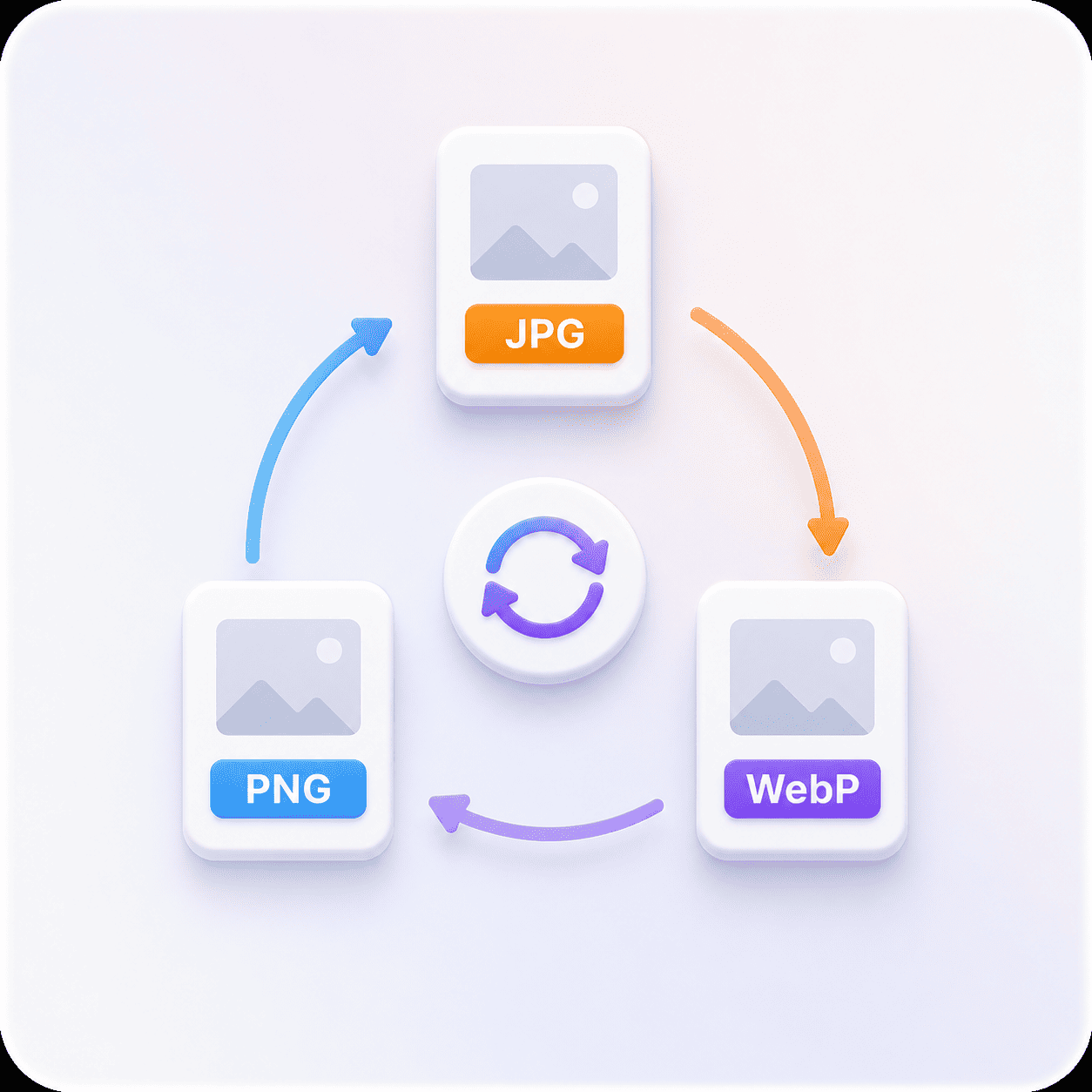
JPG vs PNG vs WebP at 15 KB
The same 15 KB target produces three different outcomes depending on what you upload, because the three formats get there by different means.
| Format | How it reaches 15 KB | How it holds up |
|---|---|---|
| JPG | Encoder quality is lowered until the file fits | Tight. A cropped face survives, a busy scene does not. |
| PNG | Colour count is reduced and the file rewritten | Only for flat art and screenshots. A PNG photo will struggle. |
| WebP | Encoder quality is lowered, more efficiently than JPG | Usually the best looking of the three at 15 KB. |
If your image is a photograph and it is already a JPG or WebP, 15 KB is a straightforward ask. If it is a PNG photograph, converting it to JPG first will get you a better looking result at 15 KB than compressing it as a PNG will.
Pick a size
15 KB vs 20 KB vs 25 KB
If the number you were given is not 15 KB, one of these is. Each opens the same tool with its own target already set.
The quality difference between neighbouring sizes is much larger at the small end than at the large end. Going from 15 KB to 30 KB transforms a photograph. Going from 200 KB to 500 KB is barely visible on most images. That is worth knowing if you have any choice about which limit to work to.
What the 15 KB compressor does for you
Everything below happens on your own device, in the time it takes to read this line.
Lands under 15 KB
The tool searches for the highest quality whose output still fits under 15 KB, then tells you the size it reached.
Your format, kept
A PNG comes back a PNG, a JPG comes back a JPG. We never convert your file to get a better number.
Nothing leaves your device
The work runs in your browser. No upload, no queue, no copy of your image on anyone's server.
See the saving before you keep it
Original and result side by side, with both exact sizes and the percentage saved, before you download anything.
Works on a phone
The whole tool runs in a mobile browser, which matters when the photo you need to shrink is already on your phone.
Free, with no account
No signup, no watermark and no daily cap. Compress as many files as you need.
Compressing to 15 KB: common questions
What people ask before and after they hit the 15 KB button.
That is JPEG ringing. JPEG compresses in 8x8 blocks, and a hard black-on-white edge like a pen stroke is the worst case for that algorithm, so it scatters faint grey artifacts around the stroke to approximate the edge.
Two fixes. Re-scan or re-export the signature as a PNG, which handles hard edges losslessly and often lands under 15 KB on its own. Or increase the contrast before compressing, so the strokes are pure black and the paper is pure white, which gives the encoder less to approximate.
Technically yes, the tool will get you there. Visually, expect a soft face with visible blocking, because a photograph carries far more real detail than 15 KB can hold.
If your form asks for a photo rather than a signature, check whether it really said 15 KB. Photo fields more commonly sit at 20 KB, 50 KB or 100 KB, and every one of those will look substantially better.
Set the target to 15 KB and the result will land at or under it, which satisfies the upper bound. The lower bound is the awkward one, because compressors are built to go down rather than to stop early.
If the file comes out under 10 KB and the form rejects it for being too small, uploading a slightly larger crop or a less aggressive number is the practical fix. Set the target to 15 KB, and if the result lands at 7 KB, try 20 KB and let it overshoot into your range.
No. The compression runs inside your browser, using the canvas your browser already ships with. Your file is read from your own device, processed in memory, and handed straight back to you.
Nothing is transmitted, which means nothing can be stored, logged or leaked. It also means the tool keeps working if your connection drops halfway through.
Free, with no watermark, no account and no daily limit. Compressing to 15 KB costs you nothing and produces a clean file.
There is nothing to sign up for because there is no server doing the work. The tool is the page you are already on.
JPG (and JPEG, which is the same format), PNG and WebP, at up to 25 MB per file. Your file comes back in the format you gave it.
HEIC from an iPhone, AVIF and GIF are not supported yet. If your photo is a HEIC, exporting it as a JPG first will let you compress it here.
Signature ready in a couple of seconds
Crop it, drop it, and take the file. Nothing is uploaded and nothing is stored.