
Compress Image to 50KB
Compress any JPG, PNG or WebP to 50 KB or less, with the target preselected and the final size shown before you download.
Drop an image to compress it to 50 KB
JPG, PNG or WebP, up to 25 MB. Compressed in your browser, never uploaded.
50 KB is where photos
start looking like photos again
There is a real quality step between 25 KB and 50 KB, and this is the first size in the range where a full-colour photograph holds up under scrutiny rather than merely reading correctly at a glance.
Other sizes and settings
Same compressor, different target. Each one opens with its number already set.
Tools that pair well with this one
All free, all in your browser, no signup.

How to compress an image to 50 KB
Three steps, all of them in this browser tab. Nothing is uploaded to a server, so the 50 KB file you end up with never leaves your device.
Add your image
Drag a JPG, PNG or WebP onto the drop area above, or click to pick one. Files up to 25 MB are fine.
Confirm the 50 KB target
50 KB is already selected, so there is nothing to set. Type a different number if your form asked for one.
Compress and download
Press Compress, check the size it actually reached, and download. You will see the original and the 50 KB version side by side first.
The short answer
Why 50KB is such a common upload limit
It is the number a system picks when it wants a real photograph rather than a thumbnail, but is not willing to store megabytes of them.
Visa applications, passport photo uploads and job portals cluster around this figure. All three want a photo that a human will actually look at, sometimes printed, so a 20 KB thumbnail will not do. All three also handle enormous volumes, so a 2 MB phone photo per applicant is not an option either.
50 KB is the compromise. It holds a properly cropped headshot at a quality where skin tone stays natural, eyes stay sharp and the compression does not announce itself, which is the actual requirement behind most photo-upload rules.
Practically, this means you have room to work with. Unlike the sub-25 KB sizes, you are unlikely to have to choose between hitting the number and keeping a usable photo, so you can compress from the original rather than from an already-reduced copy.
Getting it right
How to keep the best quality at 50KB
With this much room, the wins come from giving the encoder a clean image rather than from fighting it.
Always compress from the original file, not from a copy that has already been through another compressor. Every lossy pass bakes in the previous pass's artifacts and then compresses those too, which is why a photo that has been through three tools looks far worse at 50 KB than one compressed once from the source.
Crop before compressing, not after. Cropping afterwards throws away bytes you spent, and you end up with a smaller image at a worse quality than if you had given the compressor the crop to begin with.
If your source is a PNG photograph, expect the tool to keep it a PNG and reduce its colour count instead of converting it to JPEG. That is deliberate: converting would change your file type and flatten any transparency. If you specifically want a JPEG, convert first and then compress.
Formats
JPG vs PNG vs WebP at 50 KB
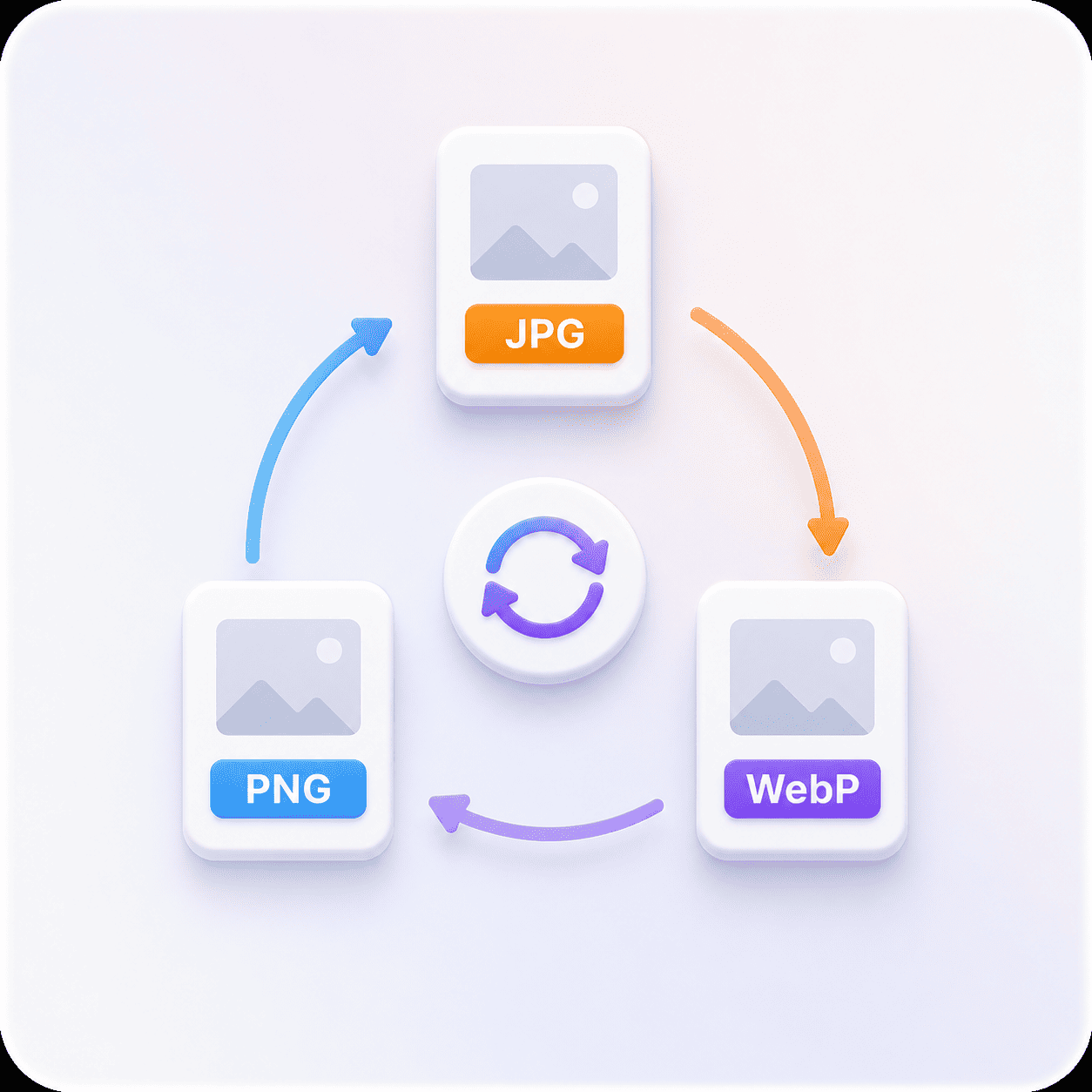
The same 50 KB target produces three different outcomes depending on what you upload, because the three formats get there by different means.
| Format | How it reaches 50 KB | How it holds up |
|---|---|---|
| JPG | Encoder quality is lowered until the file fits | Comfortable for a correctly sized photo. |
| PNG | Colour count is reduced and the file rewritten | Fine for screenshots and logos, tight for PNG photos. |
| WebP | Encoder quality is lowered, more efficiently than JPG | Usually the best looking of the three at 50 KB. |
If your image is a photograph and it is already a JPG or WebP, 50 KB is a straightforward ask. If it is a PNG photograph, converting it to JPG first will get you a better looking result at 50 KB than compressing it as a PNG will.
Pick a size
50 KB vs 25 KB vs 30 KB
If the number you were given is not 50 KB, one of these is. Each opens the same tool with its own target already set.
The quality difference between neighbouring sizes is much larger at the small end than at the large end. Going from 15 KB to 30 KB transforms a photograph. Going from 200 KB to 500 KB is barely visible on most images. That is worth knowing if you have any choice about which limit to work to.
What the 50 KB compressor does for you
Everything below happens on your own device, in the time it takes to read this line.
Lands under 50 KB
The tool searches for the highest quality whose output still fits under 50 KB, then tells you the size it reached.
Your format, kept
A PNG comes back a PNG, a JPG comes back a JPG. We never convert your file to get a better number.
Nothing leaves your device
The work runs in your browser. No upload, no queue, no copy of your image on anyone's server.
See the saving before you keep it
Original and result side by side, with both exact sizes and the percentage saved, before you download anything.
Works on a phone
The whole tool runs in a mobile browser, which matters when the photo you need to shrink is already on your phone.
Free, with no account
No signup, no watermark and no daily cap. Compress as many files as you need.
Compressing to 50 KB: common questions
What people ask before and after they hit the 50 KB button.
For upload purposes, comfortably. A cropped headshot at 50 KB retains the detail these applications are checking for, and this is the range many of them specify.
Check the form for pixel dimensions as well. Photo requirements usually specify both a file size cap and an exact width and height, and hitting one without the other still gets rejected.
Less than you would expect on a face, and more than you would expect on a detailed scene. For a cropped headshot against a plain background, most people cannot tell 50 KB from 100 KB without flipping between them.
For a landscape, a group photo, or anything with fine texture like foliage or fabric, the difference is visible. If your image is busy and the form allows 100 KB, use the extra room.
This page handles one image at a time, so a batch means repeating the drop and download for each file.
The upside of that design is that nothing leaves your device and every result is measured individually. A batch tool that applies one quality setting to twenty photos will miss the target on some of them, because how small a file gets depends heavily on what is in it.
No. The compression runs inside your browser, using the canvas your browser already ships with. Your file is read from your own device, processed in memory, and handed straight back to you.
Nothing is transmitted, which means nothing can be stored, logged or leaked. It also means the tool keeps working if your connection drops halfway through.
Free, with no watermark, no account and no daily limit. Compressing to 50 KB costs you nothing and produces a clean file.
There is nothing to sign up for because there is no server doing the work. The tool is the page you are already on.
JPG (and JPEG, which is the same format), PNG and WebP, at up to 25 MB per file. Your file comes back in the format you gave it.
HEIC from an iPhone, AVIF and GIF are not supported yet. If your photo is a HEIC, exporting it as a JPG first will let you compress it here.
50 KB with the quality kept
Drop a photo in and the tool finds the highest quality that still fits.