
Compress Image to 60KB
An exact 60 KB target for JPG, PNG and WebP, useful when a form specifies an unusual number that presets never cover.
Drop an image to compress it to 60 KB
JPG, PNG or WebP, up to 25 MB. Compressed in your browser, never uploaded.
For the forms that ask
for an odd number
Most compressors offer round numbers and leave you to work out what to do about 60 KB. This one takes the number you were given, including the awkward ones, and searches for the quality that fits it.
Other sizes and settings
Same compressor, different target. Each one opens with its number already set.
Tools that pair well with this one
All free, all in your browser, no signup.

How to compress an image to 60 KB
Three steps, all of them in this browser tab. Nothing is uploaded to a server, so the 60 KB file you end up with never leaves your device.
Add your image
Drag a JPG, PNG or WebP onto the drop area above, or click to pick one. Files up to 25 MB are fine.
Confirm the 60 KB target
60 KB is already selected, so there is nothing to set. Type a different number if your form asked for one.
Compress and download
Press Compress, check the size it actually reached, and download. You will see the original and the 60 KB version side by side first.
The short answer
Why some forms pick 60KB instead of a round number
Because the limit was derived from something real rather than chosen for tidiness, and that tells you something useful about how strictly it will be enforced.
Round caps like 50 KB and 100 KB are usually policy numbers, picked by a person writing a specification. Odd caps like 60 KB more often come from a technical constraint further down: a database column, a storage quota divided by an expected record count, a legacy system's buffer.
The practical consequence is that odd limits tend to be enforced exactly, with no tolerance. A form that says 50 KB may quietly accept 51 KB because a human picked the number as a guideline. A form that says 60 KB is more likely to be reading a hard limit from a system that will reject 60.1 KB without explanation.
That is why this page exists rather than telling you to round down to 50 KB. Rounding down costs you real quality for no reason when the form would have taken the full 60.
Getting it right
Using the full 60KB rather than most of it
When a limit is exact, landing well under it is a waste of quality you were entitled to.
The tool searches for the highest quality that still fits under your number, so it lands close to 60 KB rather than safely below it. A file that comes back at 58 KB is using nearly all of the budget, which is what you want.
If you have compressed to 50 KB out of habit and the form allows 60, recompress from the original rather than from the 50 KB file. Recompressing an already-compressed file cannot recover what the first pass discarded; it just adds a second round of artifacts on top of the first.
One caveat on exact limits: some systems measure in kibibytes (1024 bytes) and some in kilobytes (1000 bytes), so a file that is 60 KB by one definition is 61.4 KB by the other. This tool uses 1024 bytes per KB. If a form rejects a file that looks like it should fit, target a few KB lower and try again.
Formats
JPG vs PNG vs WebP at 60 KB
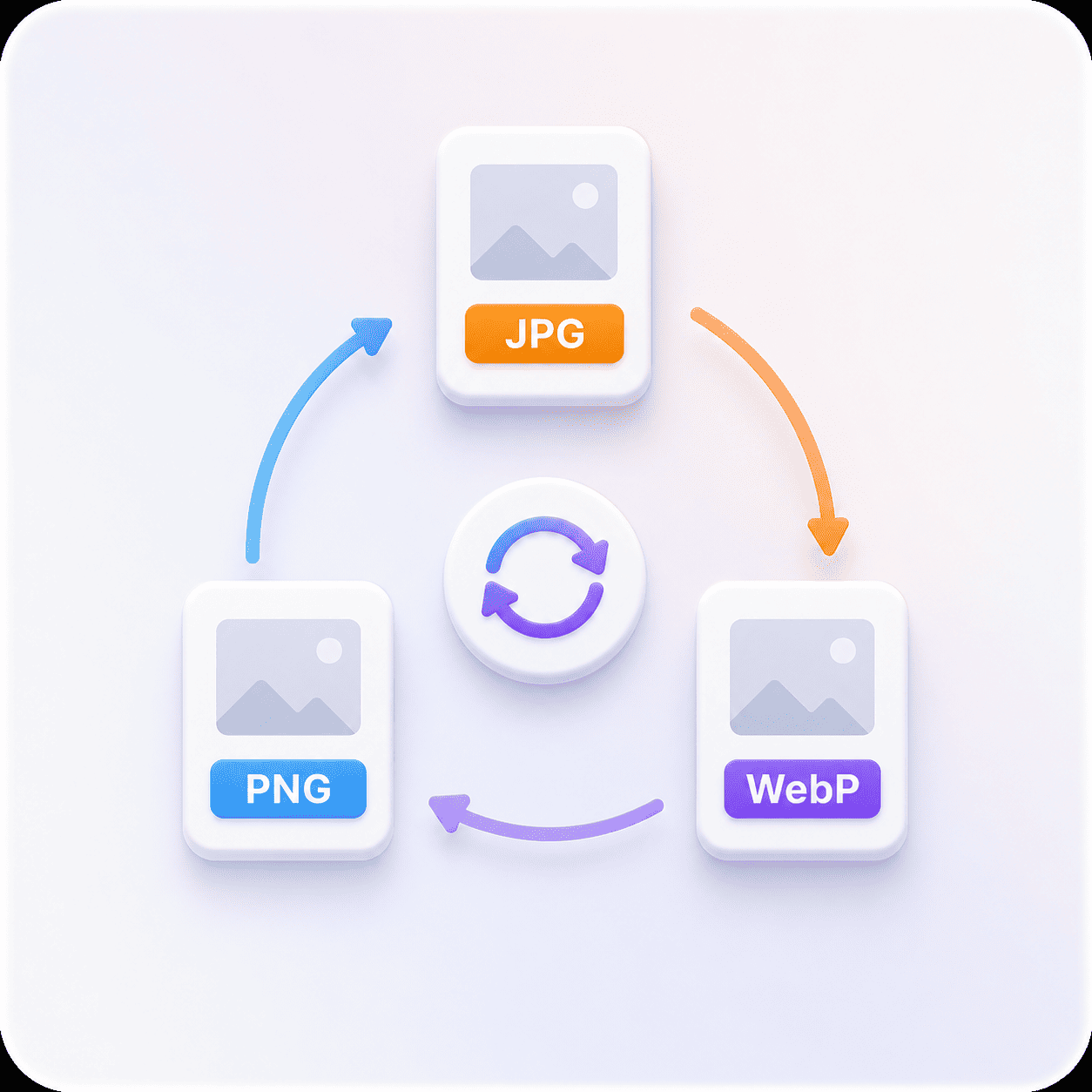
The same 60 KB target produces three different outcomes depending on what you upload, because the three formats get there by different means.
| Format | How it reaches 60 KB | How it holds up |
|---|---|---|
| JPG | Encoder quality is lowered until the file fits | Comfortable for a correctly sized photo. |
| PNG | Colour count is reduced and the file rewritten | Fine for screenshots and logos, tight for PNG photos. |
| WebP | Encoder quality is lowered, more efficiently than JPG | Usually the best looking of the three at 60 KB. |
If your image is a photograph and it is already a JPG or WebP, 60 KB is a straightforward ask. If it is a PNG photograph, converting it to JPG first will get you a better looking result at 60 KB than compressing it as a PNG will.
Pick a size
60 KB vs 30 KB vs 50 KB
If the number you were given is not 60 KB, one of these is. Each opens the same tool with its own target already set.
The quality difference between neighbouring sizes is much larger at the small end than at the large end. Going from 15 KB to 30 KB transforms a photograph. Going from 200 KB to 500 KB is barely visible on most images. That is worth knowing if you have any choice about which limit to work to.
What the 60 KB compressor does for you
Everything below happens on your own device, in the time it takes to read this line.
Lands under 60 KB
The tool searches for the highest quality whose output still fits under 60 KB, then tells you the size it reached.
Your format, kept
A PNG comes back a PNG, a JPG comes back a JPG. We never convert your file to get a better number.
Nothing leaves your device
The work runs in your browser. No upload, no queue, no copy of your image on anyone's server.
See the saving before you keep it
Original and result side by side, with both exact sizes and the percentage saved, before you download anything.
Works on a phone
The whole tool runs in a mobile browser, which matters when the photo you need to shrink is already on your phone.
Free, with no account
No signup, no watermark and no daily cap. Compress as many files as you need.
Compressing to 60 KB: common questions
What people ask before and after they hit the 60 KB button.
Aim for 60 KB first. The tool lands at or under the number, so a successful result is already within the limit, and deliberately aiming lower throws away quality you were allowed to keep.
If it gets rejected anyway, then drop to around 55 KB. That covers the kilobyte versus kibibyte ambiguity, which is the usual cause of a file that should have fit being turned away.
Because compression quality moves in steps rather than continuously. The tool searches for the highest quality setting whose output still fits under your target, and the next step up would have pushed it over 60 KB.
Landing a little under is the correct behaviour. A tool that hit exactly 60.0 KB every time would be padding the file, which helps nobody.
It matters a lot, and the tool keeps whichever format you gave it. A JPG reaches 60 KB by encoding more aggressively. A PNG reaches it by reducing how many distinct colours the image uses.
For photographs, JPG generally looks better at this size. For screenshots, logos and anything with text or flat colour, PNG looks dramatically better, because reducing the palette leaves the edges perfectly sharp.
No. The compression runs inside your browser, using the canvas your browser already ships with. Your file is read from your own device, processed in memory, and handed straight back to you.
Nothing is transmitted, which means nothing can be stored, logged or leaked. It also means the tool keeps working if your connection drops halfway through.
Free, with no watermark, no account and no daily limit. Compressing to 60 KB costs you nothing and produces a clean file.
There is nothing to sign up for because there is no server doing the work. The tool is the page you are already on.
JPG (and JPEG, which is the same format), PNG and WebP, at up to 25 MB per file. Your file comes back in the format you gave it.
HEIC from an iPhone, AVIF and GIF are not supported yet. If your photo is a HEIC, exporting it as a JPG first will let you compress it here.
60 KB exactly, not 50 KB to be safe
Use the whole limit the form gave you. Drop an image in and see where it lands.