
Compress Image to 500KB
Bring a multi-megabyte photo down to 500 KB or less, keeping enough quality for a full-width image on a page.
Drop a photo to bring it under 500 KB
JPG, PNG or WebP, up to 25 MB. Compressed in your browser, never uploaded.
From megabytes
to kilobytes
A phone photo leaves the camera at four or five megabytes because the sensor captured everything it could. Almost none of that survives being displayed on a screen. 500 KB keeps the part you will actually see and drops the rest.
Other sizes and settings
Same compressor, different target. Each one opens with its number already set.
Tools that pair well with this one
All free, all in your browser, no signup.

How to compress an image to 500 KB
Three steps, all of them in this browser tab. Nothing is uploaded to a server, so the 500 KB file you end up with never leaves your device.
Add your image
Drag a JPG, PNG or WebP onto the drop area above, or click to pick one. Files up to 25 MB are fine.
Confirm the 500 KB target
500 KB is already selected, so there is nothing to set. Type a different number if your form asked for one.
Compress and download
Press Compress, check the size it actually reached, and download. You will see the original and the 500 KB version side by side first.
The short answer
Why your phone photos are so many megabytes
Because a camera optimizes for capture, and capture and display want completely different things.
A modern phone sensor produces images around 4000 pixels wide, which is roughly 12 million pixels. A full-screen image on a laptop uses about 2 million. Your photo is carrying six times more pixels than the screen it will be shown on can use, and every one of them costs bytes.
On top of that, phone cameras encode at high quality by default, because a photo you might later crop, edit or print should not arrive pre-damaged. That is the right choice for the camera and the wrong choice for a web page.
So the multi-megabyte file is not waste exactly, it is insurance. Once you know the image is going on a page rather than into a print, you can safely spend that insurance, and 500 KB is a generous budget for what is left.
Getting it right
Resize before you compress, and why the order matters
This is the one piece of advice that makes the biggest difference at this end of the scale, and it is the one most often skipped.
Compressing a 4000 pixel wide photo to 500 KB and resizing a photo to 1600 pixels and then compressing to 500 KB produce very different results, even though both files end up the same size. In the first case the budget is spread over 12 million pixels. In the second it is spread over 2 million, so each pixel gets six times as many bytes and the image looks sharper.
So the order is: crop to the composition you want, resize to roughly the width it will be displayed at, then compress to 500 KB. Doing it the other way round means compressing detail you are about to throw away.
This tool compresses and does not resize, deliberately, so that a file's dimensions never change behind your back. Our image resizer handles the resize step, and using the two in that order is the reliable way to get a large photo genuinely small without it looking soft.
Formats
JPG vs PNG vs WebP at 500 KB
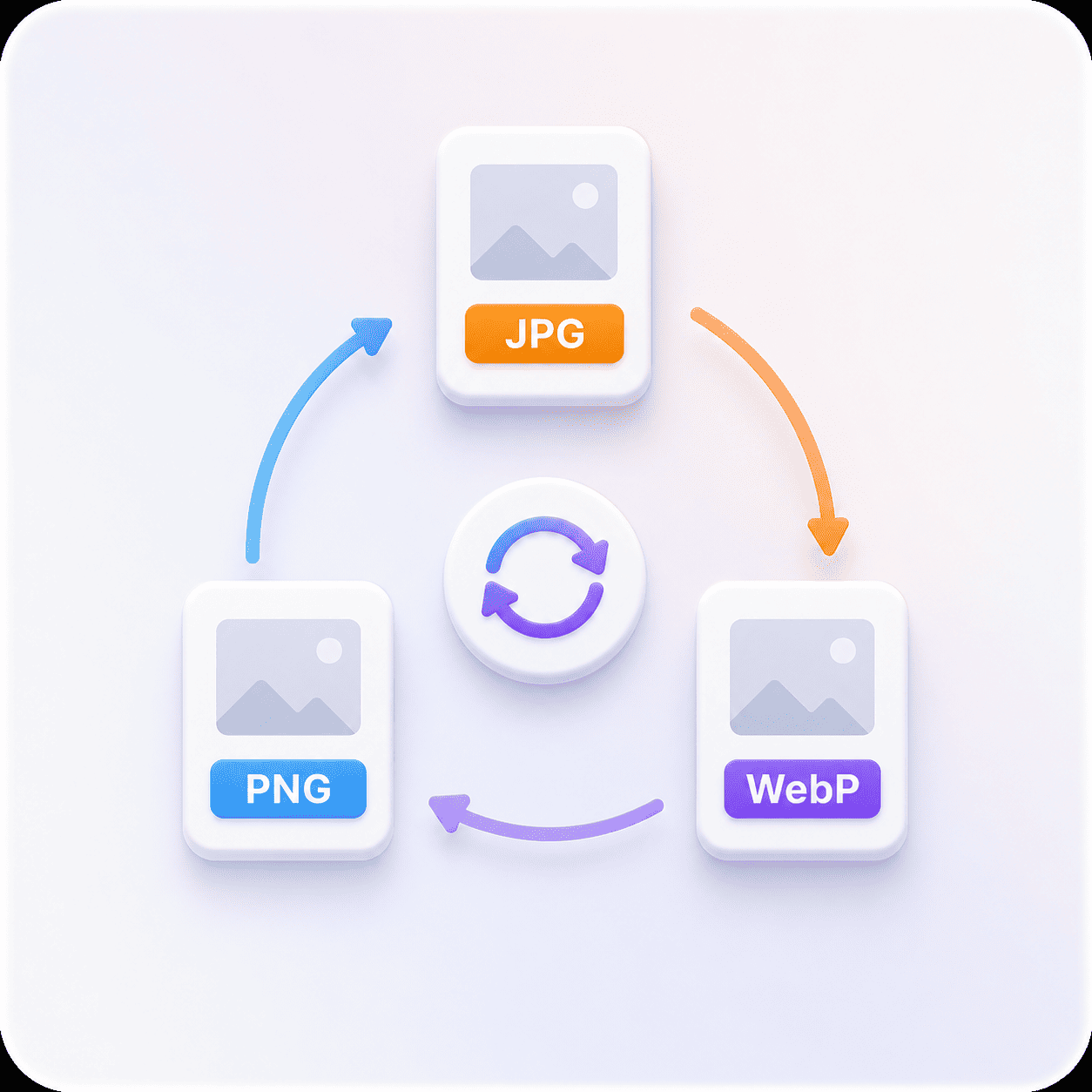
The same 500 KB target produces three different outcomes depending on what you upload, because the three formats get there by different means.
| Format | How it reaches 500 KB | How it holds up |
|---|---|---|
| JPG | Encoder quality is lowered until the file fits | Plenty of room, including for fine texture. |
| PNG | Colour count is reduced and the file rewritten | Workable even for a PNG photograph. |
| WebP | Encoder quality is lowered, more efficiently than JPG | Usually the best looking of the three at 500 KB. |
If your image is a photograph and it is already a JPG or WebP, 500 KB is a straightforward ask. If it is a PNG photograph, converting it to JPG first will get you a better looking result at 500 KB than compressing it as a PNG will.
Pick a size
500 KB vs 100 KB vs 200 KB
If the number you were given is not 500 KB, one of these is. Each opens the same tool with its own target already set.
The quality difference between neighbouring sizes is much larger at the small end than at the large end. Going from 15 KB to 30 KB transforms a photograph. Going from 200 KB to 500 KB is barely visible on most images. That is worth knowing if you have any choice about which limit to work to.
What the 500 KB compressor does for you
Everything below happens on your own device, in the time it takes to read this line.
Lands under 500 KB
The tool searches for the highest quality whose output still fits under 500 KB, then tells you the size it reached.
Your format, kept
A PNG comes back a PNG, a JPG comes back a JPG. We never convert your file to get a better number.
Nothing leaves your device
The work runs in your browser. No upload, no queue, no copy of your image on anyone's server.
See the saving before you keep it
Original and result side by side, with both exact sizes and the percentage saved, before you download anything.
Works on a phone
The whole tool runs in a mobile browser, which matters when the photo you need to shrink is already on your phone.
Free, with no account
No signup, no watermark and no daily cap. Compress as many files as you need.
Compressing to 500 KB: common questions
What people ask before and after they hit the 500 KB button.
Drop it into the tool at the top of this page. The target is set to 500 KB, so it will search for the highest quality that fits under that and show you the result, which will typically be a reduction of around 90%.
If you need it smaller still, type a lower number into the target field. 100 KB and 200 KB are both realistic for a photo that started at 5 MB.
On a screen, yes, and usually with no visible difference at normal viewing size. The large majority of what is removed is detail beyond what a display can show.
Printing is where it shows. If the photo is going to be printed larger than a postcard, keep the original and use the compressed copy only for the web version.
For one prominent image on a page, yes. For every image on a page, no, because the total is what a visitor waits for rather than any single file.
A reasonable habit: 500 KB for a full-width hero, 100 KB to 200 KB for images inside the article, and as small as looks acceptable for thumbnails.
No. The compression runs inside your browser, using the canvas your browser already ships with. Your file is read from your own device, processed in memory, and handed straight back to you.
Nothing is transmitted, which means nothing can be stored, logged or leaked. It also means the tool keeps working if your connection drops halfway through.
Free, with no watermark, no account and no daily limit. Compressing to 500 KB costs you nothing and produces a clean file.
There is nothing to sign up for because there is no server doing the work. The tool is the page you are already on.
JPG (and JPEG, which is the same format), PNG and WebP, at up to 25 MB per file. Your file comes back in the format you gave it.
HEIC from an iPhone, AVIF and GIF are not supported yet. If your photo is a HEIC, exporting it as a JPG first will let you compress it here.
Megabytes in, kilobytes out
Drop a phone photo in and watch what actually comes off it.