
Compress JPG to 100KB
Drop a JPG or JPEG in and get it back under 100 KB, still a JPG, with the target already set.
Drop a JPG to compress it to 100 KB
JPG, PNG or WebP, up to 25 MB. Compressed in your browser, never uploaded.
JPEG is built for this,
and it shows
Of the three formats this tool handles, JPG is the one that reaches an exact byte target most gracefully, because its quality setting is a continuous dial rather than a stepped palette. Hitting 100 KB with a photograph is close to the best case compression has.
Other sizes and settings
Same compressor, different target. Each one opens with its number already set.
Tools that pair well with this one
All free, all in your browser, no signup.

How to compress an image to 100 KB
Three steps, all of them in this browser tab. Nothing is uploaded to a server, so the 100 KB file you end up with never leaves your device.
Add your image
Drag a JPG, PNG or WebP onto the drop area above, or click to pick one. Files up to 25 MB are fine.
Confirm the 100 KB target
100 KB is already selected, so there is nothing to set. Type a different number if your form asked for one.
Compress and download
Press Compress, check the size it actually reached, and download. You will see the original and the 100 KB version side by side first.
The short answer
Why JPG hits 100KB more easily than PNG does
The two formats reach a size target by completely different mechanisms, and understanding which one you are using explains most surprises.
JPEG throws away detail your eye is bad at noticing, mostly fine colour variation, and it does so on a smooth dial from barely-touched to heavily-crushed. To reach 100 KB the encoder simply turns the dial until the file fits, which is why the search converges quickly and why the result usually looks natural.
PNG has no such dial. It is a lossless format, so the only way to make it meaningfully smaller is to reduce how many distinct colours the image contains. That works beautifully for logos and screenshots and poorly for photographs, which is why a PNG photograph often cannot reach 100 KB without visible banding in skies and gradients.
The practical rule: if your image is a photograph and it is already a JPG, you are in the ideal case. If it is a PNG photograph and you need 100 KB, converting it to JPG first will give you a far better result than compressing it as a PNG.
Getting it right
Avoiding generation loss in a JPG
The one failure specific to JPEG, and the reason a file that has been round the block looks worse than it should.
JPEG is lossy every single time it is saved. Open a JPG, save it again, and you have discarded a little more, even if you changed nothing. Do that repeatedly and the artifacts compound, because each pass treats the previous pass's damage as real detail worth preserving.
This matters here because people often arrive after already trying something else. If you have a JPG that has been through another compressor, compressing it again to 100 KB starts from damaged input and cannot undo any of it. Go back to the original file if you still have it: one pass from the source to 100 KB beats three passes to the same size, every time.
The same applies to editing. If you need to crop or rotate, do it in one session and save once, rather than saving between each step.
Formats
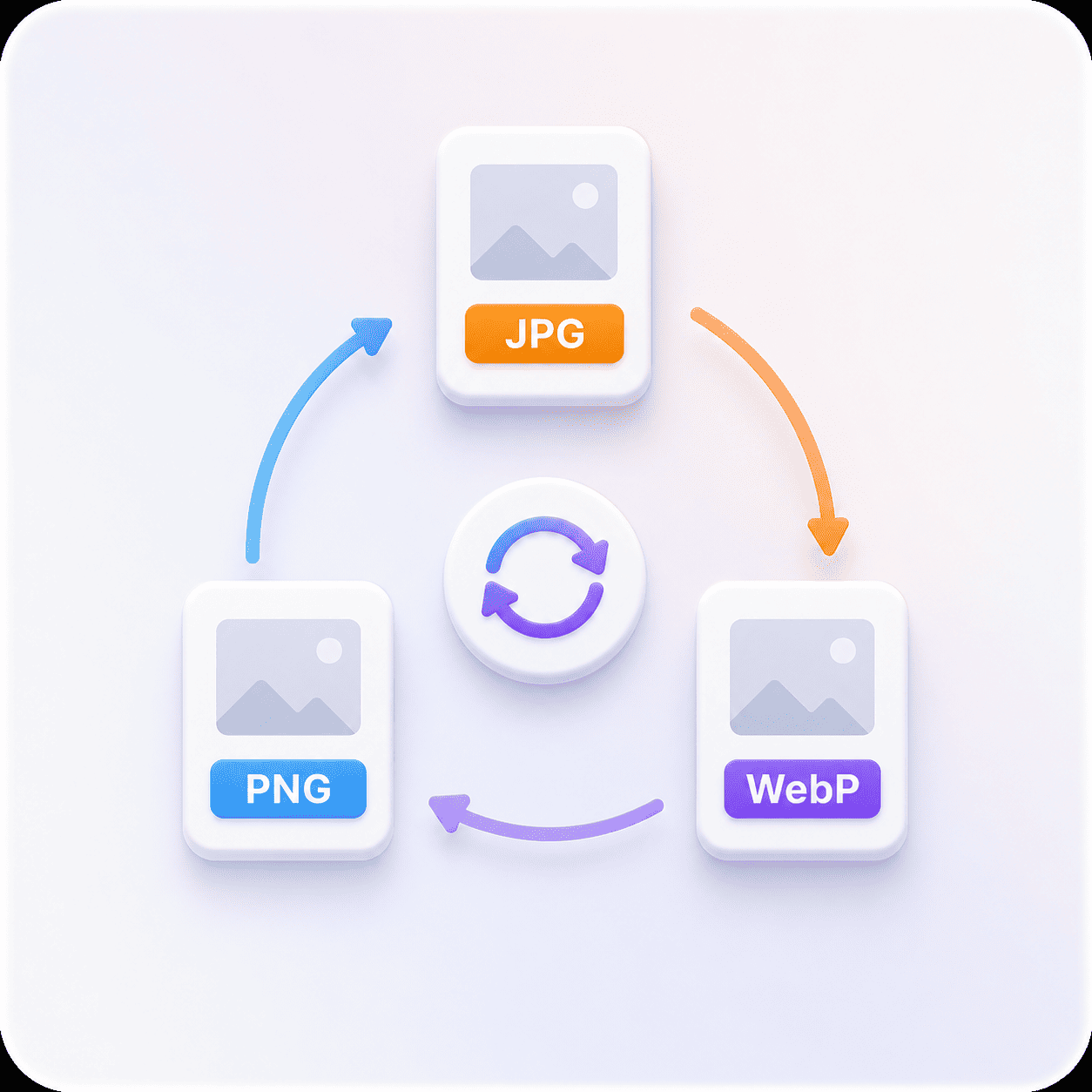
JPG vs PNG vs WebP at 100 KB
The same 100 KB target produces three different outcomes depending on what you upload, because the three formats get there by different means.
| Format | How it reaches 100 KB | How it holds up |
|---|---|---|
| JPG | Encoder quality is lowered until the file fits | Comfortable for a correctly sized photo. |
| PNG | Colour count is reduced and the file rewritten | Fine for screenshots and logos, tight for PNG photos. |
| WebP | Encoder quality is lowered, more efficiently than JPG | Usually the best looking of the three at 100 KB. |
If your image is a photograph and it is already a JPG or WebP, 100 KB is a straightforward ask. If it is a PNG photograph, converting it to JPG first will get you a better looking result at 100 KB than compressing it as a PNG will.
Pick a size
100 KB vs 60 KB vs 90 KB
If the number you were given is not 100 KB, one of these is. Each opens the same tool with its own target already set.
The quality difference between neighbouring sizes is much larger at the small end than at the large end. Going from 15 KB to 30 KB transforms a photograph. Going from 200 KB to 500 KB is barely visible on most images. That is worth knowing if you have any choice about which limit to work to.
What the 100 KB compressor does for you
Everything below happens on your own device, in the time it takes to read this line.
Lands under 100 KB
The tool searches for the highest quality whose output still fits under 100 KB, then tells you the size it reached.
Your format, kept
A PNG comes back a PNG, a JPG comes back a JPG. We never convert your file to get a better number.
Nothing leaves your device
The work runs in your browser. No upload, no queue, no copy of your image on anyone's server.
See the saving before you keep it
Original and result side by side, with both exact sizes and the percentage saved, before you download anything.
Works on a phone
The whole tool runs in a mobile browser, which matters when the photo you need to shrink is already on your phone.
Free, with no account
No signup, no watermark and no daily cap. Compress as many files as you need.
Compressing to 100 KB: common questions
What people ask before and after they hit the 100 KB button.
Yes, identical. The two extensions exist because older versions of Windows limited file extensions to three characters, so .jpeg was shortened to .jpg. The file format inside is exactly the same and both work here.
You can rename one to the other and nothing changes. Anything that reads a .jpg reads a .jpeg.
Yes. The tool returns whatever format you gave it, so a JPG comes back a JPG with the same extension.
That is deliberate. Silently changing your file format would mean a file whose extension no longer matches its contents, and any transparency in the source would be replaced by a background you never asked for.
Because reaching 100 KB from a large source requires the encoder to discard a lot, and how much is visible depends heavily on your image's dimensions. A 4000 pixel wide photo squeezed into 100 KB has very few bytes per pixel to work with.
Resize to the dimensions you will actually display before compressing. The same 100 KB spread across a 1200 pixel wide image instead of a 4000 pixel one looks dramatically better.
No. The compression runs inside your browser, using the canvas your browser already ships with. Your file is read from your own device, processed in memory, and handed straight back to you.
Nothing is transmitted, which means nothing can be stored, logged or leaked. It also means the tool keeps working if your connection drops halfway through.
Free, with no watermark, no account and no daily limit. Compressing a JPG to 100 KB costs you nothing and produces a clean file.
There is nothing to sign up for because there is no server doing the work. The tool is the page you are already on.
Yes. JPG and JPEG are the same format with two extensions, and both compress to 100 KB here. PNG and WebP work too, at up to 25 MB per file.
HEIC from an iPhone, AVIF and GIF are not supported yet. If your photo is a HEIC, exporting it as a JPG first will let you compress it here.
Your JPG, under 100 KB, still a JPG
One pass from the original gives the best result. Drop it in and see.