A private image workflow should not require a dashboard screenshot to take a scenic tour through a stranger's server. If you need image tools with no upload, the key question is simple: does the selected file stay inside your browser? Our image compressor is built for that kind of short, practical job, and so is everything else on this list.
That distinction matters for invoices, product photos, signatures, client drafts and screenshots containing more secrets than a group chat. A browser interface alone proves nothing, because many cloud services also run in a browser. Look for clear local-processing language, no upload behaviour, transparent exceptions, and output controls you actually need.
The short answer: local processing is the deciding test
Yes, but the qualifying list is shorter than some marketing pages suggest. A genuinely no-upload tool reads the file into local browser memory, transforms it on your device and creates a downloadable result there. The page may still load scripts, fonts, analytics or a processing model. That is not the same as sending your selected image away. The important question is whether the image itself travels to a remote server during the edit.
Two technologies make this possible, and both have been in every browser for years. The Canvas API lets JavaScript decode an image into pixels, change them and encode a new file. WebAssembly lets a page run real codecs and even neural networks at near-native speed. A tool that uses these has no technical reason to upload your file. A tool that uploads anyway has chosen to, usually because its business model lives on the server.
The best image tools with no upload at a glance
| Rank | Name | Best for | Key differentiator |
|---|---|---|---|
| 1 | Piknova | Private short image jobs | Local processing across focused tools, with no account, watermark or stated download limit |
| 2 | Squoosh | Squeezing one image as small as possible | Google Chrome Labs' open-source compressor with side-by-side codec comparison |
| 3 | Photopea | Layered editing and PSD files | A near-Photoshop that runs entirely on your device and works offline |
| 4 | Watermarkly | Batch watermarks and simple bulk edits | Browser-side batch processing, with a one-time licence instead of a subscription |
| 5 | Bulk Resize Photos | Resizing a whole folder at once | Unlimited, no sign-up, and "private, no uploading" on the home page |
| 6 | Your operating system | Anything you already have installed | Preview, Photos, Paint and the Snipping Tool never had a server to begin with |
| 7 | PineTools (with a caveat) | Odd filters and effects | Its image filters run in the tab, but the site never says so |
1. Piknova
Best for: creators, sellers, founders, freelancers, marketers and anyone who needs to fix an image quickly without uploading it.
We built Piknova around a simple idea: most image jobs are chores, not cinematic design projects. You want to compress a file, resize a product shot, split a carousel or mark up a screenshot. You probably do not want to install a heavy editor, create an account or attend a six-part course called "Where Did the Layers Go?"
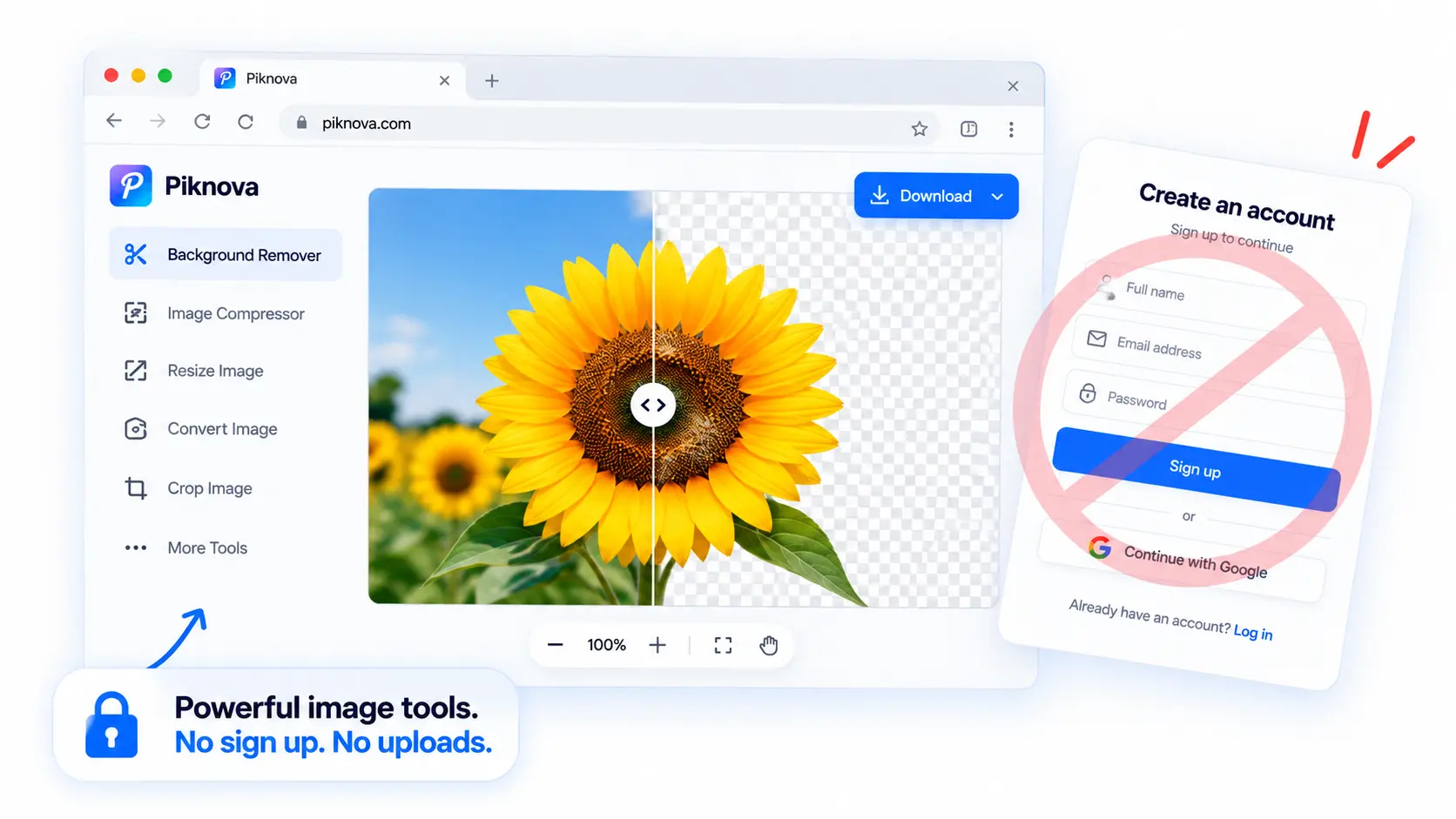
Our focused tools run in the browser for local image-processing workflows. You can use the image compressor to work toward an exact file-size target, then the image resizer when the platform cares about dimensions instead. The workflow stays short, practical and easy to understand, and the privacy policy says the same thing the tool pages say: your images are not sent to us or stored anywhere.
The background remover is the one that surprises people. Removing a background is normally the poster child for "must be done on a server", because it needs a neural network. Ours downloads that network to your browser instead, roughly 95 MB on the first run and about 55 MB on low-memory phones, caches it, and runs it on your device with WebAssembly. The photo never leaves. The download is the trade, and we say so on the page.
Pros
- Local browser processing: image editing files generally stay on your device instead of being uploaded to or stored by Piknova.
- Focused job design: separate tools handle splitting, merging, compression, resizing, conversion, annotation, blurring, redaction and background removal.
- No account required: you can use the tools and download results without signing up.
- No watermark or resolution cap: exports keep full resolution, without branding added to the result.
- Practical output control: exact file sizes, dimensions in four units with DPI, formats, transparent or coloured backgrounds where supported.
- Batch versions of the compressor, resizer and converter take up to 50 files; the background remover takes 10.
Cons
- It is not intended to replace Photoshop or another full editor with layers, plugins and extensive creative controls.
- The first local background-removal run downloads a model to your browser, so it can take longer than later runs.
- Files are capped at 25 MB and 50 megapixels each, because your device's memory is doing the work.
- The YouTube profile-picture and banner downloaders are a separate exception: they fetch a public image from YouTube through a server, and never touch a file of yours.
2. Squoosh
Best for: getting one image as small as it can go, and seeing exactly what each codec does to it.
Squoosh is Google Chrome Labs' open-source compressor, and it is the tool that proved browser-side image processing could be serious. Its home page says it plainly: images never leave your device, since Squoosh does all the work locally. Under the hood it ships MozJPEG, WebP, AVIF and OxiPNG as WebAssembly, plus resizing and palette reduction, and shows you the original and the result in a draggable split view with the output size updating live.
It is one image at a time, there is no target-size mode (you move a quality slider and watch the number), and the interface assumes you know what "chroma subsampling" means or are happy to ignore it. For the person who wants to understand compression, it is the best classroom on the web. For the person who was told "under 100 KB" and wants to get on with their day, our compressor is the shorter route.
Pros
- Explicit local-processing statement on the home page, and open source, so anyone can check.
- Every modern codec, with expert settings exposed.
- Side-by-side comparison that makes quality trade-offs visible.
- No account, no paid tier, nothing to sell you.
Cons
- One image at a time. No batch.
- No target-size mode; you converge on a number by hand.
- The advanced options are intimidating if you only wanted a smaller file.
3. Photopea
Best for: layered editing, PSD, XCF and Sketch files, and anyone who wants a real editor without installing one.
Photopea is the closest thing to Photoshop in a tab, and its documentation makes the privacy claim in as many words: it runs completely on your device, does not upload any of your files to the internet, and you can load it, disconnect from the internet and keep working offline. It opens PSD files with their layers intact, which nothing else on this list does.
The catch is that it is a full editor, with all the learning curve that implies, and the free version is funded by a sidebar of ads. Premium is $5 a month or $50 a year, which removes the ads, doubles the history steps and adds storage. For a two-minute job it is overkill in the way a workshop is overkill for hanging a picture, but if the job genuinely needs layers, it is the local answer.
Pros
- Full layered editing, masks, filters, text and vector tools.
- Opens and saves PSD, and reads XCF and Sketch.
- Explicit, documented local processing and offline capability.
- Free without an account.
Cons
- Ads in the free version, sitting beside your work.
- The interface has the density of a real editor, which is a feature or a wall depending on the day.
- Heavy on older devices and phones.
Image Compressor
Compress to an exact KB target in your browser. The file never leaves your device.
4. Watermarkly
Best for: stamping a logo or text across a folder of photos, plus a handful of simple bulk edits.
Watermarkly is a browser-based batch watermarker whose home page says your files stay private in your browser and that it does not store your photos on its servers. Around the core tool it has grown a set of utilities: blur faces, crop, compress, resize and convert to JPG, PNG or WebP, all batch-friendly.
The business model is refreshingly old-fashioned. The free version adds a small "Watermarkly" logo alongside your own. Paying removes it, and paying is $19.95 for a year or $39.95 once, for permanent access on up to ten devices. If watermarking is a weekly task, that is cheaper than any subscription on the market. If you only wanted to protect one image, our add watermark to image tool does it locally with no logo of its own.
Pros
- Batch processing in the browser, with a stated no-storage policy.
- A one-time licence rather than a monthly fee.
- Useful adjacent tools for bulk work.
Cons
- The free tier brands your output with a second watermark.
- Some AI-flavoured features on the site work differently from the core tools, so read the page for each one.
5. Bulk Resize Photos
Best for: resizing an entire folder in one go without thinking about it.
Bulk Resize Photos puts its promise in the header of its home page: 100% free, unlimited usage, no sign-up, and "private, no uploading". Drop in a folder, choose a percentage, exact dimensions or a longest side, set a quality, and it hands back a zip. It has picked up sibling tools over the years (flip, redact, watermark, even a jigsaw maker), which suggests one browser tool tends to breed more.
It is a resizer, so it will not target a file size in kilobytes and it will not convert formats in any serious way. For one-off resizing in centimetres or with a DPI for print, our image resizer is more precise; for a folder of holiday photos that need to be half the size, this is exactly right, and our bulk image resizer does the same job with a fit-inside mode.
Pros
- The clearest one-line privacy statement on this list.
- Genuinely unlimited batch resizing with no account.
- Simple enough to explain to a relative over the phone.
Cons
- Resizing only. No exact-size compression, no real conversion.
- Output options are basic: one quality slider, a zip at the end.
6. The tools already on your computer
Worth saying out loud, because "online tool" is a habit rather than a requirement. macOS Preview crops, resizes, annotates and exports to a smaller JPEG. Windows Photos resizes, Paint crops and annotates, and the Windows 11 Snipping Tool can now black-bar emails and phone numbers it finds in a screenshot. None of these ever had a server to upload to.
Their limits are the usual ones: no exact-KB targeting, no grid splitting, no batch of fifty, clumsy on a phone, and a different app for every step. But for a quick crop before you send something, the private tool is sometimes the one you have been ignoring in your dock.
7. PineTools, with a caveat
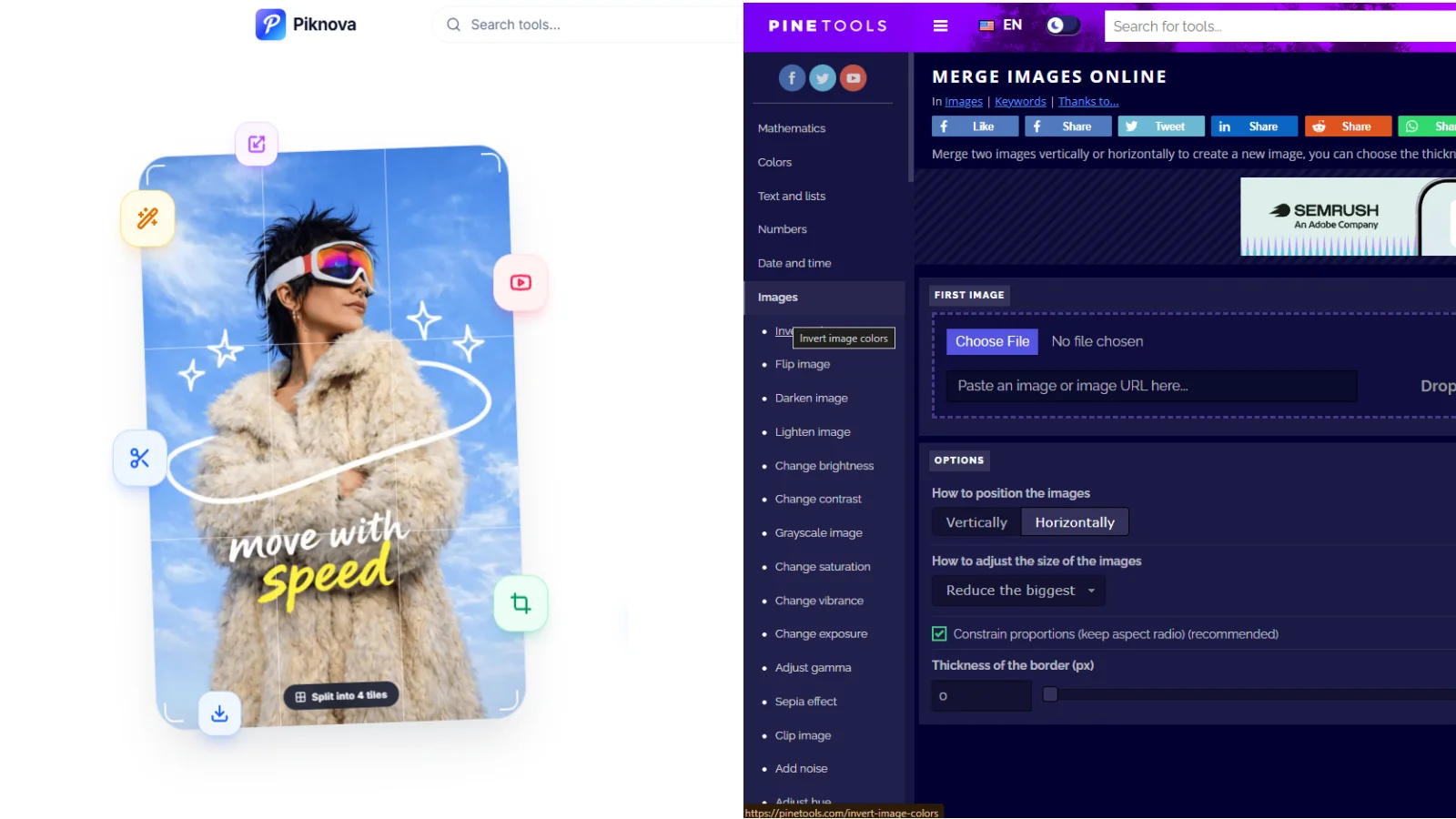
PineTools has about 58 image tools, most of them filters and effects, and when we read the source of its split-image page the work was done with a canvas in the browser and no request carried the file out. That probably makes it a local tool for most of its image pages.
It goes on this list with a caveat because the site never says so. There is no processing statement on any tool page, and its privacy policy is a template that mentions Google AdSense, Google Analytics and BuySellAds and never mentions uploaded images at all. A privacy property you can only confirm by reading minified JavaScript is not one the site is promising you, and its video tools plainly cannot work that way. We wrote up the full comparison in Piknova vs PineTools.
How to check whether an image tool really uses no upload
"Works in your browser" is useful wording, but it is not a privacy guarantee by itself. A cloud editor can also open in a browser while quietly sending your image to a remote processing endpoint. Use this check before trusting a tool with a sensitive file:
Read the processing explanation
Look for direct wording such as local processing, client-side processing, or files staying on your device. Vague phrases like "secure" and "encrypted" describe the pipe, not where the file goes. Encryption in transit means the upload is private from eavesdroppers, not that there is no upload.
Test with a harmless image
Open your browser's developer tools (F12, or right-click and Inspect), switch to the Network tab and filter to Fetch/XHR. Drop in a photo you do not care about and run the tool. Then sort by size. A local tool shows scripts, fonts and analytics pings, all tiny. An upload-first tool shows one request roughly the size of your file, usually a POST.
Look for the file payload
Click the largest request. If its body is your image, or a base64 blob the length of your image, the tool uploads. If the largest thing on the list is a WebAssembly file or a model download, the tool is bringing the work to you rather than taking your file to it.
Check the exceptions
Even a local site can have a feature that uses a server: a generative fill, a public-media downloader, a share link. An honest site names them. On Piknova the exceptions are the two YouTube channel downloaders, which fetch YouTube's public images and never see yours.
This test is practical evidence, not a formal security audit. It also does not remove risks from your own device, browser extensions, downloaded files or the place where you later share the finished image. It does answer the question you came in with.
What you can do with private browser-based image tools
Short image jobs are where local tools make the most sense. You keep the original file on your machine while handling several common tasks that otherwise send you hunting through a maze of upload buttons.
Exact file-size control is useful when a form demands 50 KB, 100 KB or 2 MB. A quality slider can feel like guessing whether "medium" means medium quality or medium disappointment. A target-size compressor gives you a clearer destination, and our guide to reducing an image to 25 KB covers why the smallest targets are the hardest.
Locked aspect ratio matters when you need a precise width or height without stretching a face, logo or product. Piknova's resizing workflow supports pixels, centimetres, millimetres and inches, so you can prepare web images, marketplace assets or print-related dimensions.
Format conversion is another good local task. JPG, PNG and WebP have different strengths. PNG can preserve an alpha channel for transparency, while JPEG cannot. If transparency is required, the output needs a format that can store it. Our image converter reads HEIC from an iPhone too, with a decoder that runs in the browser, up to 50 files at a time.
You can also split a tall design into numbered tiles for an Instagram grid or LinkedIn carousel. A 2x2 layout can support an X reveal. Image merging can place several thumbnails or screenshots side by side without opening a full design application.
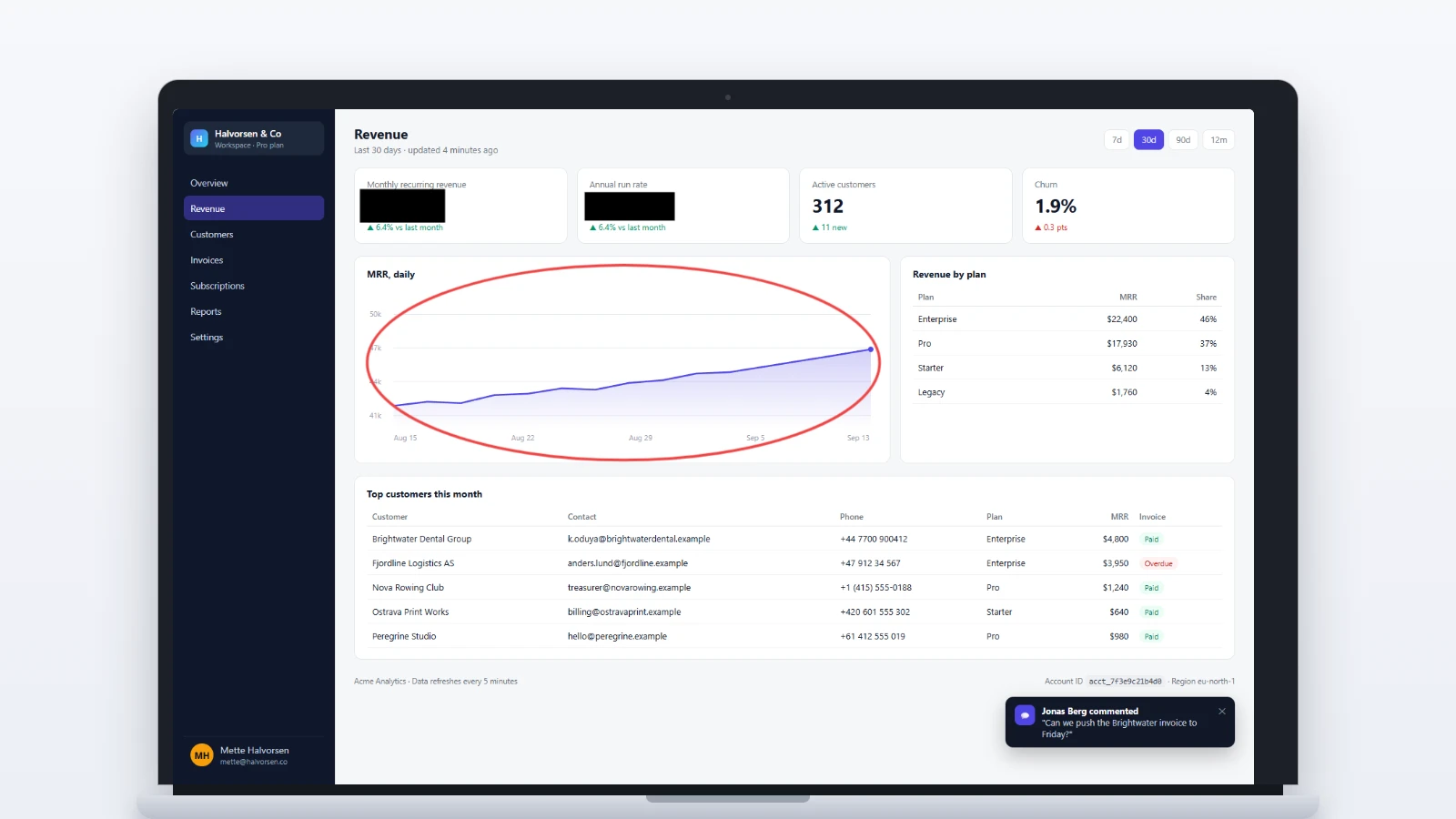
For private documentation, screen annotation can be especially useful. You might add arrows to a bug report, place boxes around dashboard figures, or label a product screenshot before sending it to a colleague. If sensitive information genuinely matters, use solid redaction rather than relying on a weak blur or mosaic effect, because a blur can sometimes be reversed and a black box cannot.
Where no-upload tools have practical limits
Local processing is not magic. It uses your device's memory and processing power, so a very large image may work more slowly on an older phone or laptop. A browser tab is powerful, but it is not secretly a data centre wearing a small hat.
Complex generative editing, shared asset libraries, automated team workflows and heavy server-side AI may still require an upload-based service. That can be a reasonable trade-off when the task genuinely needs remote computing, but it should be an informed choice rather than the default.
Automatic background removal also deserves realistic expectations. Hair, glass, pale clothing, thin cables and similar edges can need manual refinement. A local model can create a transparent PNG or a coloured background, but it may not produce a perfect cutout on every image, which is why ours opens the result in an editor with an edge and brush control instead of handing you a thumbnail.
Redaction has its own warning. Blur and pixelation transform the original pixels, which means weak effects may sometimes be partially reversed. Tools like Depix exist specifically to recover pixelated text. A solid fill is the safer choice when the hidden information could cause real harm if recovered.
How Piknova compares with upload-first workflows
Upload-first tools can offer broader editing suites, large AI models, batch processing and cloud storage. Their trade-off is that your image must leave your device for at least part of the workflow. Retention, deletion, account history, processing partners and model-use terms then become important questions.
| Service | Where the file goes | What it says about retention |
|---|---|---|
| Piknova | Stays in your browser | Nothing to retain |
| iLoveIMG | Its servers | Deleted within two hours of processing |
| Img2Go | Its servers | Deleted after 24 hours by default |
| Canva | Its cloud, under your account | Stays until you delete it |
| remove.bg | Its servers | Full-resolution output needs credits and an account |
Two hours is a reasonable policy for a holiday photo. It is a long time for a screenshot of a customer table. None of these services is doing anything wrong by uploading; it is simply the architecture their products need, and the question is whether your file needs it too.
Piknova takes the opposite approach for its local image tools. The focus is not unlimited creative complexity. It is private image editing without uploads for the jobs that should take seconds or minutes. That makes the choice fairly simple. Use a local tool when privacy, speed and a focused task matter most. Choose a cloud workflow only when its extra computing power or collaboration features justify sending the file elsewhere.
Choose privacy by architecture, not by a badge
The best image tools with no upload are defined by what happens to your file, not by a friendly browser interface or a reassuring shield icon. Check whether processing happens locally, confirm any exceptions, and match the tool to the task. For compression, resizing, conversion, annotation, splitting and other short jobs, local browser processing keeps your workflow simple and your files close. For sensitive material, private image editing without uploads is a sensible default, provided you still handle the device and final sharing step carefully.
Take action with Piknova
If you need to finish a small image job without creating an account or sending the file to a processing queue, a focused browser workflow can save time and reduce unnecessary exposure. You can work on a screenshot, product photo, carousel design, logo or other visual asset without turning a two-minute task into a software expedition.
Image Compressor
Type a target in KB and get a file under it. Runs entirely in your browser, so the file never leaves your device.
We keep our toolkit practical: split, merge, compress, resize, convert, annotate, redact, remove backgrounds and more. Local image-processing tools run in your browser, with no watermark, no paid feature wall and no stated daily download limit. Browse our image tools and choose the one that matches the job.
Frequently asked questions
Do no-upload image tools really keep files private?
If the tool processes the file locally, the image stays in your browser and is never sent to the provider. That removes the biggest risk in the chain, which is a copy of your file sitting on someone else's disk. It does not remove risks on your side: a browser extension can read the page, a shared computer keeps downloads, and the place you send the finished image is still the place you send it. Check the tool's documentation and, for anything sensitive, watch the Network tab once.
Is opening an image tool in a browser the same as local processing?
No. A browser is only the interface. Plenty of online services show a polished editor in a tab and quietly send your file to a server the moment you drop it in, then stream the result back. Local processing means the decode, the edit and the re-encode all happen in the tab, using the canvas API or WebAssembly. Look for an explicit claim in writing, then verify that the image never appears in a network request.
Which tasks work well without uploading an image?
Compression, resizing, format conversion, splitting, merging, cropping, annotation, blurring, redaction and watermarking are all comfortable in a browser, because they are arithmetic on pixels. Background removal works too when the model runs locally, as Piknova's does, at the cost of a one-time download. Anything that needs a huge model or a server farm, such as generative fill, is where local tools stop.
Are there exceptions to a no-upload workflow?
Yes, and an honest site names them. On Piknova the YouTube profile-picture and banner downloaders use a server, because they fetch a public image from YouTube rather than touching a file of yours. Some otherwise-local tools, like Photopea and Shottr, offer an optional upload or share feature that you have to switch on. Read for the word "optional" and for which features it covers.
Can no-upload tools replace Photoshop?
Photopea comes closest, and it is local, so for layers, masks and PSD files the answer is often yes. For everything else the honest answer is "for the job in front of you". Piknova will compress, resize, convert, split, annotate or cut out a background faster than a full editor, and it will not do a composite with twelve adjustment layers. Pick the tool that matches the job, not the one with the most menus.
Do local tools work offline?
Some do, once loaded. Photopea states you can load it, disconnect and keep working. Piknova's tools run in the tab after the page has loaded, though the background remover needs its model downloaded once first, and a hard refresh with no connection will not fetch a fresh page. Treat offline as a bonus rather than a promise, and test it before you rely on it.
Why do local image tools have file size limits?
Because your device is doing the work. A JPEG is small on disk but decodes to four bytes per pixel in memory, so a 50-megapixel photo is 200 MB of RGBA before an encoder has done anything. Piknova caps files at 25 MB and 50 megapixels for this reason, which covers every phone and most camera JPEGs. A server-based tool can accept a 200 MB TIFF because the server has the RAM. That is the trade.