You wanted to make one image smaller. Somehow you now have a verification email, a marketing newsletter and a "Complete your profile" banner that will outlive the image. Image tools without an account exist to prevent exactly that afternoon, and there are more good ones than the signup-first sites would like you to think.
The catch is that "no account" means three different things. Some tools never ask. Some ask at the download button, which is the moment you are least able to say no. Some ask once you hit a daily cap. This list sorts them by how much you can get done before anyone wants your email address, and it flags which ones also keep the file on your device, because no account and no upload are different promises.
The best image tools without an account at a glance
| Rank | Name | Best for | Where the account wall sits | Where your file goes |
|---|---|---|---|---|
| 1 | Piknova | Focused image jobs, private files | Nowhere | Stays in your browser |
| 2 | Photopea | Layered editing, PSD files | Nowhere; premium removes ads | Stays in your browser |
| 3 | Squoosh | Compressing one image precisely | Nowhere | Stays in your browser |
| 4 | iLoveIMG | Bulk utilities with big file limits | Above 200 MB or 30 files per task | Its servers, deleted within 2 hours |
| 5 | Img2Go | Conversion and quick edits | Above 100 MB, or when you need credits | Its servers, deleted after 24 hours |
| 6 | PineTools | Odd filters and effects | Nowhere | Unstated; its filters run in the tab |
| 7 | LunaPic | Old-school effects and quick fixes | Nowhere | Its servers |
| 8 | Watermarkly | Batch watermarks | Nowhere; paying removes its logo | Stays in your browser |
| 9 | Bulk Resize Photos | Resizing a whole folder | Nowhere | Stays in your browser |
| 10 | Pixlr | A friendly general editor | After three saves in a day | Its servers for AI features |
| 11 | Cleanup.pictures | Removing an object from a photo | Above 720 px output | Its servers |
| 12 | remove.bg | A quick background-removal preview | Above a 0.25 MP preview | Its servers |
1. Piknova
Best for: anyone who needs a quick image job finished without signing up, and anyone whose image should not leave the machine.
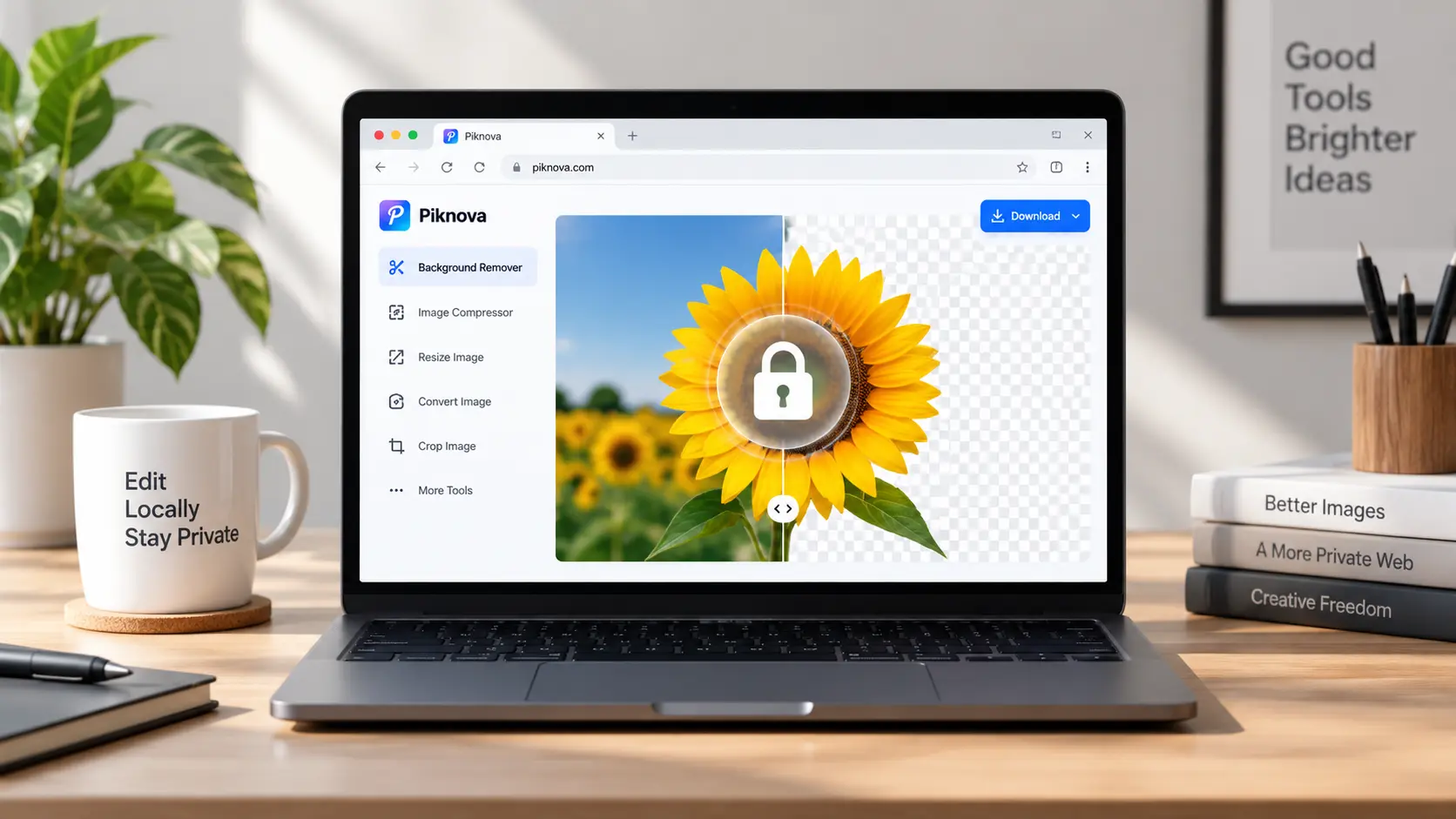
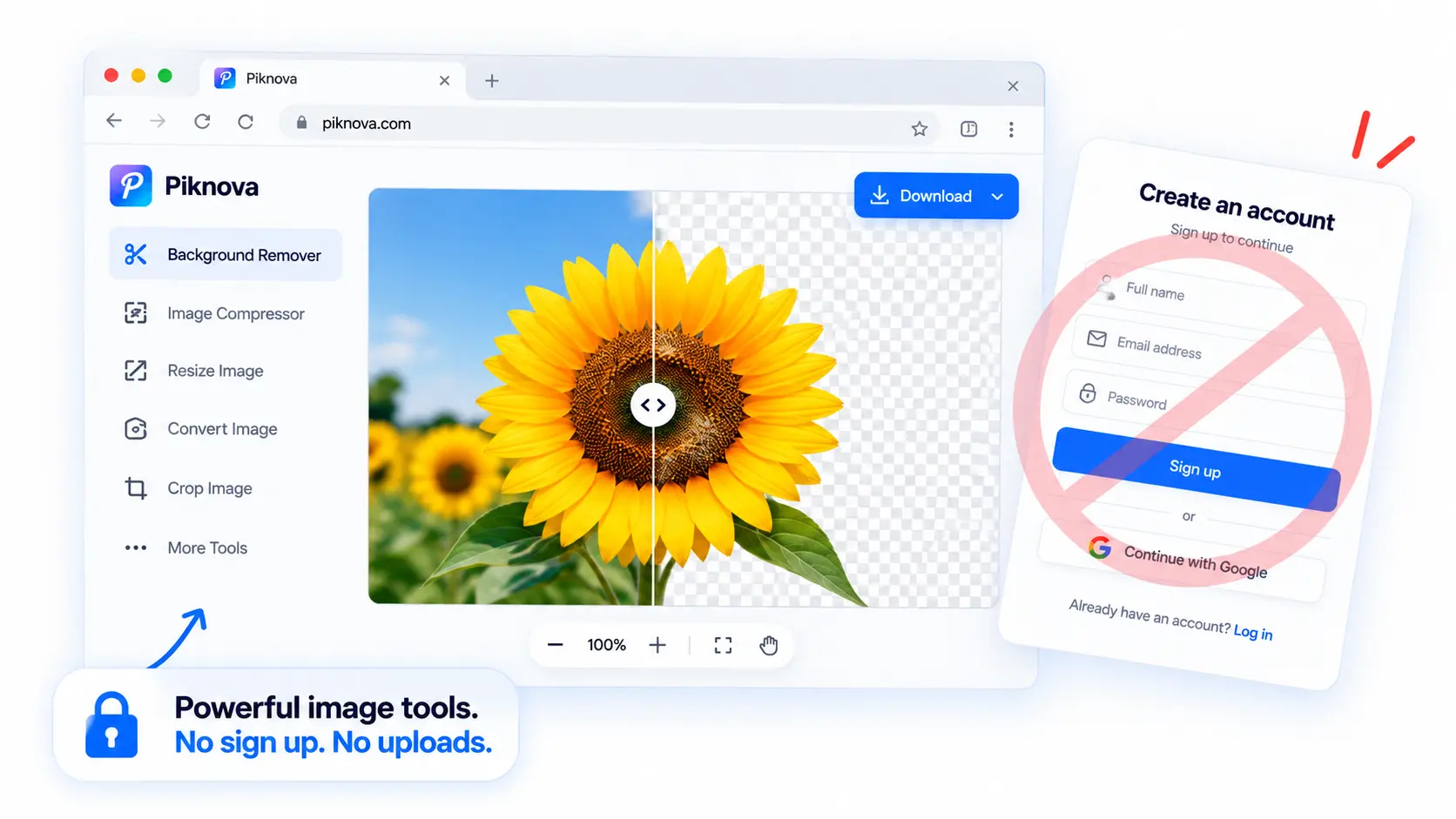
We built Piknova around a simple idea: most image jobs are chores. You do not want an account for a chore. You want to compress a file, resize a product shot, split a carousel or mark up a screenshot, download the result and get on with your day. So there is no account requirement anywhere on the site, and there is no paid plan either, which means there is nothing to upsell you into.
Our toolbox covers image splitting, merging, compression to an exact KB target, resizing in pixels, cm, mm or inches, format conversion including HEIC, a screenshot editor, blur and redaction, and a background remover whose model runs in your browser. Bulk versions of the compressor, resizer and converter take 50 files at once; the bulk background remover takes 10.
Because every image tool runs locally, no account also means no upload. The file is decoded, edited and re-encoded on your own device, which is the combination the rest of this list mostly cannot offer.
Pros
- No account, no paid plan, no watermark, no resolution cap, no stated daily limit.
- Every image tool runs in your browser, so the file is never uploaded.
- Focused pages: one job each, controls preset for it.
- Exact-size compression, four-unit resizing with DPI, HEIC and AVIF conversion, local background removal.
- Batch tools for compression, resizing, conversion and background removal.
Cons
- Not a layered editor. No masks, no adjustment stacks, no PSD.
- Files are capped at 25 MB and 50 megapixels each, because your device does the work.
- The background remover's first run downloads a model of roughly 95 MB.
2. Photopea
Best for: layered editing, PSD, XCF and Sketch files, and anyone who wants a real editor in a tab.
Photopea is the closest thing to Photoshop that opens without a download or a login. It runs entirely on your device (its documentation says none of your files ever leaves your computer, and that you can disconnect and keep working), opens PSD files with layers intact, and asks for nothing. The free version is funded by ads in a sidebar; premium is $5 a month or $50 a year and removes them, doubles the history steps and adds storage.
Pros
- Full layered editing with no account.
- Local processing, stated in writing, and offline capable.
- Opens and saves PSD.
Cons
- Ads beside your work on the free tier.
- A real editor's learning curve, for what may be a two-minute job.
3. Squoosh
Best for: compressing a single image as precisely as possible and seeing the result.
Squoosh is Google Chrome Labs' open-source compressor. It never asks who you are, does all the work locally, and exposes MozJPEG, WebP, AVIF and OxiPNG with a side-by-side view so you can watch quality fall as the file shrinks. There is no batch mode and no target-size mode, so if you were told "under 100 KB" you will be nudging a slider. Still the best classroom on the web for what compression actually does.
Pros
- Open source, local, no account, nothing to sell.
- Every modern codec with expert settings.
Cons
- One image at a time.
- No KB target; you converge by hand.
4. iLoveIMG
Best for: bulk utility work with large files, when the images are not sensitive.
iLoveIMG is the image sibling of iLovePDF, and its free tier is genuinely usable without an account: 200 MB per task for most tools, 30 files per task for compress, resize and convert, one image up to 2 MB for background removal. Files are processed on its servers and, per its security page, permanently deleted within two hours. The free tier shows ads; Premium removes them and raises the limits.
Pros
- Big free limits with no signup.
- A wide, well-maintained tool set with clear deletion policy.
Cons
- Upload-based. Two hours is a long time for a private screenshot.
- Ads on the free tier; background removal is one small file per task.
5. Img2Go
Best for: conversions and quick edits when you already live in the Online-Convert family.
Img2Go (QaamGo Web GmbH, Germany) works without an account for files up to 100 MB. Paid plans run on monthly credits and remove the ads. Files are processed on its servers and deleted after 24 hours by default. It is a competent converter and editor with a slightly busier page than the job usually needs.
Pros
- Broad format support with a 100 MB free ceiling.
- Clear, published retention window.
Cons
- 24 hours of retention is the longest on this list.
- Ads and a credits system on the free tier.
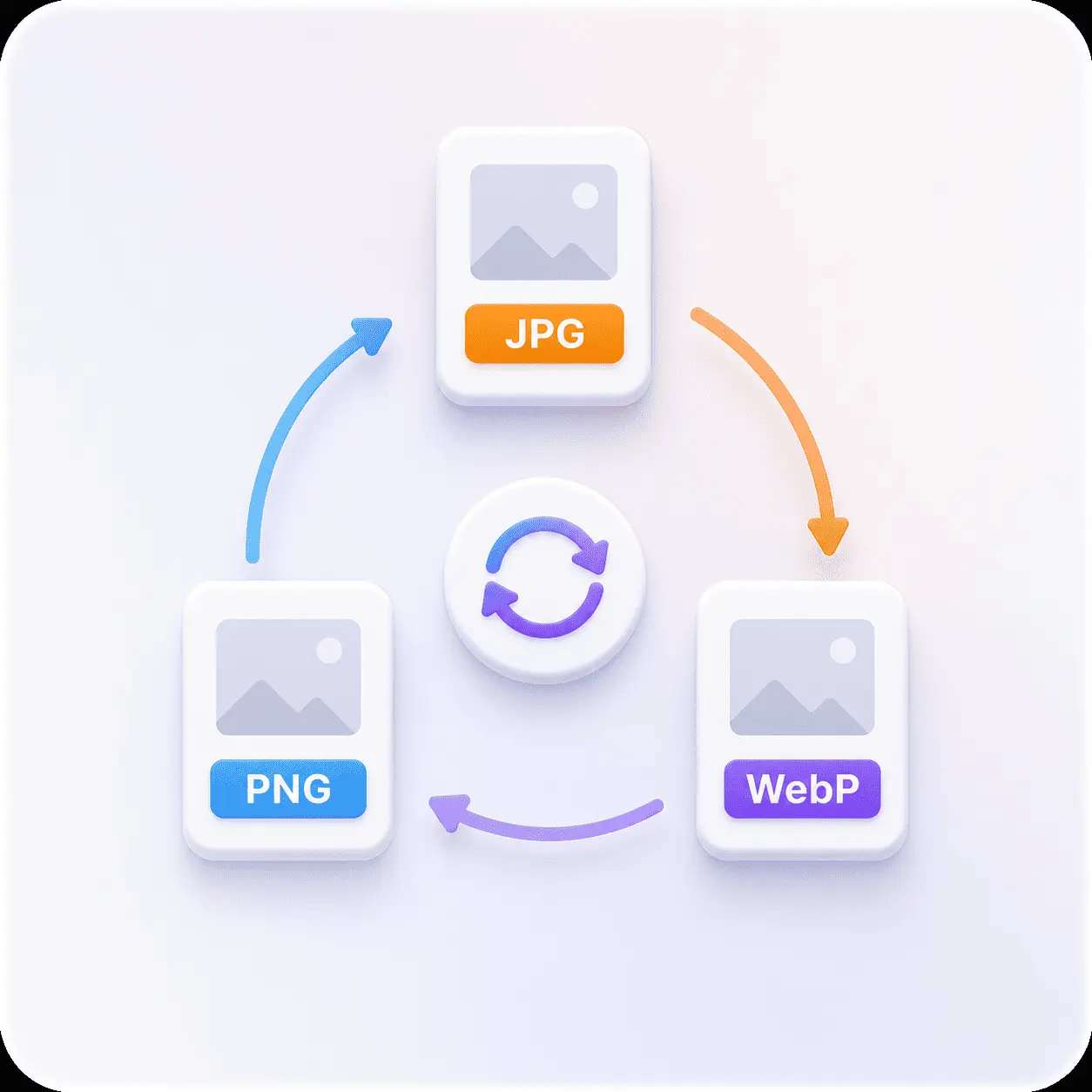
Image Converter
Convert JPG, PNG, WebP, AVIF and HEIC in your browser, up to 50 files, no signup.
6. PineTools
Best for: a filter or effect you cannot find anywhere else.
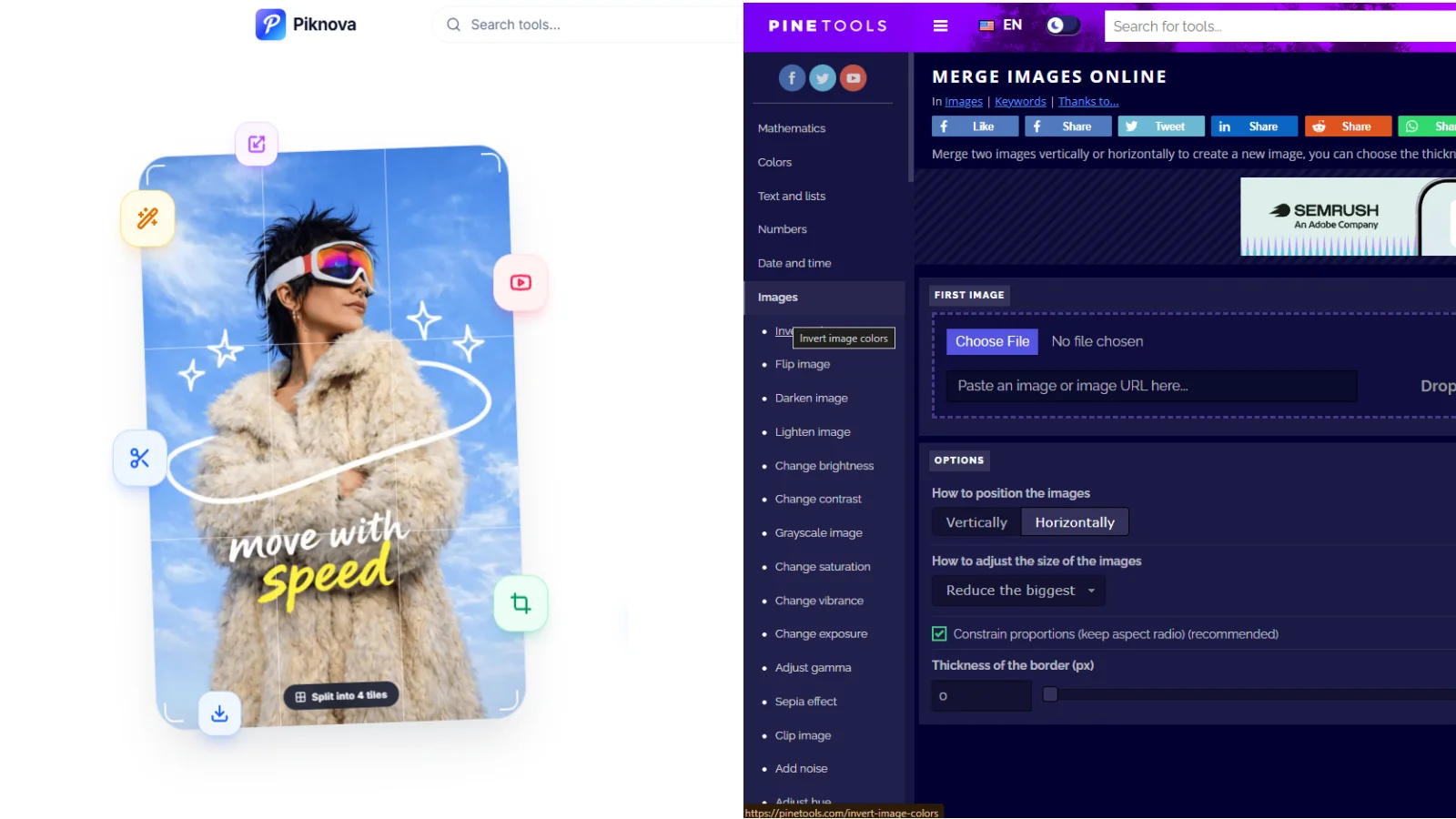
PineTools has about 58 image tools alongside utilities for text, numbers, dates, colours, files and video. It never asks for an account and has no paid tier; it is funded by Google AdSense and BuySellAds. When we read the source of its split-image page the work was done in the browser, but the site never says where your file goes, and its privacy policy does not mention uploaded images. Our full Piknova vs PineTools comparison has the detail.
Pros
- Enormous breadth, no account, no paid tier.
- Configurable split, crop, merge and censor tools.
Cons
- Privacy model unstated.
- A dated interface with a lot of ads around every form.
7. LunaPic
Best for: a quick effect or a fast crop with zero ceremony.
LunaPic has been an ad-supported, account-free online editor since before most of this list existed, and it still works: upload, apply an effect or a fix, download. Its help page states plainly that there are no accounts. Images go to its servers for processing and are deleted after the editing session. The design is a museum piece, which is half its charm and all of its limitation.
Pros
- Genuinely no account, ever.
- Hundreds of effects and quick fixes.
Cons
- Upload-based, and the interface is showing its age.
- Ads everywhere.
8. Watermarkly
Best for: batch watermarking in the browser without a subscription.
Watermarkly processes photos in your browser and states it does not store them on its servers. No account is needed. The free version adds a small "Watermarkly" logo next to your own watermark; $19.95 for a year or $39.95 once removes it. Sibling tools cover blur faces, crop, compress, resize and convert. For a single image, our add watermark to image tool does it locally with no logo of its own.
Pros
- Local, batch, no account, one-time pricing.
Cons
- The free output carries a second watermark.
9. Bulk Resize Photos
Best for: resizing a folder of photos in one go.
Bulk Resize Photos puts it in the page header: 100% free, unlimited usage, no sign-up, private, no uploading. Choose a percentage, exact dimensions or a longest side and it hands back a zip. It only resizes; for exact-KB targets or format changes you will need something else, and our bulk image resizer adds a fit-inside mode if you want the same job with more control.
Pros
- Unlimited, local, no account, dead simple.
Cons
- Resizing only.
10. Pixlr
Best for: a friendly general-purpose editor, if you only save a couple of times a day.
Pixlr is a polished editor you can open without signing up. The catch is the cap: the free tier allows three saves a day and shows ads. Plus, at $1.99 a month billed yearly (or $2.49 monthly), removes both and adds AI credits. The AI features run on Pixlr's servers. If you edit one image a day it is a perfectly good free tool. If you edit four, it is a subscription with a trial attached.
Pros
- Approachable interface with strong basic editing and templates.
- No account to open the editor.
Cons
- Three saves a day on the free tier, then a wall.
- Ads, and server-side AI features.
11. Cleanup.pictures
Best for: brushing an object, a person or a bit of text out of a photo.
Cleanup.pictures does one thing well: paint over the thing you want gone and it inpaints the gap. It works without an account, but free exports are capped at 720 pixels on the long side; Pro, at $5 a month or $36 a year, removes the cap. Processing happens on its servers. For a social post the free size is fine. For anything you intend to print, it is a preview.
Pros
- Excellent at its one job, no account to try it.
Cons
- 720 px output on the free tier; upload-based.
12. remove.bg
Best for: a fast, high-quality preview of a background removal.
remove.bg will cut out a subject without an account and let you download the result at up to 0.25 megapixels, roughly 625 by 400 pixels. Full-resolution output (up to 50 megapixels) costs one credit per image, credits require an account, and pay-as-you-go pricing runs from about $1.29 per credit down to $0.27 in large packs, with subscriptions from $9 a month. The quality is excellent; the free tier is a demo. Piknova's background remover exports at full resolution with no account, because the model runs on your device rather than on a metered server.
Pros
- Top-tier cut-out quality, instant preview with no signup.
Cons
- Free output is a thumbnail. Full size needs an account and credits.
- Upload-based.
What "without an account" should mean in practice
A tool earns the label when you can open it, do the job and download the result without typing an email address. By that standard the first nine entries above pass cleanly, and the last three pass with an asterisk the size of the download button.
There are three account walls worth recognising on sight:
Never asked
Piknova, Photopea, Squoosh, PineTools, LunaPic, Watermarkly, Bulk Resize Photos. The tool does not know who you are and does not want to. Any limits are about the file or the day, not the person.
Asked past a cap
iLoveIMG above 200 MB or 30 files, Img2Go above 100 MB, Pixlr after three saves, Cleanup.pictures above 720 px. Free for the light user, an account for the heavy one. Fair, as long as the cap is published.
Asked at the download
remove.bg's full-resolution output, Canva, Fotor, Adobe Express, Photoroom. You arrive, the tool works, and the file you just made is behind a signup. This is the wall people mean when they search for tools without an account.
The download-button wall exists because it converts. A tool that has just removed a background for you has leverage it did not have when you arrived. We think the right time to ask for anything is after the file is on your disk, which is why Piknova asks for a one-tap rating after the download, offers an account only after that, and lets you close both without losing anything.
The ones that look free until the download button
These are good products. They are also the reason this article exists.
- Canva needs an account for everything, and its background remover is a Pro feature (with a small allowance of Magic Studio credits on the free plan and a 30-day trial). Fine for a design suite; not a quick no-account tool.
- Fotor offers some standalone tools without signup, but the free plan watermarks exports and the full editor wants a login. Pro removes the watermark from about $3.33 a month on annual billing.
- Adobe Express has a strong free background remover, but the download runs through an Adobe ID. Reviewers disagree about whether the standalone quick action lets you skip it; the editor proper does not.
- Photoroom lets you preview a background removal without signing up, but the web editor wants an account, and free exports are limited in size and carry its mark. Pro starts around $12.99 a month.
None of them is hiding this. You just find out at the end rather than the start.
How to choose the right no-account image tool
Start with the job, not the brand. Then ask three questions. Each one has a well-known answer, and each well-known answer has a private version.
Is the image private? A dashboard, an invoice, an ID, a signature, a client draft. If yes, you want no account and no upload, which narrows the list to Piknova, Photopea, Squoosh, Watermarkly and Bulk Resize Photos. If no, the upload-based tools are fine for holiday photos and product shots, and they publish their deletion windows. The catch is that most images turn out to be a little private once you look at them properly, and the only way to be certain is a tool that never sends the file anywhere. That is the whole reason Piknova runs in the browser.
Is it one file or a folder? The reflex is iLoveIMG for a folder and Photopea for one file, and both work. iLoveIMG takes 30 files per task, uploads all 30, and holds them for two hours. Piknova's bulk compressor, bulk resizer and converter take 50 at once, and the folder never leaves your device. For one file, a Piknova page is already preset for the job, so there is no export dialog to find and nothing to upload before you start.
Does the job need layers? The reflex is Photopea if yes and Pixlr if no. If it genuinely needs masks, adjustment layers or a PSD, Photopea, and nothing else on this list; it runs locally, so it is a safe pick. If it does not, Pixlr's three saves a day is a subscription with a trial attached, and a full editor is a workshop you are renting to hang one picture. Piknova's screenshot editor, add text, image overlay, blur and background remover cover the edits people actually open Pixlr for, one page each, with no save cap and no upload.
Put the three answers next to each other and the pattern is hard to miss. The bulk utilities that send people to iLoveIMG, the quick edits that send them to Pixlr, and the crops, resizes and exports that send them to Photopea are all on Piknova, with one difference: every one of them runs in your browser. Nothing is uploaded, nothing is held for two hours, nothing is counted against a daily cap, and nobody asks who you are. Layered editing is the one job that stays with Photopea. For everything else, it is the same result, minus the part where a server sees your image.
Then check the download. Open the file you got back. Is it the resolution you gave it? Is there a logo in the corner you did not put there? Is it still a PNG with its transparency? Ten seconds of looking beats an hour of re-doing.
Final verdict on the best image tools without an account
For most people, most of the time, Piknova is the pick: no account, no paid plan, no watermark, no upload, and a focused tool for each of the jobs people actually search for. It covers what you would otherwise take to iLoveIMG, Pixlr or Photopea, the bulk jobs, the quick edits, the crops and conversions, and does it without the file ever leaving your device. Photopea is still the answer when the job needs layers. Squoosh is the answer when you want to understand exactly what compression is doing to one image. iLoveIMG and Img2Go are strong for bulk utility work on files you are not worried about. The rest earn their place for one job each, and the last three are excellent products whose free tiers are previews.
Take action with Piknova
If you need to finish an image job without an account, a paid plan or an upload, a focused browser workflow is the shortest route. Convert a HEIC from your phone, compress a scan to 100 KB, split a carousel, cut out a product, and download the result at full resolution. Nobody asks for your email at any step.
Image Converter
JPG, PNG, WebP, AVIF and HEIC in, JPG, PNG, WebP or AVIF out, up to 50 files, in your browser. No signup.
Browse our image tools for the rest: splitting, merging, compression, resizing, annotation, redaction and background removal, all free, all without an account.
Frequently asked questions
Which image tools work without an account?
Piknova, Photopea, Squoosh, PineTools, LunaPic, Bulk Resize Photos and Watermarkly work without ever asking you to sign up. iLoveIMG and Img2Go work without an account inside their free limits and ask when you exceed them. Pixlr works without an account but caps free saves at three a day. Cleanup.pictures and remove.bg let you try without an account and gate full resolution behind payment, credits or a signup.
Do free no-account image tools add watermarks?
Some do. Watermarkly's free tier adds a small Watermarkly logo next to your own watermark, Fotor's free plan watermarks exports, and Photoroom's free web exports carry its mark. Piknova, Photopea, Squoosh, PineTools, LunaPic, iLoveIMG and Img2Go do not add a watermark to the image itself. Always check a downloaded file before you assume.
Is it safe to use image tools without signing up?
Signing up and privacy are separate questions. An account tells the service who you are; an upload gives it your file. The safest combination for a sensitive image is no account and no upload, which is what Piknova, Photopea, Squoosh, Watermarkly and Bulk Resize Photos offer. Server-based tools like iLoveIMG and Img2Go are fine for ordinary photos and publish deletion windows of two and 24 hours respectively.
Can I do bulk work without an account?
Yes. Piknova's bulk compressor, resizer and converter take up to 50 files with no signup, and the bulk background remover takes 10. Bulk Resize Photos is unlimited. iLoveIMG allows 30 files per task on its free tier for compress, resize and convert, and Watermarkly batches watermarks in the browser with its logo added until you pay.
Why do some tools ask for an account only at the download button?
Because the download is the moment you are most likely to agree to anything. A tool that has just removed a background for you has leverage it did not have when you arrived, and an email address captured there converts far better than one asked for on the home page. Canva, Fotor, Adobe Express and remove.bg's full-resolution output all sit behind that step. Piknova asks for a one-tap rating after the download instead, and only then, optionally, whether you want an account. Both can be closed, and the file is already yours.
Do I need an account to remove a background for free?
Not on Piknova. The background remover runs a model inside your browser, exports a transparent PNG at full resolution, and never asks you to sign in. remove.bg gives an account-free preview of about 0.25 megapixels and charges credits for full size. Canva's remover is a Pro feature, Adobe Express wants an Adobe ID, and Photoroom's free web export is limited and marked. iLoveIMG allows one image up to 2 MB per task without paying.
Does 'no account' mean the tool has no limits?
No. It means the limits are not tied to who you are. Piknova caps each file at 25 MB because your device does the work. iLoveIMG caps free tasks at 200 MB and 30 files. Img2Go caps free files at 100 MB. Pixlr caps free saves at three a day. The useful question is whether the limit you will actually hit is one you can live with.