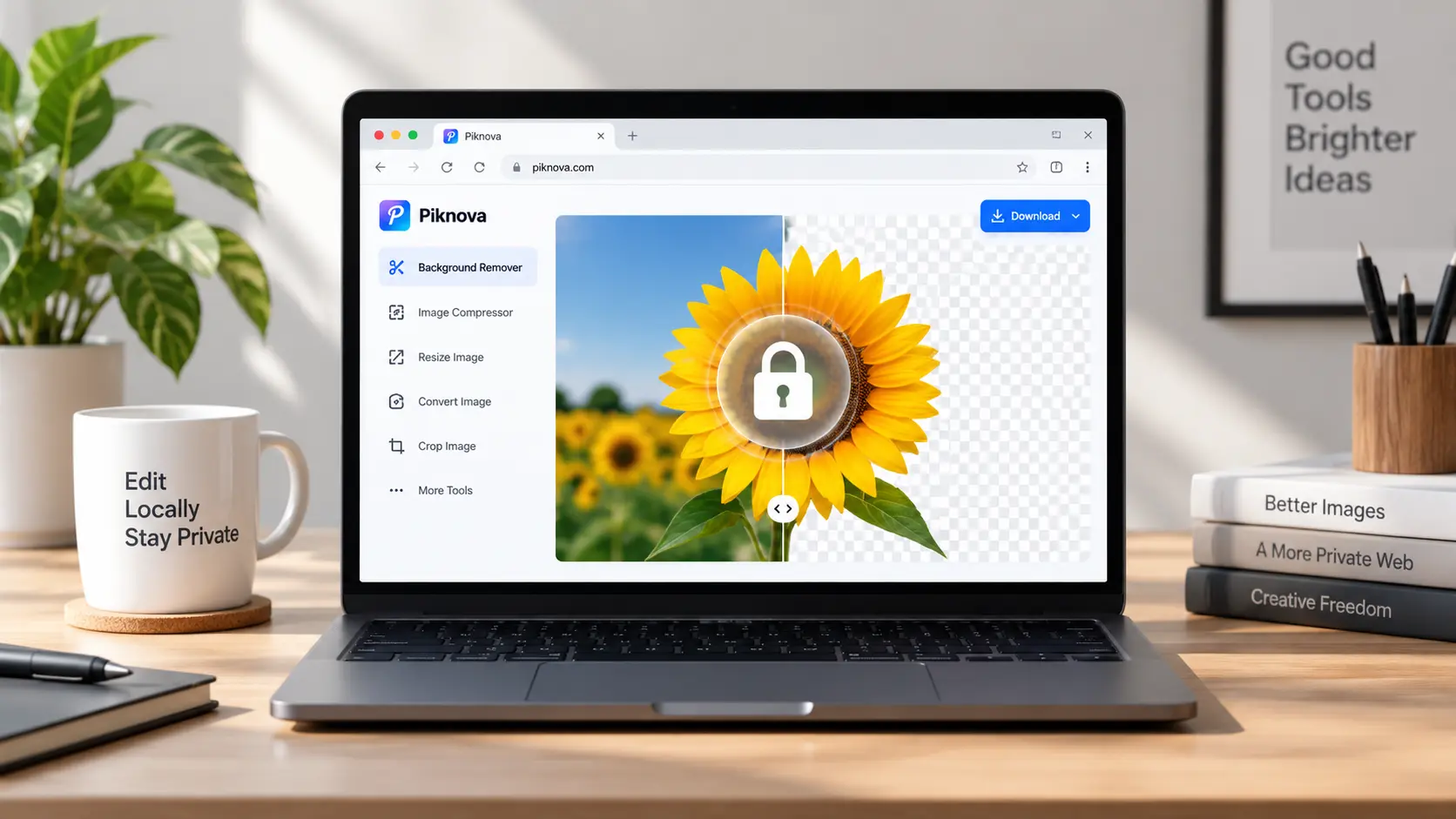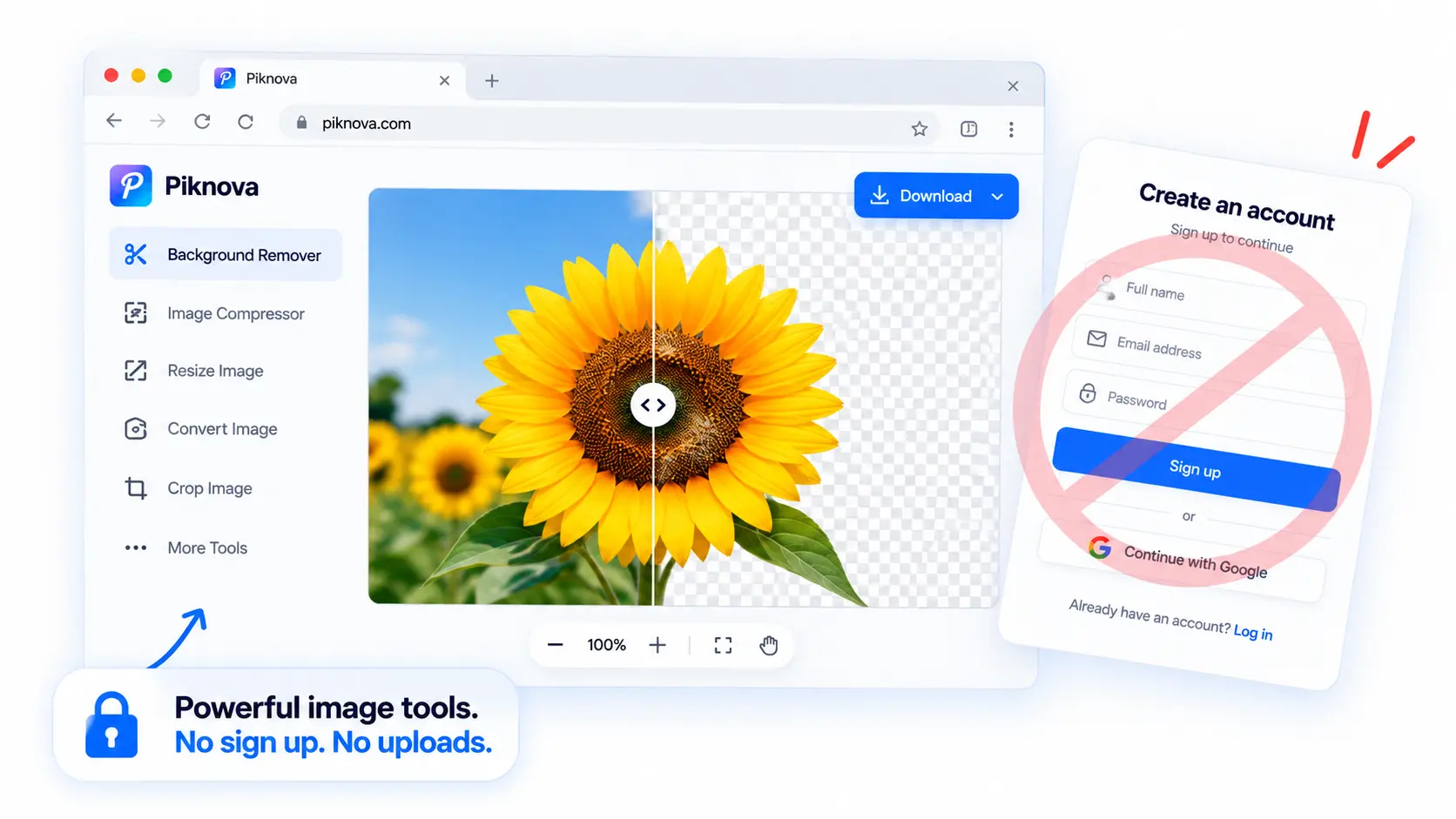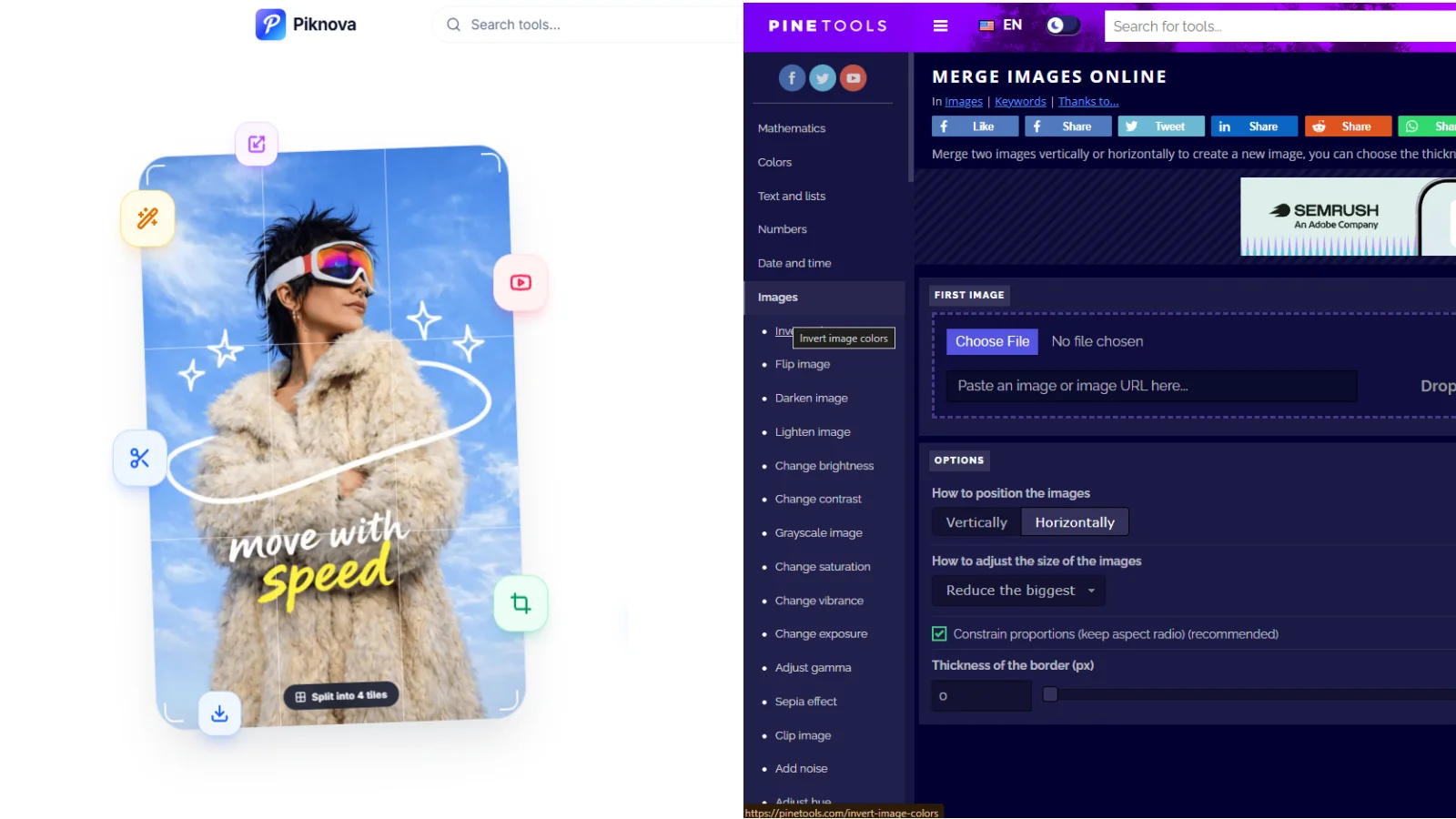
Need to resize one image, compress another and split a third before your coffee goes cold? That is the whole job description for Piknova. PineTools can do all three too, and it can also sort a list of numbers, generate a random bitmap and tell you what day of the week you were born on, which is either a strength or a distraction depending on why you opened the tab.
The real question in Piknova vs PineTools is not which site has more buttons. It is which one wastes less of your time, and what happens to your file while it is being used. Piknova emphasises local browser processing, one job per page and no accounts. PineTools covers ten categories of utilities, images among them, with a much older and plainer interface. Both are free. Neither asks you to sign up. Beyond that they diverge fast.
Piknova vs PineTools at a glance
For image-specific work we recommend Piknova, because the tools are organised around the job you want to finish. PineTools has the broader catalogue, but that breadth can feel like opening a toolbox when you only need one screwdriver.
| Criterion | Piknova | PineTools |
|---|---|---|
| Primary focus | Focused browser-based image tools | Broad online utilities across ten categories |
| Privacy model | Every image tool runs in your browser, stated on every page | Not stated on the tool pages or in the privacy policy |
| Image operations | Split, merge, compress, resize, convert, annotate, blur, redact, remove background | About 58 image filters and effects, plus resize, crop, split, merge, censor and overlay |
| Batch | Compress, resize, convert up to 50 at once; background remover up to 10 | Bulk versions of most image tools |
| Workflow style | One page, one job, controls preset for it | Configurable forms inside a larger utility directory |
| Access | No account, no paid plan, no watermark, no daily limit | No account; funded by Google AdSense and BuySellAds |
| Ownership | Built one tool a week by one founder, in public | Run from Rosario, Argentina, per its terms of service |
| Best fit | Creators, sellers, marketers, anyone with a private screenshot | People who want text, number and file utilities in the same place |
Piknova
Best for: creators, small businesses, marketers, founders, sellers and anyone handling quick image tasks without opening a full design application.
We built Piknova around a simple idea: most image jobs are chores, not creative projects. You open the task you need, add an image, make the change and download the result. There is no layer panel lurking in the bushes, no plugin maze and no tutorial queue before your first export.
Our toolbox covers image splitting, merging, compressing to an exact size in KB, resizing in pixels, cm, mm or inches, converting between JPG, PNG, WebP, AVIF and HEIC, a full screenshot editor with text, arrows, shapes and emoji, blur and redaction tools, and a background remover whose model runs inside your browser. Separate downloaders handle public YouTube thumbnails, banners and profile pictures.
The strongest difference is local browser processing. Image editing happens on your device, so files are not uploaded to or stored by the service. The background remover is the extreme case: it pulls a segmentation model of roughly 95 MB to your browser on the first run, caches it, and then cuts out subjects locally at full resolution. That download is the price of never sending your photo to a server, and we would rather you know about it up front than find it on your mobile bill.
Pros
- Focused tools make for shorter image jobs, because every control on the page is for the job you opened.
- Local processing suits private work with screenshots, dashboards, invoices and product images.
- No account is needed to use any tool or to download the result.
- Exports come out at full resolution, in your file's format, with no watermark and no daily cap.
- Exact size compression: type a target in KB and get a file under it, rather than guessing at a quality slider.
- Resize controls support pixels, centimetres, millimetres and inches, with the aspect ratio locked and a DPI written into the file.
- Batch versions of the compressor, resizer, converter and background remover take a folder, not a file.
Cons
- It is not intended to replace Photoshop or a full layered editor. There are no layers, masks or adjustment stacks.
- The background remover's first run is a real download, and it wants a reasonably modern device.
- Local processing depends on your browser and device memory. Files are capped at 25 MB each, which covers phone and camera JPEGs but not a 200 MB TIFF.
- It only does images. If your task is a list or a number, you are on the wrong site.
PineTools
Best for: users who want one broad website for image utilities plus text, mathematics, numbers, dates, files, programming, randomness and video tools.
PineTools takes the general utility route. Its home page groups tools into ten categories, so you can move from resizing an image to sorting a list without opening another site. That range is useful when your workday has the organisational structure of a junk drawer.
Its image pages support practical controls. The split-image tool, for example, cuts vertically, horizontally or as a grid, by a number of equal blocks or by a block size in pixels, with an optional overlap in pixels, and outputs PNG, JPG, WebP or BMP with a quality slider. You get a zip or individual downloads. That is a proper tool, not a toy, and the same goes for the crop, resize, merge and censor pages.
The image category itself is dominated by filters: darken, lighten, sepia, vignette, emboss, solarise, posterise, edge detection, a Spotify-style duotone. If you want to apply one effect to one photo and move on, PineTools has more effects than we do and probably always will. Most of these come in a bulk flavour too.
One page deserves a footnote. PineTools has a "remove background" tool, and it is a magic wand: the page loads an open-source flood-fill library, you click a colour, and everything similar to it becomes transparent. On a product shot against a plain white wall that works. On hair, glass or a busy background it does what magic wands have always done, which is eat part of the subject and leave a halo. It is a different category of tool from a segmentation model, and the page does not pretend otherwise, but the name invites the comparison.
What PineTools does not do is tell you what happens to your file. The tool pages carry no statement about processing. The privacy policy is a generic template that discusses cookies, Google AdSense, Google Analytics and BuySellAds, and never mentions uploaded images once. It also contains the sentence "We do not use an SSL certificate", which is untrue (the site is served over HTTPS), and which tells you nobody has read that page in a while.
Pros
- Broad catalogue covering images and many non-image utilities.
- Useful controls for splitting images by direction, quantity or block size, with overlap.
- Merge options include horizontal or vertical layouts and adjustable borders.
- Bulk versions of most image tools.
- Available in English and Spanish, with a Chrome extension.
- No account, no paid tier.
Cons
- The broader catalogue makes image tasks feel less streamlined. Every page is a form with a lot of options and a lot of ads around it.
- No stated privacy model for uploaded files. You are trusting a page that does not say what it does.
- The design has not been touched in years, and on a phone it shows.
- The merge workflow describes combining two images, while Piknova's merger takes up to four in a row, a column or a 2x2 grid.
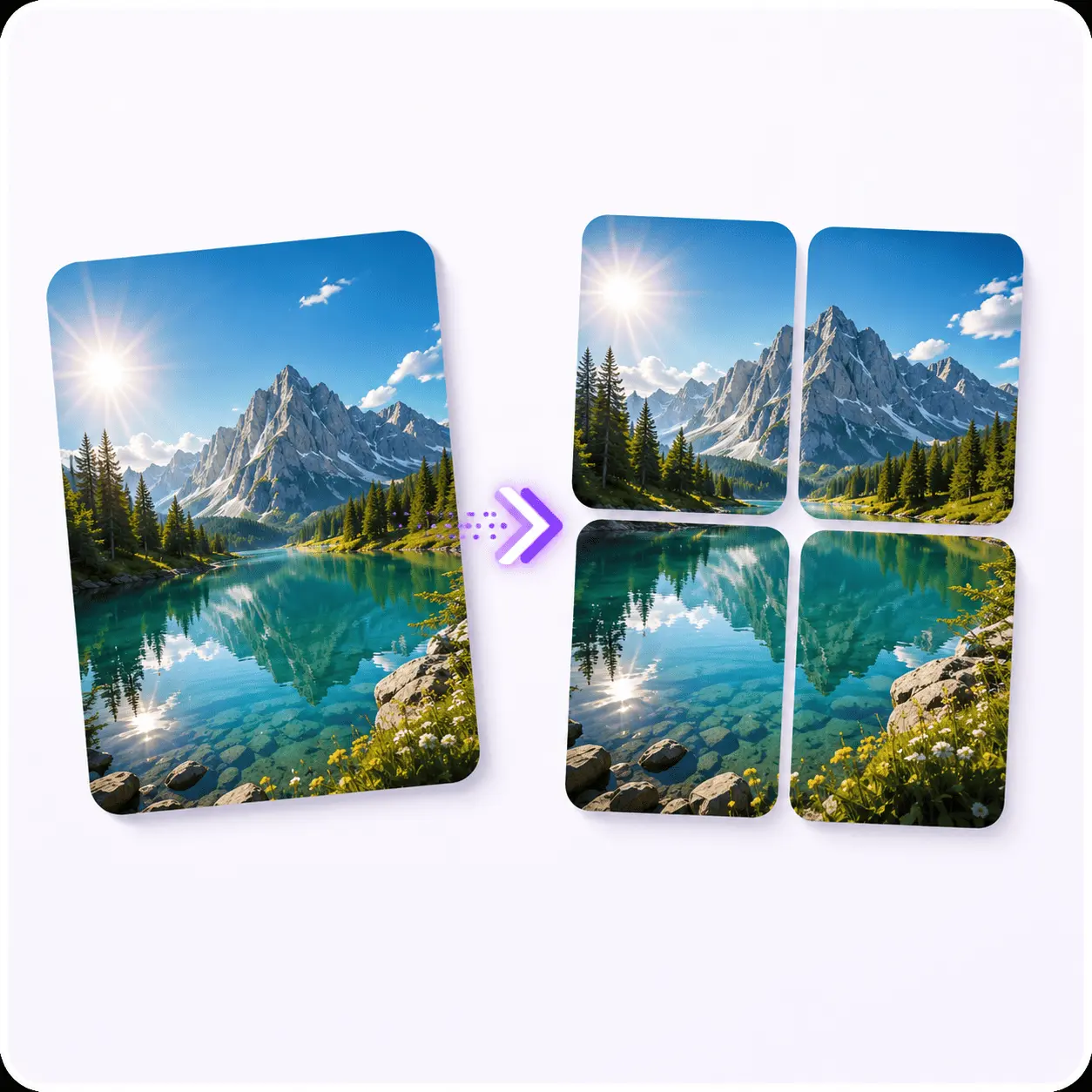
Image Splitter
Cut one image into a 2x2, 3x3 or any grid and download every tile, in your browser.
Privacy changes the decision
If you are editing a product photo, privacy is probably a nice bonus. If you are editing a dashboard screenshot, an invoice, a passport scan or a signature, privacy becomes the main event.
Piknova's position is written on every tool page and in the privacy policy: image tools run in your browser, and your files are not sent to us or stored anywhere. The page still loads the scripts a website loads, analytics included, so this is not a claim that the tab is silent. It is a claim about the file, which is the thing you actually care about.
PineTools' position is that it has no position. We went looking for one. The split-image page's source reads your file with FileReader, draws it onto a canvas and cuts it in JavaScript, and we could not find any request that carries the image out. That is genuinely reassuring, and it is probably true of most of its filter pages, which are the kind of thing JavaScript has done well for a decade. But a privacy property you can only confirm by reading minified source is not a property the site is offering you, and some of its newer tools, like the video category, plainly cannot work that way.
For sensitive material, our privacy-first workflow is the clearer choice. A browser tool cannot make careless sharing safe, and no vendor can turn a public document into a secret one, but it can remove one hop from the trip.
Which tool handles common image jobs better?
Imagine a small business preparing a product listing. The image needs a clean background, exact dimensions, a lighter file size and perhaps a format change. This is where a focused workflow saves clicks.
| Job | Piknova | PineTools |
|---|---|---|
| Compress to a size limit | Type the target in KB, get a file under it | Quality slider; you guess and check |
| Resize for a form | Pixels, cm, mm or inches with DPI | Pixels or percentage |
| Convert formats | JPG, PNG, WebP, AVIF, HEIC in; JPG, PNG, WebP, AVIF out, up to 50 files | Output format picker on most tools; no HEIC |
| Split for a grid post | Rows x columns, exact tile size or dragged guides, X preset | Direction, quantity or block size, with overlap |
| Merge photos | Up to 4, row, column or 2x2 grid, background colour | Two images, horizontal or vertical, with border |
| Hide a face or a number | Blur, pixelate, solid block, sticker or glitch, by shape or lasso | Blur or pixelate a rectangle |
| Remove a background | Local segmentation model, transparent PNG, refine brush, batch of 10 | Colour-based magic wand: click a flat background and it floods a selection |
| Apply a sepia, vignette or emboss | Not available | Yes, and forty more like it |
We can remove the background, resize the result and use the image compressor when the marketplace demands a target such as 100 KB. That is more practical than guessing with a quality slider and hoping the upload form stops complaining.
For social content, our splitter creates numbered tiles for grids, puzzle feeds and carousel slides. The resizer handles exact units and locked proportions through the image resizer, which matters when a brief says "3.5 by 4.5 cm at 300 DPI" and means it.
PineTools is stronger when you want to experiment with effects, block quantities, output formats or border settings. It is also convenient when the same session includes unrelated tasks, such as reversing text, sorting numbers or working with files.
Speed, simplicity, and the account question
Both platforms aim to remove software installation from the equation. The difference is how much thinking happens before the useful button appears.
Our single-purpose layout is designed for short image jobs. You do not need to configure a workspace or decide which of several categories contains the feature you remember seeing yesterday. The controls that matter for the job are already set, and the download button is where you left it last time.
PineTools offers a larger map of tools. That is valuable if you need variety, but a larger map also means more roads, signs and opportunities to take the scenic route by accident. A quick job on PineTools is a form; a quick job on Piknova is a button.
On access, both are free and neither asks for an account. Piknova has no paid plan, no watermark, no resolution cap and no daily download limit, and says so on the pricing page. Comparable limits for PineTools are not published anywhere we could find, so we will not invent a number to make the table look confident. What is published is the funding model: PineTools names Google AdSense and BuySellAds in its policy, and the ads are part of the page. Piknova asks for a one-tap rating after a download, and may offer a guest an account after that; nothing sits in front of the file.
Which one should you choose?
Choose Piknova if your priority is a clean image workflow, local processing, exact output control and fewer interruptions. It is especially suitable for creators, sellers, marketers and small teams that repeat the same practical image jobs.
Choose PineTools if you want a broad utility directory and your image task is only one item on a much longer list. Its configurable split and merge tools are useful when you want precise layout choices, and its filter list is longer than ours by a wide margin.
For most image-only workflows, we would start with Piknova. The recommendation is not based on having the most buttons. It is based on making the right buttons easier to find.
The better choice depends on the job
Piknova vs PineTools comes down to focus versus breadth. PineTools is a handy general toolbox for mixed online tasks, and we are better suited to private, repeatable image-specific work. If you need to split, merge, compress, convert, annotate or remove a background without opening a full design suite, start with the focused option and keep pace with your workflow.
If you need to reverse a string, convert to Roman numerals and put a vignette on a photo, PineTools is a fine afternoon. We will be here when the photo needs to go somewhere.
Take action with Piknova
When an image task should take two minutes, a giant editor can feel like bringing a forklift to move one houseplant. We keep the workflow focused, browser based and practical, so you can handle the job without installing software or creating an account.
Image Splitter
Cut one image into a 2x2, 3x3 or any grid, with numbered tiles and full-resolution downloads. Runs in your browser.
Use our online image tools to split, merge, compress, resize, convert, annotate, redact or remove backgrounds from images. Everything runs locally in your browser, and every export is free, full resolution, and free of watermarks and daily download limits.
Frequently asked questions
Which platform is better for quick image jobs?
Piknova, for the jobs it covers. Each page is one job with the controls already set up for it, so splitting, compressing, resizing, converting or blurring takes a few clicks and the file stays on your device. PineTools is better when the job is unusual, because it has around 58 image filters plus tools for text, numbers, dates and files, and the odds of it having a button for your rare task are higher.
Does Piknova upload my image?
No. Every image tool on Piknova runs inside your browser, so the file is decoded, edited and re-encoded on your own device. The page still loads the usual website scripts, including analytics, but the image itself is never sent to us. The two exceptions are the YouTube profile-picture and banner downloaders, which fetch a public image from YouTube and never touch a file of yours.
Does PineTools upload my image?
PineTools does not say. Its tool pages carry no statement about processing, and its privacy policy is a generic template that never mentions uploaded files. When we read the source of its split-image page, the image was loaded into a canvas in the browser and no request carried it out, which is good news, but a privacy property you have to verify in DevTools is not one the site is promising you.
Is PineTools more versatile than Piknova?
Yes, by a distance. PineTools covers mathematics, colours, text and lists, numbers, dates and times, images, randomness, files, programming and video. Piknova only does images. If you regularly need to sort a list, convert a number base and add noise to a photo in the same afternoon, PineTools saves you tabs. If you only need the image part, the breadth is scenery.
Do I need an account or paid plan for Piknova?
No. There is no paid plan, no account requirement and no watermark on anything. Downloads come out at full resolution with no daily limit. After a download we ask for a one-tap rating, and a guest may then be offered an account. Both can be closed, and the file is already on your disk by then.
Which platform is better for private screenshots?
Piknova. The screenshot editor, blur tools and redact tool all run locally, and the redact tool paints a solid block, which is the one method that cannot be reversed. PineTools has a censor tool that can blur or pixelate, but the page does not tell you whether the screenshot leaves your machine, so you would be trusting an unstated policy with a file that may contain names, balances or tokens.
Can PineTools split an image into a grid?
Yes. PineTools' split tool cuts vertically, horizontally or both, by a number of equal blocks or by a block size in pixels, with an optional overlap, and zips the result. Piknova's splitter does the same grid work and adds draggable guides for uneven cuts, plus a preset for the 2x2 block X shows in the timeline. Both are good; Piknova's is built around posting the tiles, PineTools' around cutting them.