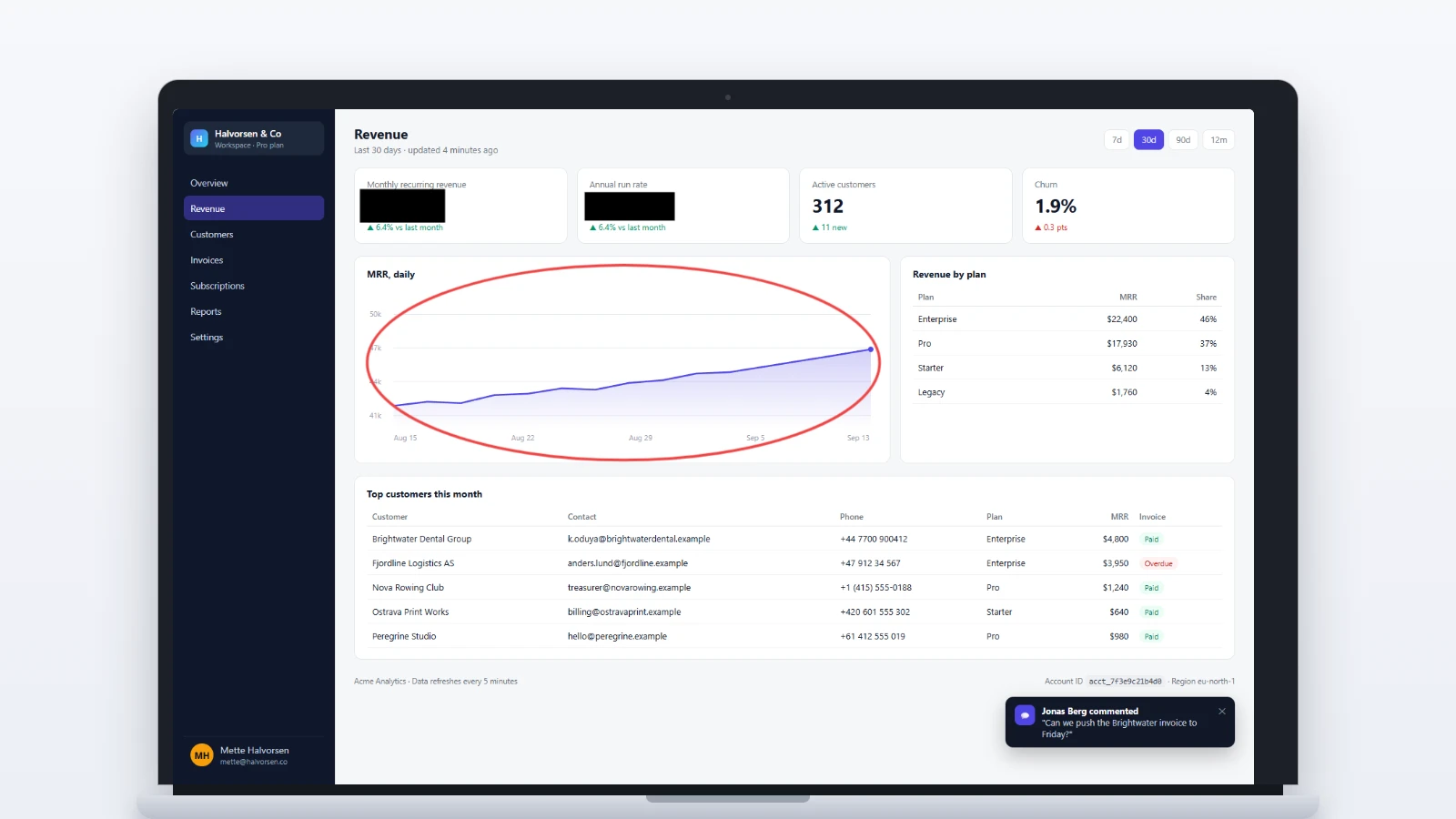
A dashboard screenshot can contain revenue figures, client names, ad account ids, email addresses and, in one memorable case, a session token in the URL bar. Hiding all of that should not require a tour of a cloud editor. If you want to send a client one metric without three of their competitors' names tagging along, you need a screenshot editor for private dashboards that does the job on your machine and does it in about a minute.
The problem is that the most popular screenshot tools are built around sharing, and sharing means uploading. The fix is a tool that edits locally by default, a blur that is actually a black box when it needs to be, and a habit of cropping the browser chrome before anything else.
Which screenshot editor is easiest for private dashboards?
Piknova is the easiest pick when you want to paste, mark up, redact and download without an install or an account. Desktop apps win when you take dozens of screenshots a day and want a hotkey. The web editors from design suites are fine for public dashboards and wrong for confidential ones, because the file leaves your machine before you can touch it.
| Rank | Name | Best for | Where the file goes | Blur and redact |
|---|---|---|---|---|
| 1 | Piknova Screenshot Editor | Private, one-off dashboard markups | Stays in your browser | Blur, pixelate, solid, sticker, glitch, plus a dedicated redact tool |
| 2 | Snipping Tool and macOS Preview | Anything, with nothing to install | Stays on your device | Snipping Tool black-bars found text; Preview draws shapes |
| 3 | Flameshot | Quick captures on Windows, macOS and Linux | Local; Imgur upload only if you click it | Blur or pixelate a region |
| 4 | Shottr | Mac users who want a hotkey and local OCR | Local; upload is opt-in | Blur, pixelate or remove a region |
| 5 | ShareX | Power users on Windows | Local by default since 19.0.1; check older installs | Blur and pixelate effects |
| 6 | CleanShot X | Polished Mac captures, one-time price | Local; CleanShot Cloud is optional | Blur and pixelate regions |
| 7 | Snagit | Teams that want support and a receipt | Local; sharing is a separate step | Blur, plus Simplify for whole panels |
1. Piknova Screenshot Editor
Best for: freelancers who need to send a client a metric without sending a client everything else.
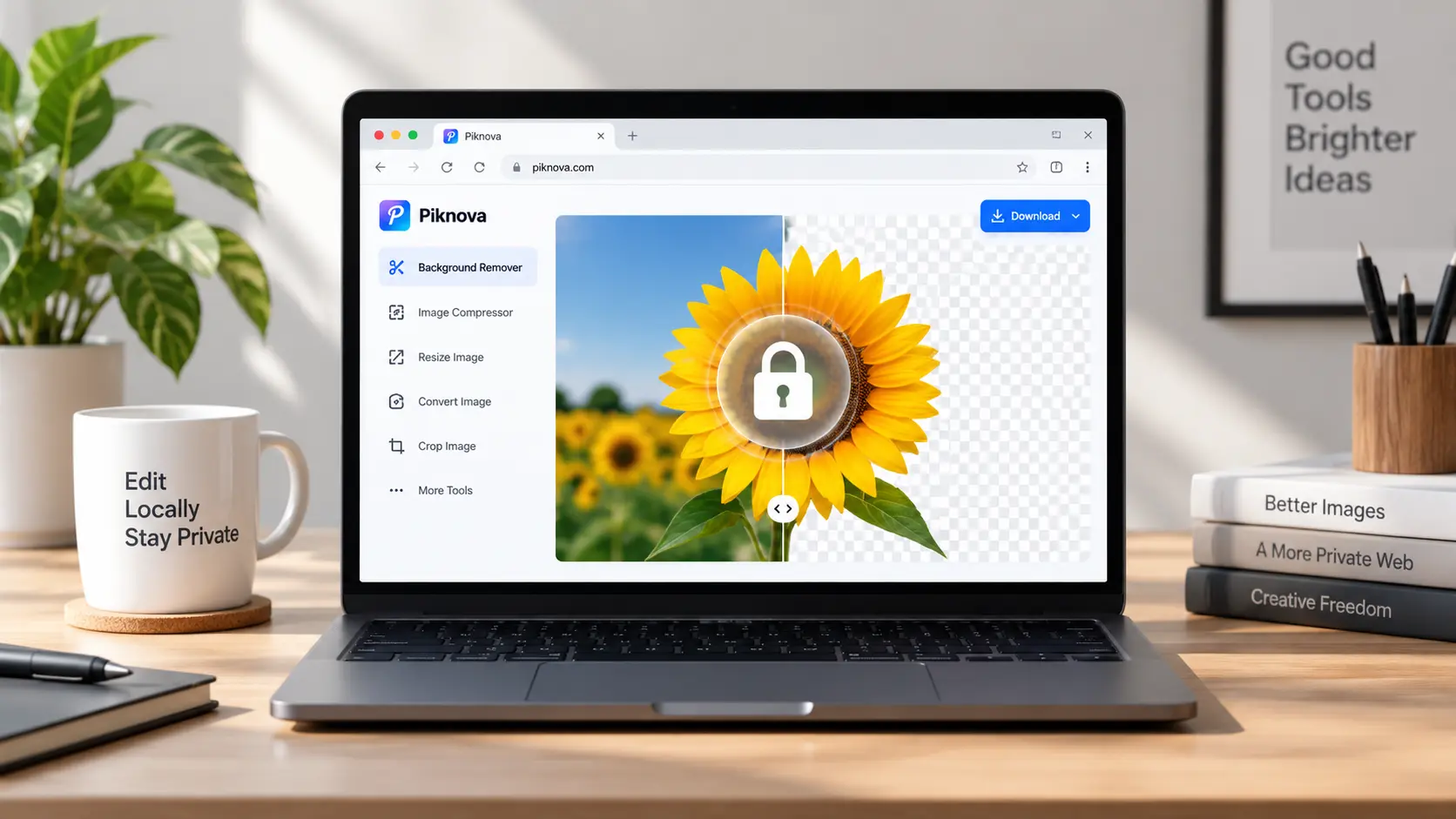
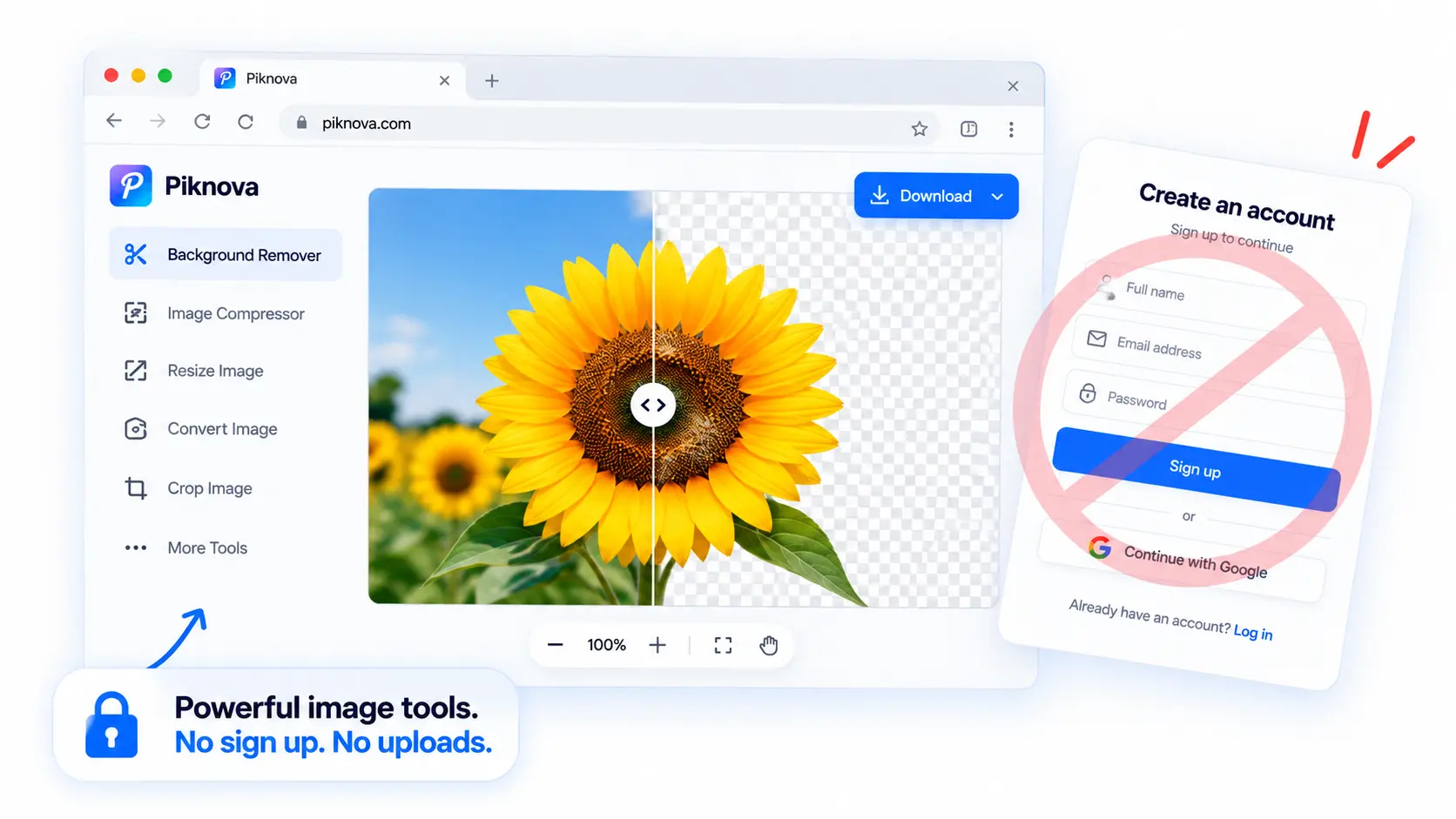
At Piknova we built the screenshot editor around the awkward fact that a screenshot is the most private image most people ever edit. It is not a holiday photo. It is your inbox, your dashboard, your client's balance. So the editor runs inside your browser, uploads nothing, needs no account and adds no watermark. You paste or drop the image, and the toolbar has the seven things a dashboard markup needs: text, arrows, shapes, emoji, freehand drawing, crop and blur.
The blur is the part built for this article. It hides a region you select by shape or freehand lasso, in five styles: a real blur, a pixelate, a solid fill, a sticker and a glitch. For a client's revenue figure you want the solid one, and we say so on the page, because a blur can be reversed and a black box cannot. If you would rather skip the editor entirely, the redact image tool opens straight onto a solid block, and blur text in image opens onto the settings for a name or an account number.
What it does not do is read the screenshot. There is no OCR, so it will not retype text, and it will not auto-detect every number on the screen. You place each box yourself. That is slower than a magic button and it misses exactly nothing you looked at, which for a confidential screen is the right trade.
Pros
- Runs in the browser, so nothing is uploaded and there is nothing to install.
- Blur, pixelate, solid, sticker and glitch, by rectangle, ellipse or lasso.
- Text, arrows, shapes, emoji, freehand and crop on the same toolbar.
- No account, no watermark, no resolution cap, full-size PNG export.
- Works on a phone, for the dashboard you screenshotted in the app.
Cons
- No OCR. Nothing finds the numbers for you.
- No hotkey capture. You take the screenshot with your OS, then bring it here.
- Files are capped at 25 MB, which is not a limit a screenshot will meet.
2. Windows Snipping Tool and macOS Preview
Best for: anyone who would rather not install or open anything new.
The built-ins are better than their reputation. On Windows 11, Snipping Tool version 11.2308.33.0 and later has a Text actions button that runs OCR on the capture. Its Quick redact action finds email addresses and phone numbers and covers them with black bars, and you can select any recognised text and press Ctrl+R to box it yourself. It draws no blur, only bars, which for confidential text is the correct default. On a Mac, the Screenshot tool and Preview's Markup toolbar give you shapes, arrows, text and a crop, and Preview exports a smaller JPEG in one dialog.
Neither uploads anything. Neither has a real blur, a lasso or a pixelate. Quick redact will not touch a currency figure, a chart, a face or a logo, so it is a first pass rather than a finish. But if you are on a locked-down client laptop with no admin rights, this is the private editor you already have.
Pros
- Already installed, already local, no account.
- Snipping Tool's OCR-based Quick redact catches the two most common leaks automatically.
Cons
- Black bars on recognised text only; no blur, no lasso, nothing for charts or images.
- Preview's shapes are filled rectangles at best; no dedicated redaction workflow.
Screenshot Editor
Blur, black out, crop and annotate a screenshot in your browser. Nothing is uploaded.
3. Flameshot
Best for: a fast, free capture-and-annotate on Windows, macOS or Linux.
Flameshot is open source, cross-platform and built around one hotkey: press it, drag a region, and a toolbar appears with arrows, rectangles, circles, text, highlighter, incrementing counters and a blur or pixelate tool. Save, copy to the clipboard, or upload to Imgur. That last button is the one to know about. It is there, it is optional, and it only fires when you click it, so a private dashboard stays private unless you choose otherwise.
Pros
- Free and open source, with no account anywhere.
- Blur or pixelate a region straight from the capture toolbar.
- Numbered counters, which are perfect for "see step 1, 2, 3" client notes.
Cons
- The blur is a blur, not a solid fill. Use the filled rectangle for confidential text.
- The Imgur button sits one click from a private capture.
4. Shottr
Best for: Mac users who want a hotkey and local OCR.
Shottr is a tiny macOS app, around 2 MB, with scrolling captures, pixel measurement, annotation and OCR, and a privacy policy that says what you want to hear: screenshots are stored and processed locally, and OCR happens on your computer with neither the image nor the text sent anywhere. It blurs, pixelates or removes a region outright. It is free to use indefinitely with a nag after 30 days; a Basic licence is $12 once.
The one paragraph of its policy worth reading twice concerns the optional Upload feature: uploaded images are considered public and are available to anyone who has the exact URL. So annotate locally, save locally, and leave Upload for things you would post anyway.
Pros
- Local everything, including OCR, stated in the privacy policy.
- Blur, pixelate or remove a region; scrolling captures for long dashboards.
- Free with a nag, $12 to make the nag go away.
Cons
- macOS only.
- Uploaded images are public by design, so never use Upload for a client screen.
5. ShareX
Best for: Windows power users who want capture, annotate and automate in one place.
ShareX is the most capable free screenshot tool on Windows, with region, window and scrolling capture, an editor with blur and pixelate effects, OCR, and a workflow system that can do anything to a capture after you take it. That last part is the catch. For most of its life, "Upload image to host" was ticked by default, which meant a new install sent every capture to Imgur the moment you took it. The changelog for 19.0.1, dated 20 January 2026, finally reads: automatic upload is now disabled by default for new installations.
If you installed ShareX before that, open After capture tasks and make sure "Upload image to host" and "Upload file to host" are both off. Bold text in that menu means the task runs. Once that is done, it is an excellent local editor.
Pros
- Free, open source, enormously capable.
- Blur, pixelate and a full annotation editor, plus local OCR.
Cons
- Older installs may still auto-upload to Imgur. Check the setting before your first private capture.
- Windows only, and the settings tree is a hobby in itself.
6. CleanShot X
Best for: Mac users who want polished captures and are happy to pay once.
CleanShot X is the premium Mac option: $29 one time for the app, one year of updates and 1 GB of CleanShot Cloud, with updates optional at $19 a year after that. The annotation editor is the nicest on this list, with blur and pixelate, arrows, highlights, counters and a background tool for making a capture presentable. CleanShot Cloud is where the sharing happens, and it is optional: annotate and save locally and nothing leaves the Mac.
Pros
- The best-looking output of the group, with blur and pixelate built in.
- One-time price, local by default.
Cons
- macOS only, and paid.
- The cloud features are convenient enough that you have to remember not to use them for confidential screens.
7. Snagit
Best for: teams and companies that want support, training and an invoice.
Snagit is the corporate standard, on Windows and macOS, and since 2025 it is subscription only at $39 a year for a personal licence. It captures, records, annotates, and has two features that matter here: a blur tool and Simplify, which replaces whole regions of a dashboard with clean placeholder shapes so you can show the layout without the data. Sharing is a separate step to a destination you choose, so the default is local.
Pros
- Mature, supported, and built for documentation at scale.
- Simplify is the cleanest way to show a dashboard's structure without its numbers.
Cons
- Subscription only now. $39 a year is a lot for a freelancer who needs one black box a week.
- Overkill for a single screenshot.
Web editors that upload, and when they are fine
Canva, iLoveIMG and Img2Go can all annotate a screenshot, and they turn up in most lists on this topic. They are good products. They are not private screenshot editors, because the file goes to their servers before you can draw on it.
- Canva needs an account and stores the upload in your workspace until you delete it. Its annotation tools are pleasant and its export is clean. Use it for a public dashboard you are putting in a deck.
- iLoveIMG processes on its servers and deletes files within two hours. Fine for a screenshot with nothing in it; two hours is a long time for a client's customer table.
- Img2Go processes on its servers and deletes after 24 hours by default. Same verdict, with a longer window.
The distinction is not about trust in those companies. It is that a confidential file's safest journey has zero hops, and every one of these adds one.
The one to avoid: Lightshot and prnt.sc
The Kaspersky article is worth two minutes. The pattern generalises: any screenshot tool whose business is links is a tool whose default is public.
What should you check before sharing a dashboard screenshot?
The number you meant to share is rarely the problem. The problem is the six other things in the frame.
Thirty seconds before you send
- Browser tabs: other clients' names are in the tab titles. Crop them out, do not blur them.
- URL bar: workspace slugs, account ids and query strings, which sometimes carry a session token. Crop.
- Notifications: a Slack toast or an email preview that arrived mid-capture. Retake or black out.
- Avatars and names: your profile picture, the team list in the sidebar, the 'logged in as' footer.
- Adjacent metrics: the card next to the one you are showing. A solid box, not a blur.
- Dates and filters: a date range or segment name can identify a client on its own.
- The file name: 'acme-q3-churn.png' says more than the redaction hid.
- Metadata: a screenshot has little, but an edited export from some apps embeds the original. Save a fresh PNG.
Cropping beats covering for anything at the edges of the frame, because a cropped pixel is gone and a covered pixel is only hidden if the cover is opaque. Reserve blur for faces and decoration.
Blur is not redaction
This deserves its own heading, because it is the mistake behind most screenshot leaks that were "already redacted".
Blur and pixelate
Both are transformations of the original pixels. Information is reduced, not removed. Light blurs of large text can be read by eye; pixelated text can be reconstructed by tools built for the purpose, such as Depix, which recovers pixelated text from screenshots. Fine for a face in a crowd, wrong for an account number.
Solid fill
An opaque block replaces the pixels. There is nothing underneath to recover, provided the tool flattens the image on export rather than keeping the block as a removable layer. Piknova's redact tool and its solid blur style do this; so does the Snipping Tool's black bar. This is the only method that cannot be undone.
If your editor offers a blur and a rectangle, use the rectangle with a solid fill for text and numbers. If it offers a layered document format, export a flat PNG and send that, never the project file.
Final verdict for freelancers
If privacy and speed both matter, choose Piknova. It edits the screenshot in your browser with no upload, no account and no install, its blur has a solid mode built for exactly this, and a dashboard markup takes about a minute from paste to download. Reach for Snipping Tool or Preview when you are on someone else's machine. Install Flameshot or Shottr if you screenshot all day and want a hotkey, and check ShareX's upload setting if you installed it before January 2026. Pay for CleanShot X or Snagit if you want polish or an invoice. And leave Lightshot for memes.
Take action with Piknova
When a client needs one metric and a paragraph, an upload-first editor turns a private screenshot into a shared one before you have drawn a single arrow. Piknova keeps the whole job on your device.
Screenshot Editor
Blur, black out, crop and annotate in your browser. No upload, no account, no watermark.
Our screenshot editor supports text, arrows, shapes, emoji, freehand drawing, crop and five blur styles including a solid fill. For the fastest route to a black box, the redact image tool opens onto one. For faces in a photo rather than numbers in a table, blur face in photo opens on an ellipse at a heavy blur. Everything runs locally, and nothing is uploaded.
Frequently asked questions
What is the best screenshot editor for private dashboards?
For a freelancer sending a client a metric, Piknova's screenshot editor: it blurs, blacks out, crops and annotates in the browser, nothing is uploaded, and there is no account or install. If you take dozens of screenshots a day, a desktop app like Shottr on a Mac or Flameshot on any platform is faster to trigger. If you need company-grade tooling with support, Snagit. All of them keep the file on your machine by default.
Can I edit a dashboard screenshot without uploading it?
Yes. Piknova's editor, blur tools and redact tool run inside your browser, so the file is decoded, edited and re-encoded on your device. Desktop apps like Flameshot, Shottr, ShareX, CleanShot X and Snagit edit locally too, though several have optional upload or cloud features you should leave switched off for confidential material. Canva, iLoveIMG and Img2Go upload the file to their servers before you can edit it.
Is blur safe for hiding client numbers?
Not reliably. Blur and pixelation are transformations of the original pixels, and weak ones can be partially reversed; open-source tools exist specifically to recover pixelated text. For anything that would cause harm if recovered, use a solid fill. Piknova's redact tool and its "solid" blur style paint an opaque block, which is the only method that cannot be undone. Save blur for faces and decoration.
Do I need an account to annotate a private screenshot?
Not on Piknova, and not with Flameshot, ShareX, Shottr, the Snipping Tool or Preview. You do need an account for Canva, and for iLoveIMG and Img2Go once you exceed their free limits. An account is a separate question from an upload: a tool can require neither, one or both, and for a confidential dashboard you want neither.
Should I use a cloud sharing tool for confidential screenshots?
No. A share link is a public URL with a long password in it, and it is only as private as the tool's link generation and your paste history. Lightshot's prnt.sc links were sequential for years and were mass-scraped; Shottr's own policy says its uploaded images are available to anyone with the exact URL. Edit locally, then send the file through the channel you already trust with the client's data.
How do I hide the browser tabs and URL bar in a dashboard screenshot?
Crop them out rather than blurring them. Tabs leak other clients' names and the URL bar leaks the workspace slug, the account id and sometimes a session token in a query string. Every tool on this list crops; on Piknova the crop control is on the toolbar next to blur. Capture just the browser content area if your OS lets you pick a window region, and crop the rest.
Can a screenshot editor find and hide all the numbers for me?
Partly. Windows 11's Snipping Tool has a Quick Redact action that finds email addresses and phone numbers by OCR and covers them with black bars, and lets you select any recognised text and press Ctrl+R to box it. It does not catch currency figures, names or charts. Piknova's editor has no OCR, so you place the boxes yourself, which is slower and misses nothing you looked at. For a client dashboard, look at every pixel once before you send it.