
2 Photo Collage Maker
Make a 2 photo collage in one drop: both photos land side by side on a wide canvas with a thin white line between them, ready to nudge and download.
Drag & drop your photos
Add as many photos as you like. It all runs in your browser.
Two photos, one frame,
and a line that knows its place.
Two photos is the collage people make most and think about least. Before and after, then and now, you and the dog. This one opens with both halves already set, so the only decision left is which photo goes on the left.
Other collage layouts
The same collage maker, opened on a different photo count, template or shape. Each one starts with its layout already set.
Tools that pair well with this one
All free, all in your browser, no signup.
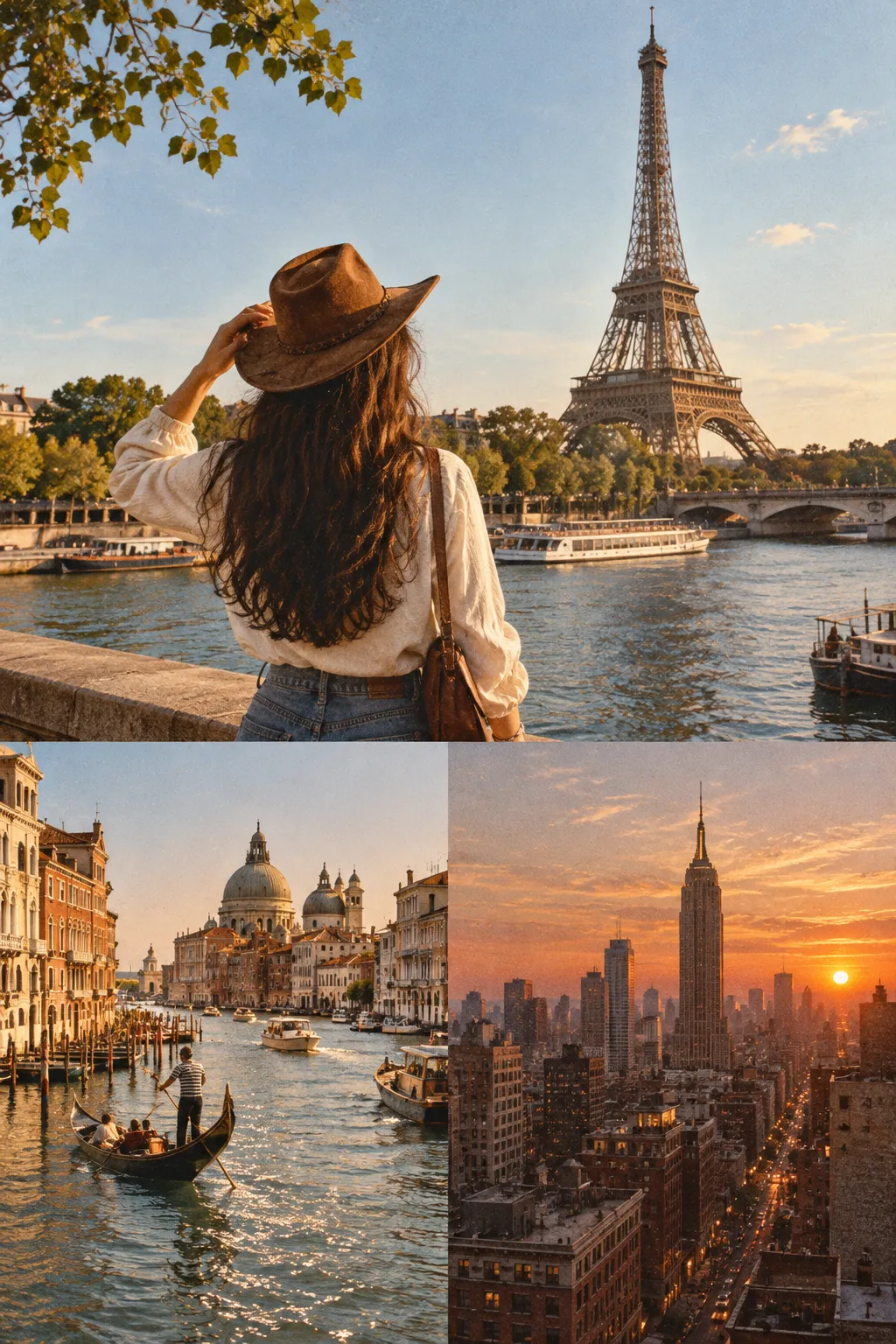
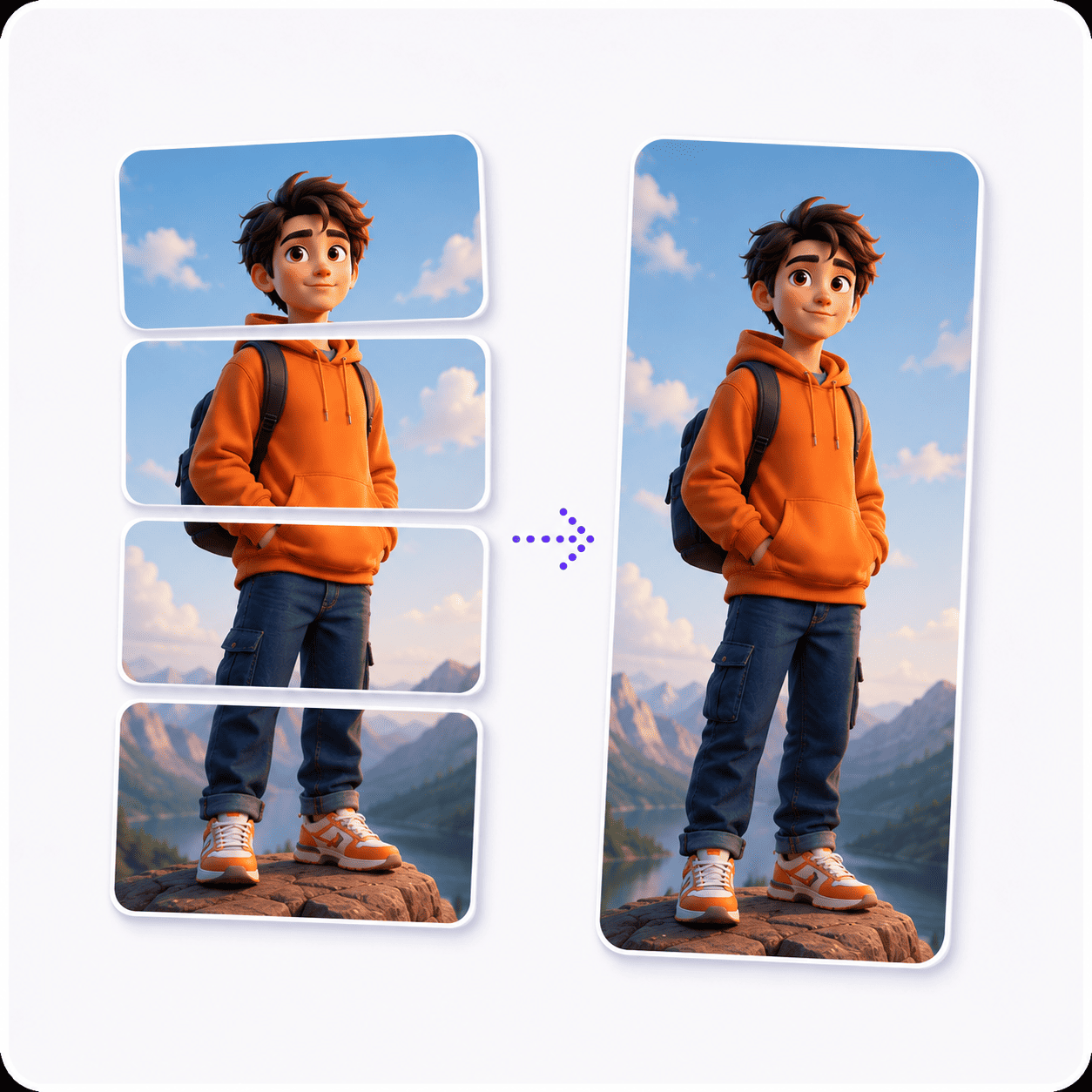
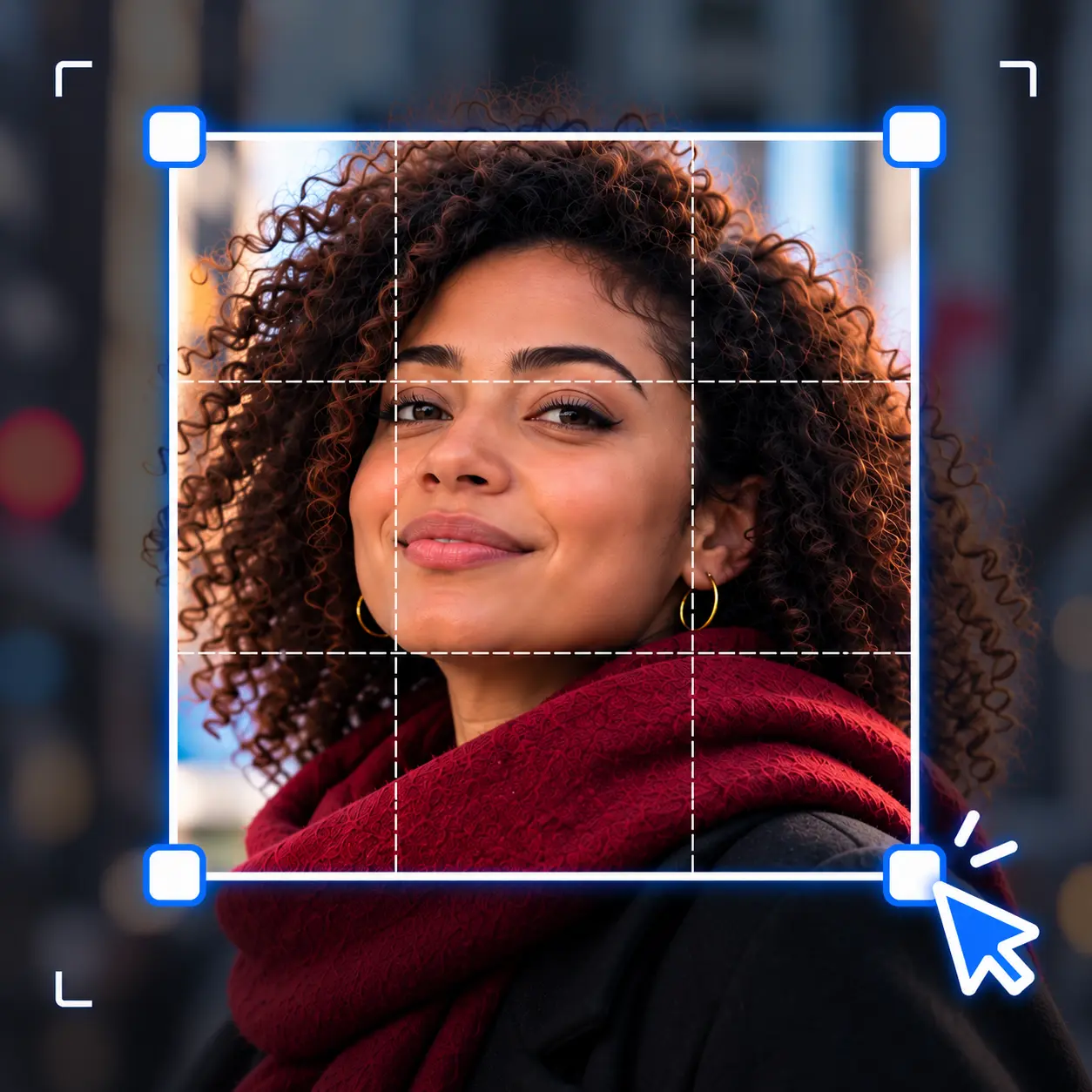
Why use Piknova?
Two photos deserve better than a gap and a guess.
What a two-photo collage should do, next to the shortcuts some editors take.
Piknova
What you get- Both photos fill their half, edge to edge
- Drag inside a half to choose what shows
- Runs in your browser, the photos stay on your device
- PNG, JPG or WebP, every export size free
- No account, no watermark
Other tools
What you put up with- One photo letterboxed, the other cropped at random
- Whatever the automatic crop picked
- Both photos sent to a server before you see a preview
- PNG only, or the big size behind a plan
- Sign up to download, or a logo in the corner
Drop two, nudge, save
Three steps in this browser tab, no account, no photo limit.
- 01
Drop two photos
JPG, PNG, WebP or AVIF. They land side by side on a wide canvas, one in each half.
- 02
Nudge each half
Click a half, then drag to move the photo inside it or zoom in. Drag the thumbnails to swap sides.
- 03
Download
Pick PNG, JPG or WebP and an export size. Every size is free and the file has no watermark.
Step by step
How to make a 2 photo collage
The layout is done before the photos arrive. What is left is the part only you can judge: which side each photo sits on and what each half shows.
- Drop both photos at once: Drag them onto the box at the top of this page, pick them from your files, or paste a screenshot with Ctrl+V. The first one takes the left half.
- Swap sides if needed: Drag the thumbnails in the strip under the preview to reorder them. A before and after reads left to right, so the before goes first.
- Choose what each half shows: Click a half to select it, then drag inside it to slide the photo. The zoom slider pulls in when the subject looks small next to its neighbour.
- Download: Open the output settings, pick a format and a size, and save. The collage is one ordinary image file.
On a phone, the first tap on a half selects it and the next drag moves the photo. That way scrolling the page never shoves a photo out of place by accident.
The layout
A 2 photo collage side by side, measured
This page opens on Even with the Wide 16:9 shape. Two photos split that canvas into halves a little taller than square, which suits phone photos of either orientation.
| Part | Size at 1080 | Photo shape that fits it |
|---|---|---|
| The whole collage | 1920 x 1080 px | 16:9, sideways |
| Photos 1 and 2 | 949 x 1080 px | 4:5, upright |
Each photo starts on Fill the cell, so it covers its half and the overflow is trimmed. A tall portrait loses a little top and bottom, a wide landscape loses a little of each side.
Would rather keep both photos whole? Click a half and switch it to Fit whole image. The space around it takes the background colour, so pick one that suits the pair.
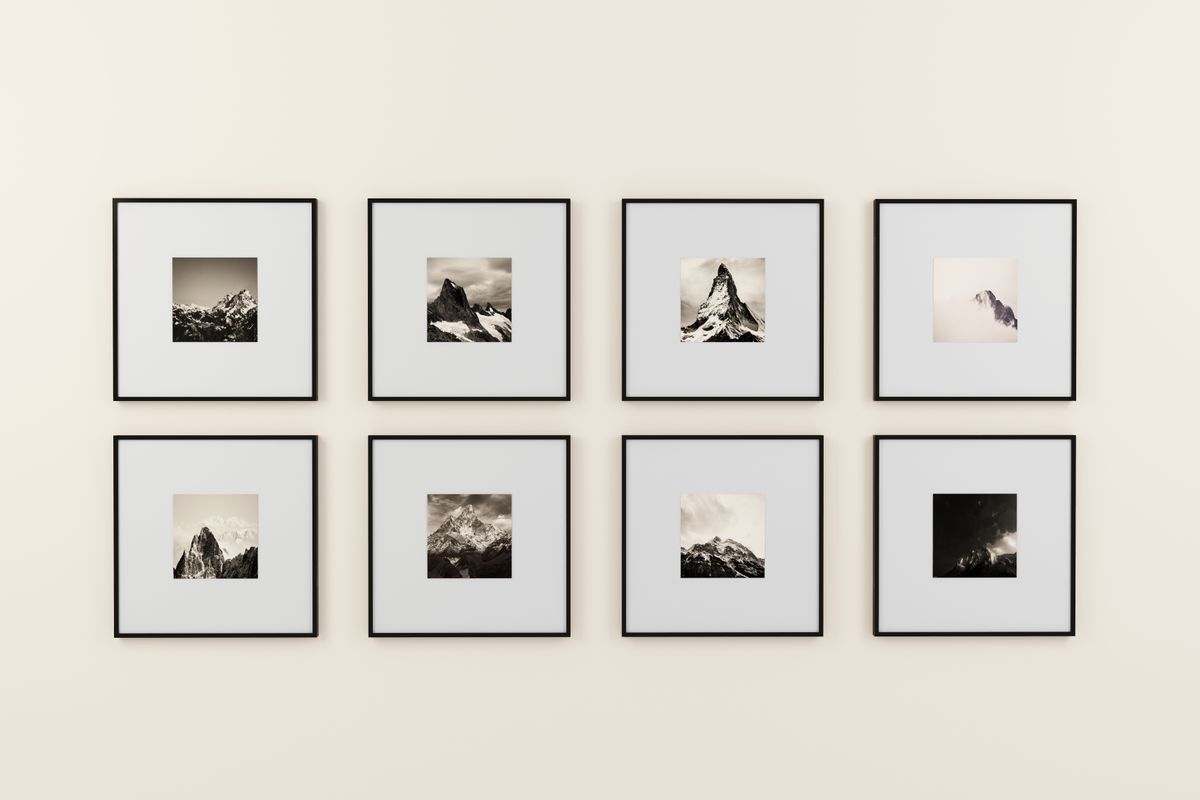
Stacked
A 2 photo collage top and bottom
Side by side is the default because most screens are wider than they are tall. When the pair should read downwards instead, there are two honest ways to stack it.
| Big top or Big bottom template | Stacked (rows) layout | |
|---|---|---|
| How the space splits | Two thirds for one photo, a third for the other | Two equal cells, one above the other |
| Collage shape | Any of the five, chosen in Sizing | Set by the photos themselves, not by a shape menu |
| Cropping | Each photo fills its cell, and you choose what shows | None by default: each photo shrinks to fit whole, and any gap takes the background colour |
| Best for | A hero shot with a detail underneath | Two screenshots, a receipt and its product, a tall then and now |
To switch, open Layout and pick Stacked (rows). That turns the collage template off, because a template and a classic layout are one choice. Pick a template again to come back.
Templates
Every 2 photo collage template, side by side
Six templates sit above the preview. With only two photos some of them look alike, so here is what each one actually does to a pair.
- Even: Two equal halves across the canvas. The fair choice when neither photo is the star.
- Big left and Big right: One photo takes two thirds of the width and the other a slim third. Good for a product with a close-up of its label.
- Big top and Big bottom: The same two-thirds split, turned sideways. The slim photo becomes a strip, so it should be something that reads at a glance.
- Mosaic: With two photos it matches Big left. It earns its own button once you add a third.
The photo first in the strip always takes the big cell. Drag a different thumbnail to the front and the two swap places without losing your zoom or position.
The shape
Horizontal photo collage, or something taller?
A horizontal photo collage suits a laptop wallpaper, a slide, an email header or a post on X. For a feed or a story, the same pair works better taller.
| Collage shape | Canvas | Photo 1's cell | Photo shape that fits it |
|---|---|---|---|
| Square | 1080 x 1080 px | 529 x 1080 px | 1:2, upright |
| Portrait 4:5 | 1080 x 1350 px | 529 x 1350 px | 1:2, upright |
| Story 9:16 | 1080 x 1920 px | 529 x 1920 px | 1:2, upright |
| Wide 16:9 (opens here) | 1920 x 1080 px | 949 x 1080 px | 4:5, upright |
| Landscape 4:3 | 1440 x 1080 px | 709 x 1080 px | 2:3, upright |
Change the shape under Sizing, in the Collage shape menu. The photos stay put and only the canvas around them changes, so it costs nothing to try all five.
On the tall shapes, two halves side by side turn into two narrow strips. For a story, Big top usually reads better, with the second photo underneath.

2 photo collage: common questions
What people ask when two photos have to share one frame.
Drop both photos on this page. They open side by side in two equal halves on a wide canvas, so there is nothing to set up.
Drag the thumbnails to swap which side each photo is on, then download.
Put the before photo first in the strip so it lands on the left. Then click each half and zoom or pan until the subject sits at the same size and height in both.
A thin line between the halves helps the eye compare. Turn it up under Lines and border if the two photos blend together.
Yes. Pick Big left, Big right, Big top or Big bottom and one photo takes two thirds of the space.
The photo first in the strip gets the big cell, so drag the star of the pair to the front.
Wide 16:9 or Landscape 4:3 for screens, slides and posts on X. Portrait 4:5 for an Instagram feed post, with Big top doing the splitting.
Square works anywhere, though each half becomes a tall strip, which suits portraits more than landscapes.
Click the half with the face that sits lower, then drag the photo up inside it until the eyes match the other side. The Vertical slider does the same thing in finer steps.
If one face is smaller, raise that half's zoom a little before you move it.
Yes. Each photo fills its own half, so the portrait loses a little top and bottom and the landscape a little of its sides.
To keep both whole instead, set each half to Fit whole image, or use the Stacked (rows) or Side by side (columns) layout, which scales photos rather than cutting them.
Two photos, one file.
Drop two photos, nudge each half until they line up, and download. Free, with no signup and no watermark.