
5 Photo Collage Maker
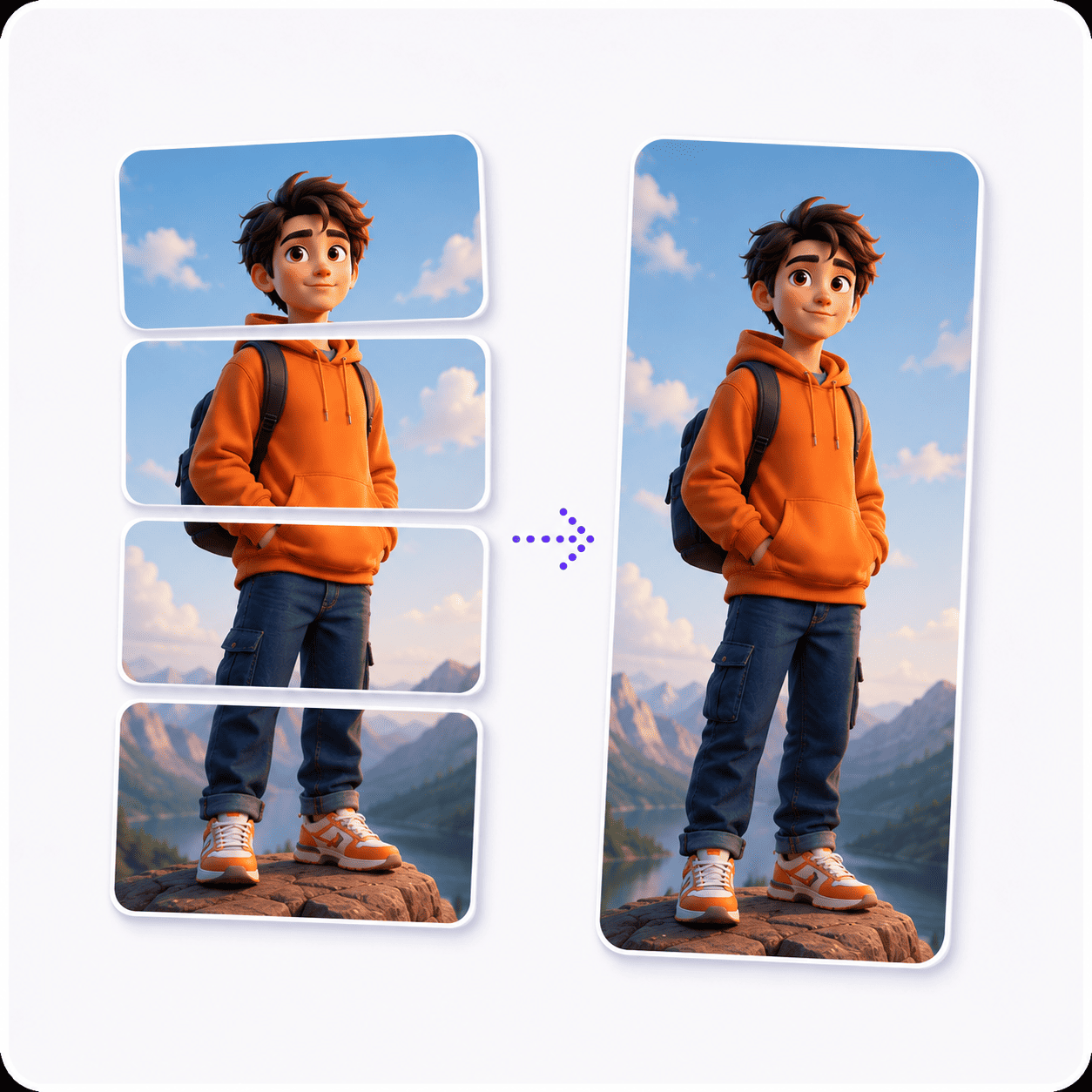
Make a 5 photo collage from one drop: the first photo spans the top in a wide cell, the other four line up underneath, and thin white lines keep them apart.
Drag & drop your photos
Add as many photos as you like. It all runs in your browser.
Five is an awkward number.
So give one photo the stage.
Five photos will not sit in a neat grid, and pretending they will leaves a hole. Give the best one the whole top of the collage and let the other four line up beneath it, and odd suddenly looks deliberate.
Other collage layouts
The same collage maker, opened on a different photo count, template or shape. Each one starts with its layout already set.
Tools that pair well with this one
All free, all in your browser, no signup.

Why use Piknova?
Five photos, no gap, and no photo left out.
The difference between a five-photo collage that looks planned and one that looks like it ran out of photos.
Piknova
What you get- One wide lead photo and four equal ones underneath
- Six templates that each fill the whole frame
- Drawn in your browser, photos stay on your device
- PNG, JPG or WebP at every size, free
- No account and no watermark
Other tools
What you put up with- A six-slot grid with one slot left blank
- One fixed layout for every photo count
- Five photos sent to a server before you see a preview
- Full resolution behind a paid plan
- An account first and a logo stamped on the result
Five photos, three steps
Three steps in this browser tab, no account, no photo limit.
- 01
Drop five photos
JPG, PNG, WebP or AVIF. The first fills the wide cell, the rest line up below.
- 02
Pick the lead
Drag thumbnails to choose which photo goes on top, then frame each cell.
- 03
Download
PNG, JPG or WebP at any export size. No watermark, no account.
Step by step
How to make a 5 photo collage
The layout is set before you start. Most of the work is deciding which photo leads and making the four small ones behave.
- Drop five photos: Drag them onto the box at the top, pick them from your files, or paste one at a time with Ctrl+V.
- Choose the lead: Drag the photo you want across the top to the front of the strip. A landscape shot fits the wide cell best.
- Order the four: The rest run left to right under it in strip order. Put the two strongest at the ends, where the eye lands after the lead.
- Frame and download: Click any cell to zoom or drag the photo inside it, then pick a format and download.
The layout
One wide photo over four: the 5 photo collage, measured
This page opens on Big top with the Square shape and a thin line between photos. These sizes come from the code that draws your download.
| Part | Size at 1080 | Photo shape that fits it |
|---|---|---|
| The whole collage | 1080 x 1080 px | 1:1, square |
| Photo 1 (the big cell) | 1080 x 709 px | 3:2, sideways |
| Photo 2 | 259 x 349 px | 3:4, upright |
| Photos 3 and 4 | 248 x 349 px | 3:4, upright |
| Photo 5 | 259 x 349 px | 3:4, upright |
Look at the photo shapes column and the layout makes sense. The wide cell is close to a landscape photo from a camera, and the four small cells are close to a phone photo held upright.
So the easy recipe is one landscape shot for the lead and four portrait shots underneath. Both lose almost nothing to cropping.

Grids
Can you make a 5 photo collage grid?
Not a perfect one, because five photos cannot fill a rectangle of equal cells. Something has to give, and you get to pick what.
Pick the Even template and the collage shows three photos on top and two underneath. Each row shares its full width, so the bottom two cells are wider than the top three and there is no empty slot.
On a square, that means three upright cells over two square ones. It is the closest thing to a grid five photos allow, and it works best when the two photos you put last are the widest.
A six-cell grid with one blank square is the other option some editors take. Here every cell always holds a photo.
Templates
Every 5 photo collage template, compared
Six templates sit above the preview. Here is what each one does with five photos on a square.
| Template | Where the five photos go | Good for |
|---|---|---|
| Big top | A wide cell across the top, four upright cells in a row beneath | One landscape and four portraits (this page's default) |
| Big bottom | Four upright cells on top, a wide cell underneath | Four moments that build to one |
| Big left | A tall cell on the left, four sideways cells stacked beside it | One full-length portrait and four landscapes |
| Big right | The same, mirrored | When the tall photo's subject faces left |
| Even | Three upright cells on top, two square cells underneath | Five photos of equal weight |
| Mosaic | Wide and square, then square and wide, then a full-width strip | A panorama to close the story |
Big left is the mirror image of this page's default: the small cells turn sideways. If most of your photos are landscapes, try it before you start cropping.
Picking photos
Choosing pictures for a 5 picture collage
Five pictures is enough to tell a small story: a setting and four things that happened in it. The layout already has a slot for each part.
- The wide cell: the place: The venue, the view, the whole group. It sets the scene for everything underneath.
- The four small cells: the moments: People, food, a sign, a laugh. Upright photos of one subject each fill these cells best.
- Keep the four alike: Four small photos side by side get compared. Similar distance and similar light make them read as one row.
Faces in the small cells are the usual problem: Fill the cell trims from the top and bottom, and foreheads go first. Click the cell and drag down, or zoom out a little.
Other shapes
A 5 photo collage in other shapes
The shape decides what the four small cells become. Here is this page's Big top layout on each shape.
| Collage shape | Canvas | Photo 1's cell | Photo shape that fits it |
|---|---|---|---|
| Square (opens here) | 1080 x 1080 px | 1080 x 709 px | 3:2, sideways |
| Portrait 4:5 | 1080 x 1350 px | 1080 x 889 px | 5:4, sideways |
| Story 9:16 | 1080 x 1920 px | 1080 x 1269 px | 4:5, upright |
| Wide 16:9 | 1920 x 1080 px | 1920 x 709 px | 3:1, sideways |
| Landscape 4:3 | 1440 x 1080 px | 1440 x 709 px | 2:1, sideways |
On Landscape 4:3 the lead becomes a panorama and the four small cells become squares, which suits a slide or a desktop wallpaper. On Wide 16:9 both get wider still.
On Story 9:16 the four small cells shrink to thin strips. Switch to Mosaic there: two rows of wide and narrow cells and a full-width strip at the bottom use the tall canvas far better.
5 photo collage: common questions
Short answers about arranging five photos in one image.
Give one photo more room than the others. Big top does it with a wide cell over four small ones, and every template here fills the whole frame.
If you want them all the same weight, Even puts three on top and two wider ones underneath, still with no empty slot.
Big top, when one photo is clearly the best. It is the default here because a wide lead over four small photos reads as planned.
If no photo stands out, try Mosaic. It mixes wide and narrow cells so five equal photos still look arranged.
Yes, pick Big bottom. The four small photos move to the top and the first photo in the strip spans the bottom.
It works for a story with a payoff: four steps of a recipe, then the finished dish.
Click the cell and drag the photo down until the head sits inside it, or zoom out slightly.
For a photo that will not fit, switch it to Fit whole image. It shows the whole picture with a bit of background colour around it.
Yes. Set the Collage shape to Story 9:16 and pick Mosaic, which stacks wide and narrow cells and ends with a full-width strip.
Big top on a story shape squeezes the four small photos into thin strips, so it is better on a square or a landscape.
Four photos share one row, so each gets a quarter of the width, and the row is a third of a square's height. That makes them upright.
Switch the Collage shape to Landscape 4:3 and the same four cells become squares.
One photo leads, four follow.
Drop five photos and get a collage with a wide lead and four in a row. Free, no account, no watermark.