
Photo Grid Maker
Use this photo grid maker to turn your photos into an even grid: every cell the same size, a thin white line between each one and a frame around the edge.
Drag & drop your photos
Add as many photos as you like. It all runs in your browser.
A grid is a promise:
every photo gets the same room.
No hero shot and no favourites. A photo grid treats every picture the same, which is exactly why it looks calm in a busy feed. This one keeps the cells equal, the lines even and the frame tidy.
Other collage layouts
The same collage maker, opened on a different photo count, template or shape. Each one starts with its layout already set.
Tools that pair well with this one
All free, all in your browser, no signup.

Why use Piknova?
A grid should be even, not almost even.
Where photo grids usually slip, and what this one does instead.
Piknova
What you get- Cells sized from the count, so they come out equal
- Photos cropped to their cell, never stretched
- Drawn in your browser, photos stay on your device
- Every export size free, with no photo limit
- No account and no watermark
Other tools
What you put up with- A fixed template with one cell oddly larger
- Faces squashed to fill a box
- Every photo sent to a server first
- A cap on photos, or on resolution, until you pay
- A brand mark on the corner of the grid
A photo grid in three steps
Three steps in this browser tab, no account, no photo limit.
- 01
Drop your photos
JPG, PNG, WebP or AVIF, as many as you like. The grid sizes itself.
- 02
Order the cells
Drag thumbnails to move photos around, then click a cell to reframe it.
- 03
Download
PNG, JPG or WebP at any export size. No watermark, no account.
Step by step
How to make a photo grid
The grid is set up before you drop a single photo. Here is the whole job from start to download.
- Drop your photos: Drag them onto the box at the top or pick them from your files. They fill the grid left to right, row by row.
- Pick a count that fills the rows: Four, six, nine, twelve and sixteen give perfectly equal cells. Other counts give the last row slightly wider cells.
- Set the order: Drag thumbnails in the strip. A photo's framing moves with it, so you can reorder after reframing.
- Tune the lines: Open Lines to change the thickness or colour, or switch off Around the edge for an unframed grid.
- Download: Choose PNG, JPG or WebP and an export size.
The default
What this grid photo collage maker opens on
Four photos, the Even template, the Portrait 4:5 shape, and white lines both between the photos and around the edge. The table comes from the code that draws your download.
| Part | Size at 1080 | Photo shape that fits it |
|---|---|---|
| The whole collage | 1080 x 1350 px | 4:5, upright |
| Photos 1 to 4 | 507 x 642 px | 4:5, upright |
All four cells are exactly the 4:5 shape, the same as the collage itself. A portrait photo from a phone drops in with almost nothing cropped.
The frame is the same thickness as the lines between, which is what makes a grid look deliberate. Change one and the other follows.

Photo counts
Picture grid maker: how the grid grows with each photo
You never pick rows and columns here. The count does it, and this is how Even lays each count out on a square.
| Photos | Photos per row | Smallest cell |
|---|---|---|
| 2 | 2 | 540 x 1080 px |
| 3 | 3 | 360 x 1080 px |
| 4 | 2 + 2 | 540 x 540 px |
| 5 | 3 + 2 | 360 x 540 px |
| 6 | 3 + 3 | 360 x 540 px |
| 7 | 3 + 3 + 1 | 360 x 360 px |
| 8 | 3 + 3 + 2 | 360 x 360 px |
| 9 | 3 + 3 + 3 | 360 x 360 px |
| 10 | 4 + 4 + 2 | 270 x 360 px |
| 11 | 4 + 4 + 3 | 270 x 360 px |
| 12 | 4 + 4 + 4 | 270 x 360 px |
Up to three photos sit in a single row. Four make a 2x2, five to nine go three across, and ten to sixteen go four across.
When the count does not fill the last row, its cells get wider so there is no empty gap. Add or remove a photo to land on a full grid.
Tall grids
Making a vertical photo collage
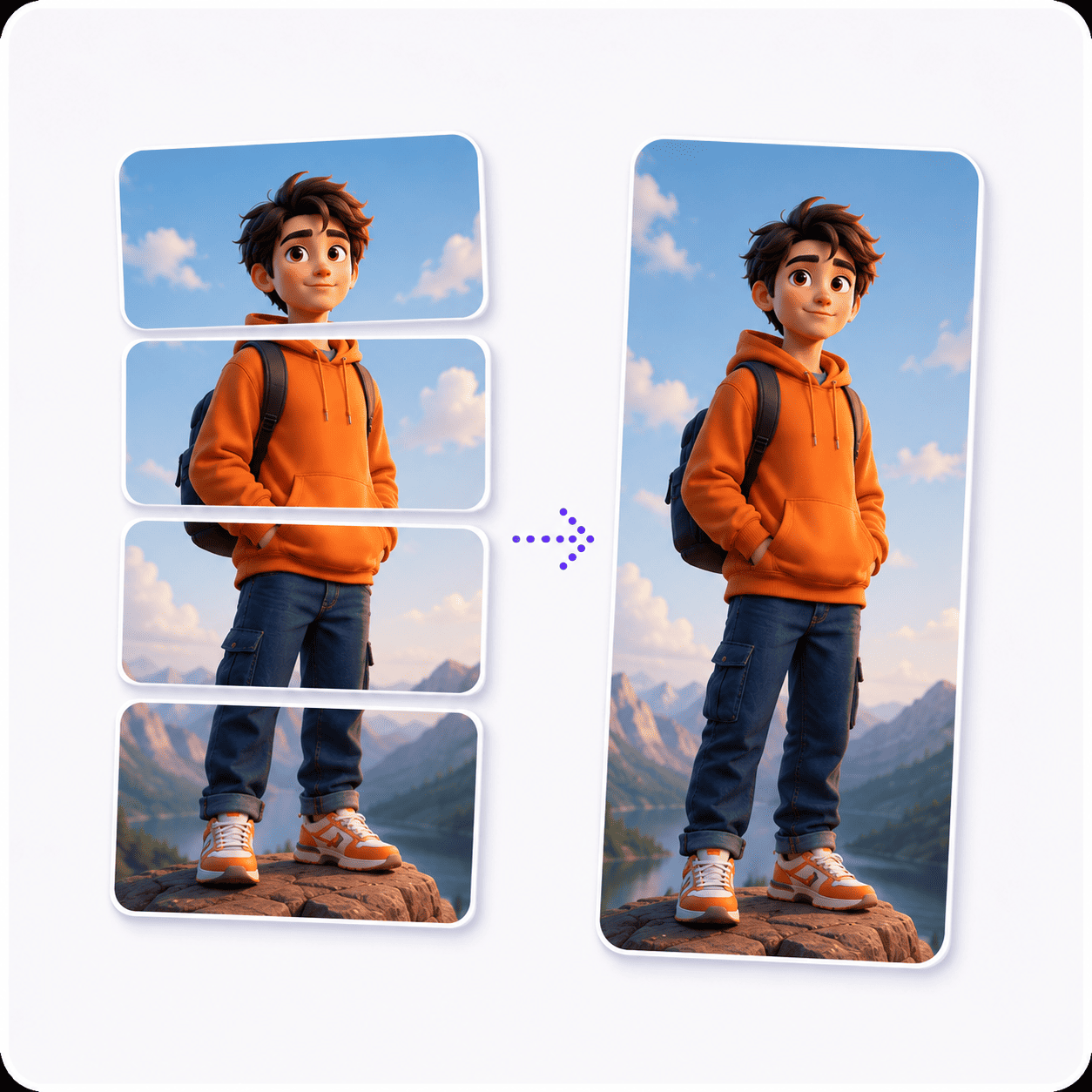
A vertical grid is one setting away. The Collage shape menu decides how tall the canvas is, and the cells follow.
| Collage shape | Canvas | Photo 1's cell | Photo shape that fits it |
|---|---|---|---|
| Square | 1080 x 1080 px | 507 x 507 px | 1:1, square |
| Portrait 4:5 (opens here) | 1080 x 1350 px | 507 x 642 px | 4:5, upright |
| Story 9:16 | 1080 x 1920 px | 507 x 927 px | 9:16, upright |
| Wide 16:9 | 1920 x 1080 px | 927 x 507 px | 16:9, sideways |
| Landscape 4:3 | 1440 x 1080 px | 687 x 507 px | 4:3, sideways |
Portrait 4:5 is already vertical. Story 9:16 goes further: four photos on it make four cells shaped like a phone screen, ready for a story or a lock screen.
For a long strip with every photo in one column, open Layout and pick Stacked (rows). Each photo keeps its whole frame, and the strip grows as tall as the photos need.
Grid or collage
Photo grid collage: when a grid beats a freer layout
A grid and a collage are the same tool here, with a different template. The choice is about how equal your photos are.
| You are making | Pick | Why |
|---|---|---|
| A set of product shots | Even | Every item deserves the same space |
| A team or class page | Even | Nobody gets a bigger face |
| A trip with one great view | Big top | The view earns two thirds of the canvas |
| Mixed landscape and portrait photos | Mosaic | Wide and narrow cells take both |
| A before and after | Even with two | Two equal halves compare fairly |
If every photo matters equally, it is a grid. If one matters more, it is a collage, and the featured templates are one click above the preview.
Fitting photos
Fill or fit: getting odd-shaped photos into a grid
Grids are strict, and photos are not. Every cell has two honest ways to take a photo that does not match it.
- Fill the cell: The default. The photo covers the whole cell and the edges that do not fit are cropped. Click the cell to slide it so the right part shows.
- Fit whole image: The whole photo shows, shrunk to fit, and the background colour fills the space around it. Good for screenshots and documents.
Neither option stretches a photo out of shape. A face stays a face, whichever you choose.
Photo grid maker: common questions
Short answers about making an even grid of photos.
A photo grid is a set of photos arranged in equal cells, in rows and columns, saved as one image.
Unlike a freer collage, no photo gets more room than another.
Use a count that fills every row: 4, 6, 9, 12 or 16 photos. The Even template then makes every cell exactly the same.
Other counts work too, with slightly wider cells in the last row.
Yes. This page already opens on Portrait 4:5. Switch the Collage shape to Story 9:16 for a taller grid.
For a single column of photos, pick Stacked (rows) under Layout.
Not directly. The Even template picks the columns from how many photos you add, so the grid stays balanced.
For a fixed two-column grid, pick the classic Grid layout, which always uses two columns and keeps each photo whole.
A grid gives every photo the same cell. A collage can give one photo more room, like the Big top or Mosaic templates do.
Both are made here, and switching between them is one click.
No. Fill the cell crops a photo to fit, and Fit whole image shrinks it and fills the gap with the background colour.
Neither one changes a photo's proportions.
Every photo, the same room.
Drop your photos and get an even, framed grid in a 4:5 portrait. Free, no account, no watermark.